
What is Telemetry in Windows? How can we configure and turn off or disable Windows Telemetry & Data Collection for the entire system or for individual components on Windows 11/10, on your personal computer, or your organization or enterprise, to maintain privacy? If you are an IT Pro, then this article is sure to interest you.
What is Telemetry in Windows 11
Telemetry is an automated process in which data is collected at remote points and transmitted back to the ‘parent’ for measurement, monitoring, and service improvement.
Says Microsoft:
Telemetry is system data that is uploaded by the Connected User Experience and Telemetry component. The telemetry data is used to keep Windows devices secure, and to help Microsoft improve the quality of Windows and Microsoft services. It is used to provide a service to the user as part of Windows.
In Windows, Microsoft collects data from computers, aggregates it, and uses it to keep Windows devices secure and improve the quality of Microsoft services and the Windows operating system.
Windows telemetry is vital technical data from Windows devices about the device and how Windows and related software are performing. It’s used in the following ways:
- Keep Windows up to date.
- Keep Windows secure, reliable, and performant.
- Improve Windows – through the aggregate analysis of the use of Windows.
- Personalize Windows engagement surfaces.
Microsoft collects data in accordance with its security and privacy policies and international laws and regulations. It uses the data to provide, improve, and personalize experiences and for security, health, quality, and performance analysis. However, it may share aggregated, anonymous telemetry data with third parties for limited purposes or share business reports with partners.
Connected User Experiences and Telemetry: Safe to disable?
The Connected User Experiences and Telemetry service in Windows can be safely disabled without harming core system functionality, though it may limit Microsoft’s ability to collect diagnostic data for improving Windows. Disabling it can improve performance by reducing background resource usage.
How to disable Telemetry and Data Collection in Windows 11
While the intentions of collecting telemetry data might be good, many enterprises and organizations may have Windows Privacy issues and may feel that their privacy is being breached – and they might want to block the collection & uploading of this telemetry data.
If you are looking for ways to minimize your connections from your Windows systems to Microsoft, you can configure the Telemetry and Data Collection settings in Windows 10.

As this post mainly targets IT Pro’s as it discusses ways organizations can configure telemetry at the lowest level – and evaluate & turn off in their business environment, the connections Windows makes to Microsoft services, individual home users of Windows 11/10 may not find the contents of this post much useful. They can, therefore, take a look at the following posts too:
To manage all the configurations and network settings, you will need to have Windows 11/10 Enterprise or Windows 11/10 Education or later installed. These OS versions allow you to configure and disable Telemetry at the Security level, turn off Windows Defender Telemetry, MSRT reporting along with the ability to turn off all other connections to Microsoft services and prevent Windows from sending any data to Microsoft.
Levels of Telemetry in Windows
There are 4 levels of telemetry in Windows 11/10.
- Security. In this level, only the telemetry data that is required to keep Windows devices secure is collected, and it is available in Windows 11/10 Enterprise, Windows 11/10 Education, and Windows 11/10 IoT Core editions only.
- Basic. This level gathers a minimum set of data which is critical for understanding the device and identifying problems.
- Enhanced. The next level gathers data about how you use Windows and its apps and helps Microsoft improve the user experience.
- Full. This level gathers all of the above information and any additional data that may be required to identify and help fix problems.
Change level of Windows Telemetry
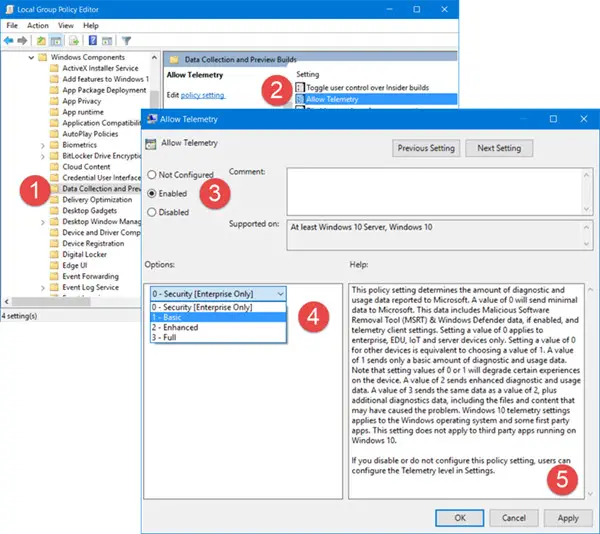
If you wish to change the level of telemetry on your system, open Group Policy Editor and navigate to the following setting:
Computer Configuration\Administrative Templates\Windows Components\Data Collection And Preview Builds\Allow Telemetry
Here select Enabled and then from the drop-down, select Basic or any level which your version of OS allows.
This policy setting determines the amount of diagnostic and usage data reported to Microsoft. A value of 0 will send minimal data to Microsoft. This data includes Malicious Software Removal Tool (MSRT) & Windows Defender data, if enabled, and telemetry client settings. Setting a value of 0 applies to enterprise, EDU, IoT and server devices only. Setting a value of 0 for other devices is equivalent to choosing a value of 1. A value of 1 sends only a basic amount of diagnostic and usage data. Note that setting values of 0 or 1 will degrade certain experiences on the device. A value of 2 sends enhanced diagnostic and usage data. A value of 3 sends the same data as a value of 2, plus additional diagnostics data, including the files and content that may have caused the problem. Windows telemetry settings applies to the Windows operating system and some first party apps. This setting does not apply to third party apps running on Windows. If you disable or do not configure this policy setting, users can configure the Telemetry level in Settings.
Disable Telemetry in Windows 11/10
If you are an individual Home user and your version of Windows 11/10 does not ship with Group Policy Editor, Run regedit to open the Registry Editor and navigate to the following key:
HKEY_LOCAL_MACHINE\SOFTWARE\Policies\Microsoft\Windows\DataCollection
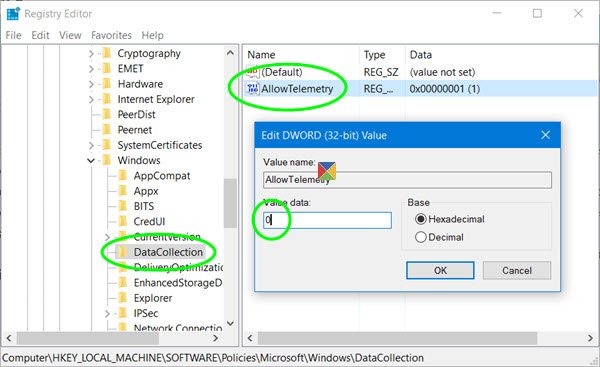
Here, create a new DWORD (32-Bit), name it AllowTelemetry and give it a value of 0. This will disable telemetry. If the key does not exist, you will have to create it.
Now you need to also disable the Connected User Experiences and Telemetry Service.
Run services.msc and look for this service. Double-click on it and from the Startup type, select Disabled.
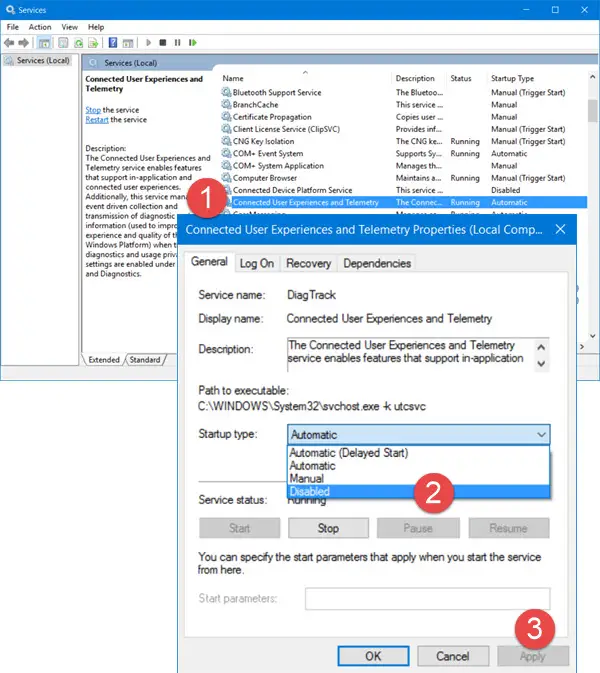
The Connected User Experiences and Telemetry service enables features that support in-application and connected user experiences. Additionally, this service manages the event driven collection and transmission of diagnostic and usage information (used to improve the experience and quality of the Windows Platform) when the diagnostics and usage privacy option settings are enabled under Feedback and Diagnostics.
Alternatively, to disable this Service you could use Windows PowerShell and run the following commands one after the other:
stop-service diagtrack
set-service diagtrack -startuptype disabled
Read: Send optional diagnostic data not turning off in Windows 11
Disable Telemetry & Data Collection in Windows using Task Scheduler
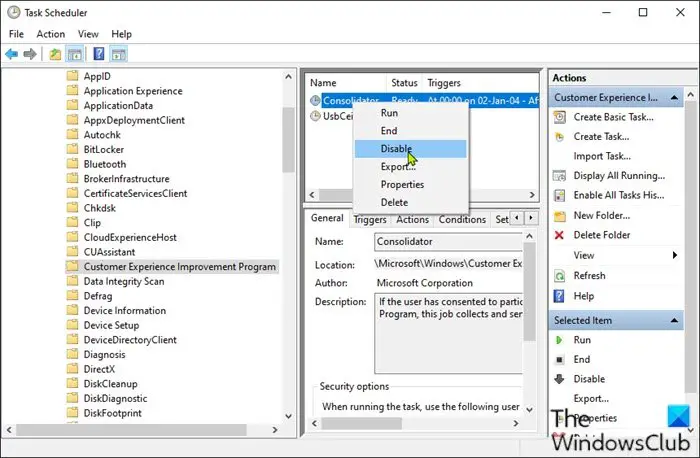
To disable Telemetry and Data Collection using Task Scheduler in Windows 11/10, do the following:
- Press Windows key + R to invoke the Run dialog.
- In the Run dialog, type
taskschd.msc. - Press CTRL+SHIFT+ENTER key combo to open Task Scheduler in admin mode.
- In the window that opens, on the left pane, navigate to the path below:
Task Scheduler Library > Microsoft > Windows > Customer Experience Improvement Program
- At the location, on the middle pane, right-click on the task named Consolidator and select Disable from the context menu..
- Repeat the process with all other tasks listed in the middle pane.
- Exit Task Scheduler when you’re done.
That’s it!
So, if you are using Windows 11/10, you can use this method to set data collection to minimal or fully disable Telemetry and Data Collection on your Windows 10 computer.
Configure Telemetry settings for individual components
If you wish to set the telemetry levels for specific Windows 11/10 features individually, you can do that too. Windows 11/10 allows you to configure telemetry settings for the following components and thereby control the data that is sent to Microsoft:
- Cortana
- Date & Time
- Device metadata retrieval
- Font streaming
- Insider Preview builds
- Internet Explorer browser
- Mail synchronization
- Microsoft Edge browser
- Network Connection Status Indicator
- Offline maps
- OneDrive
- Preinstalled apps
- Privacy Settings
- Software Protection Platform
- Sync your settings
- Teredo
- Wi-Fi Sense
- Windows Defender
- Windows Media Player
- Windows spotlight
- Windows Store
- Windows Update
- Windows Update Delivery Optimization
You can turn off telemetry for individual components using various methods. These include the UI, Group Policy, Registry, MDM policy, and Windows ICD. This table shows which paths are available to configure the settings.
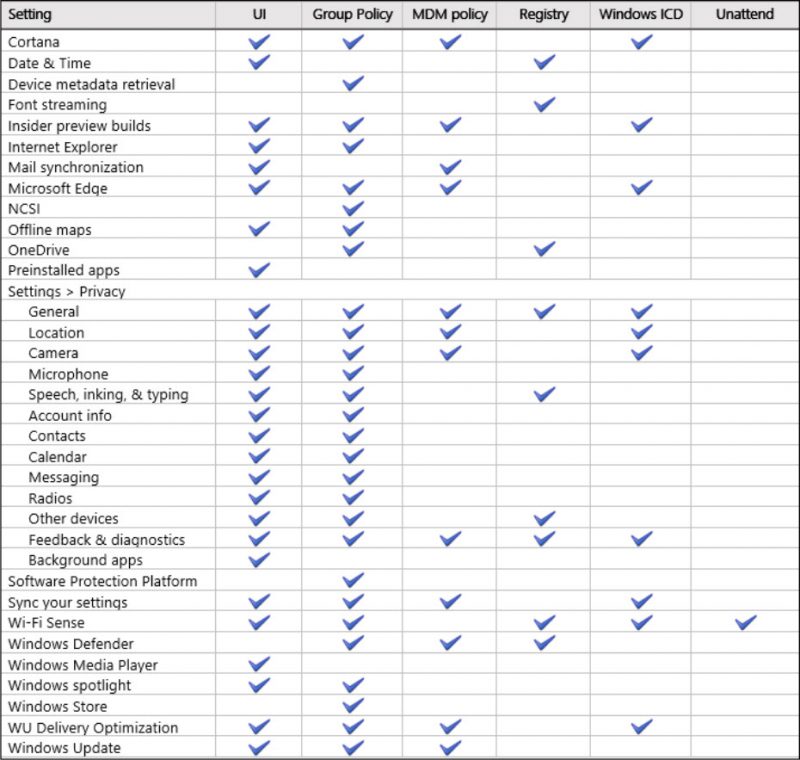
You might want to also read these posts on how to disable Windows Customer Experience Improvement Program using GPEDIT or Registry and how to disable NVIDIA Telemetry.
Read next: How to disable AI in Windows 11.
