
The Recall feature in Windows 11 is rolling out gradually for general availability. Microsoft Recall, also referred to as Windows Recall, is a native feature that automatically takes snapshots of your screen and lets you search and access those snapshots to find items on your Windows 11 PC. It is an opt-in feature exclusive to Copilot+ PCs powered by Intel, Qualcomm Snapdragon, and AMD processors. In this post, we will cover a detailed explanation of Recall and also help you to use Recall in Windows 11 to make the most out of it.
What is Recall in Windows 11?
Recall is an AI-powered feature to help you find almost anything that you have seen on your Windows 11 PC. Whether you’ve seen some content in a website, image, document, or an app, you can search for that content using the snapshots taken by Recall. You can also jump back into the content in a snap, which is particularly helpful for picking up where you left off.
When this feature is enabled or you opt in for saving snapshots, it automatically takes the snapshots of your screen every few seconds (including when the content of the active window changes) and stores them locally to create a photographic memory. It doesn’t save or record continuous video or audio. Also, it doesn’t record game video when you use Game Mode on your Windows 11 device. Its main purpose is to take snapshots and help you find things using your explorable timeline or semantic-powered search.
Your Recall snapshots remain encrypted and protected with Windows Hello Enhanced Sign-in Security (ESS). Later on, you can access all those snapshots in your Recall timeline and quickly search for content (both text and images). You can also describe something in your own words to perform the search. Based on your search query, Recall retrieves text matches and visual matches for your search.
By default, Recall saves snapshots for everything, but you can filter apps and websites to exclude them from snapshots. You can also temporarily pause snapshots, disable Recall, delete your snapshots, and more. This post includes all the features and options for Recall separately.
What are the minimum system requirements to use Recall on Windows 11?
To use Recall, you must have a Copilot+ PC that meets the Secured-core standard, 16 GB RAM, 256 GB hard disk, 40 TOPs NPU (neural processing unit), and 8 logical processors. If your system fails the minimum hardware requirement, you can’t open Recall in Windows 11. There’s a workaround to download and install Recall on an unsupported device, though. Additionally, you must enroll in Windows Hello Enhanced Sign-in Security and enable BitLocker or Device Encryption to use it.
How to use Recall in Windows 11
Now you are ready to use Recall in your Windows 11 PC. We have covered the following important sections to help you use Recall with ease:
- Enable Recall to take snapshots of your screen
- Open Recall to access your Recall Timeline
- Interact with snapshot content using Click to Do in Recall
- Pause or Resume Snapshots
- Configure Recall to filter apps and websites
- Manage the Sensitive information filter setting
- Change Maximum Storage Size for Recall Snapshots
- Change Maximum Storage Duration for Recall Snapshots
- Import or Export your Recall Snapshots
- Delete Recall Snapshots
- Reset Recall in Windows 11.
Let’s check each in detail.
1] Enable Recall to take snapshots of your screen
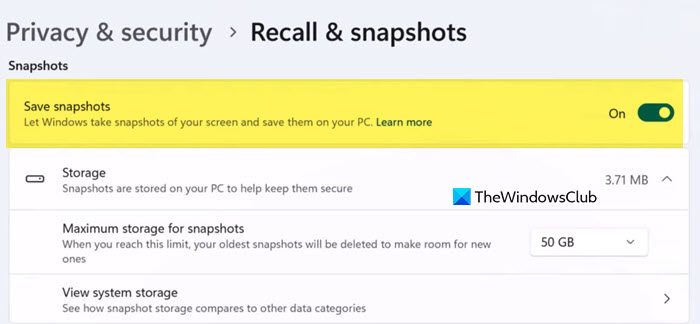
As we mentioned at the start, Recall is an opt-in feature. You can enable it during the setup while installing the Windows update, or do it later by opting in to save snapshots to use Recall. For this, open the Settings app > Privacy & security > Recall & snapshots. Turn on the Save snapshots option. In the Windows Security confirmation box, press OK. After activating Recall, Windows will automatically take snapshots of your screen and save them locally.
If multiple users are signed in with different accounts on your Windows 11 PC, you must opt in to save snapshots for each user separately for using Recall.
2] Open Recall to access your Recall Timeline
You can open Recall to access your Recall Timeline using the following ways:
- Press the Win+J hotkey to open Recall
- Click on the Recall system tray icon in the taskbar and press the Open Recall button
- Open or access the Quick Settings (Win+A) and click on the Recall (preview) icon in the menu. Press the Open Recall button in the box that opens
- Open the Start menu > access All apps (or Show all) > Recall.
After using any of these options, you will be prompted by Windows Security for confirmation. Press OK in that box.
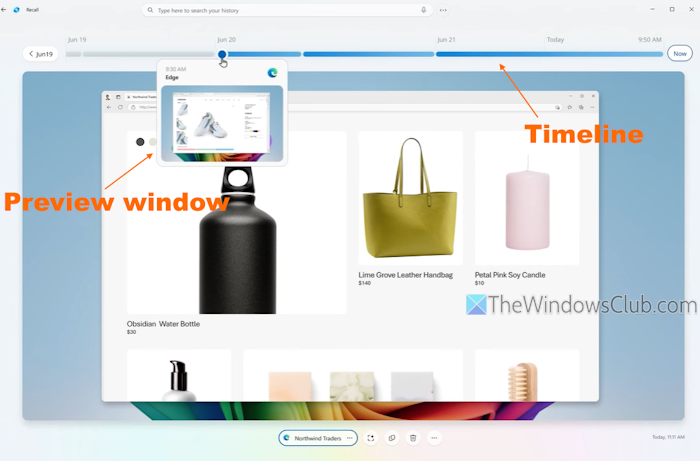
Now your Recall Timeline will open, where you can see all the snapshots. You can hover over the timeline to review your activity. A preview box appears for each snapshot when you hover over it. You can select the location or click on the snapshot preview to access and interact with the content.
If you are looking for specific content, use the Search box and describe it. The search results are shown with the Text matches section and the Visual matches section, with Close match and Related match. You can filter the search to narrow the matches to a specific app.
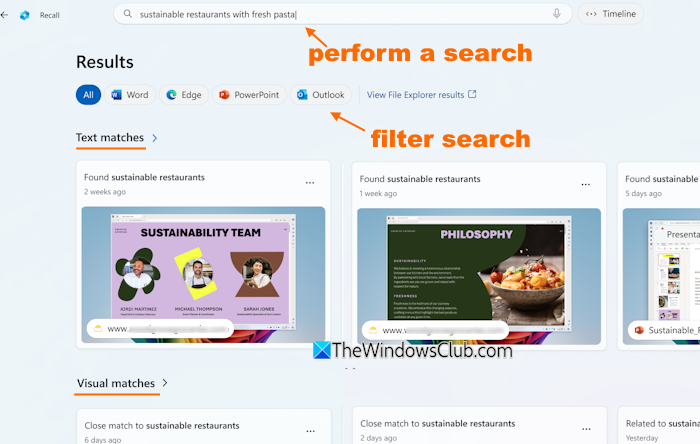
For each snapshot in the search results, there’s a three-dot icon (…) that displays a Copy snapshot option and a Delete snapshot option. Using the latter option, you can delete a particular snapshot or delete all snapshots from a specific app (say, Excel).
3] Interact with snapshot content using Click to Do in Recall
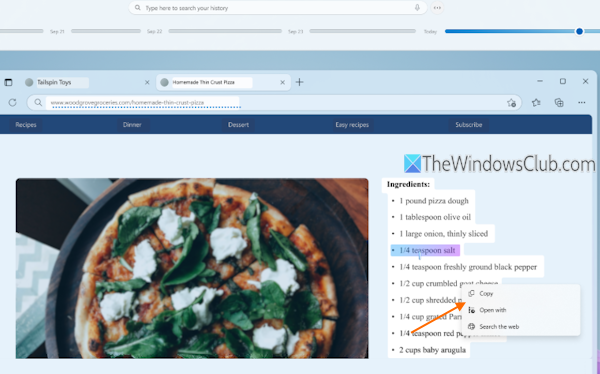
This is an interesting and important option in Recall that lets you interact with the text and images in a snapshot. That means you will be able to copy an image or text recognized in the snapshot, open the selected text with an app like Notepad, perform a web search with the default browser, summarize the selected text, open the image with Photos app, Paint, or Snipping Tool, perform a visual search, and more. This is done with the Click to Do feature in Recall.
When you open a snapshot, Recall automatically enables Click to Do, which analyzes the snapshot to recognize the text and images locally. The cursor changes to blue and white when Click to Do is active. Now you can highlight a text or select an image and right-click on it to use the options.
If you don’t want to use it, turn off this option by clicking on the Hide Click to Do button or icon on the bottom part of Recall. You can also enable or disable Click to Do on your Windows 11 PC anytime.
4] Pause or Resume Snapshots
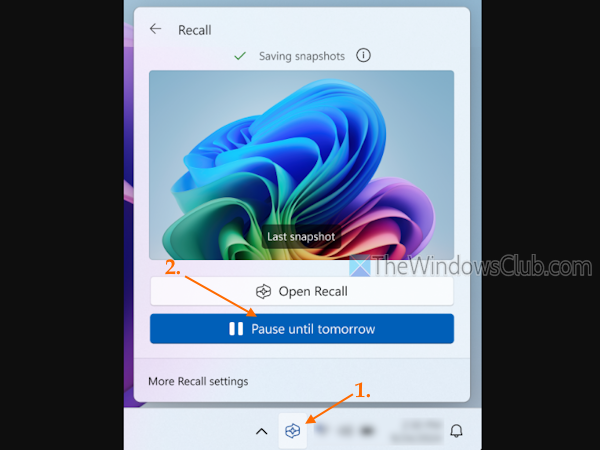
Click on the Recall system tray icon to open the Recall box. There, press the Pause until tomorrow button. This will pause the snapshot capture until 12:00 AM. However, you can manually resume the snapshot capture process by clicking the Recall icon and pressing the Resume snapshots button.
5] Configure Recall to filter apps and websites
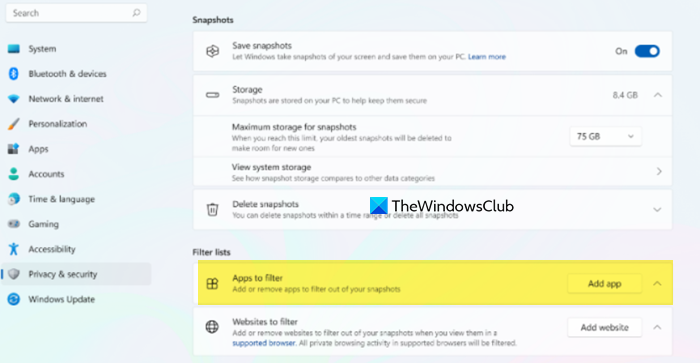
You can configure Recall to filter certain apps and websites. This helps to exclude an app or website from being saved in Recall snapshots. Thus, the choice and control remain in your hands. Microsoft Edge, Google Chrome, Firefox, Opera, and other Chromium-based browsers (version 124 or later) are supported for Recall to filter websites.
Go to the Settings app > Privacy & security > Recall & snapshots. In the Filter lists section, you can use the Add app button or Add website button to add apps or websites to filter out of your snapshots.
6] Manage the Sensitive information filter setting
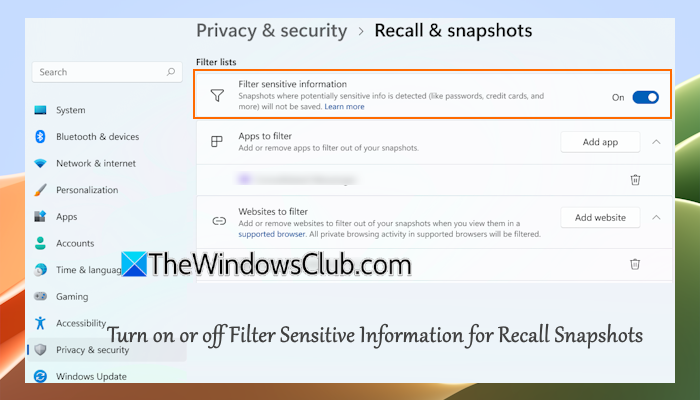
The Sensitive information filter setting is enabled by default when using Recall to ensure data confidentiality. That means, if potentially sensitive information (say a password, credit card number, etc.) is detected by Recall, the snapshots will not be taken. You can manage this setting easily. In the Recall & snapshots settings page, there’s a toggle for the Filter sensitive information setting for Recall that you can use as per your needs.
Note: The remote desktop connection sessions from clients like VMConnect.exe, Azure Virtual Desktop (MSI), or Remote Desktop Connection (mstsc.exe) are also filtered from snapshots.
7] Change Maximum Storage Size for Recall Snapshots

Depending on your device storage capacity, a default storage space is allocated for Recall snapshots. As an example, if you have a 512 GB drive, 75 GB (default) storage is allocated for snapshots. But you can set it to 25 GB, 50 GB, etc.
Access the Recall & snapshots page and expand the Storage section. Open the drop-down menu for the Maximum storage for snapshots and select a limit. When the storage limit is reached, the oldest snapshots are removed to make room for new snapshots.
8] Change Maximum Storage Duration for Recall Snapshots
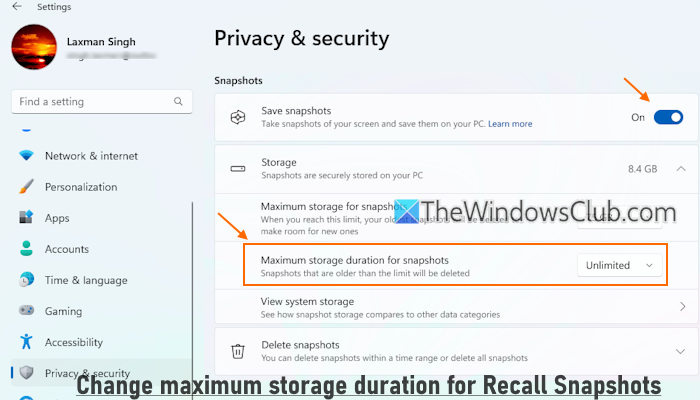
You can select if you want to keep your Recall snapshots for 30 days, 180 days, 60 days, 90 days, or unlimited. Once the limit is reached, the snapshots are deleted automatically. If you haven’t specified a limit, the snapshots are kept till the maximum storage size is reached. To manage the storage duration, access the Storage section in the Recall & snapshots page. Set the limit using the Maximum storage duration for snapshots drop-down menu.
9] Import or Export your Recall Snapshots
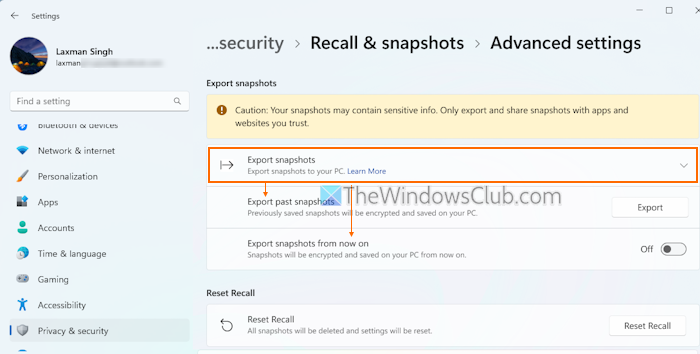
This option to import or export Recall snapshots is exclusive to European Economic Area (EEA) users. You will have the option to export Recall snapshots from now on, and export past snapshots. The exported snapshots can be used by apps or websites that you trust. A unique Recall Export Code is generated to access and import the exported Recall snapshots to apps or websites you want.
10] Delete Recall Snapshots
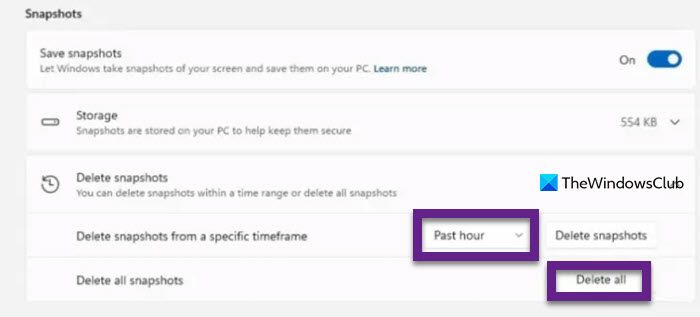
If you want, you can delete all your Recall snapshots or delete snapshots from a specific timeframe (say Past hour, Past 30 days, Past 7 days, or Past 24 hours). For this:
- Open the Settings app
- Access Privacy & security > Recall & snapshots > and expand Delete snapshots
- Press the Delete all button or use a timeframe, and then press the Delete snapshots button.
You can also open your Recall Timeline and select a snapshot to delete it. Once the snapshot is selected or opened in Recall, use the Delete drop-down menu at the bottom part, and select an option (Delete snapshot, Delete all…, etc.) for deletion.
11] Reset Recall in Windows 11
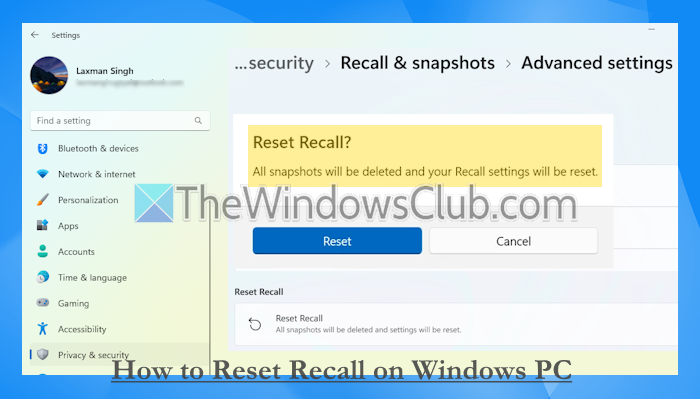
You can reset Recall in Windows 11 with just two mouse clicks. This option will delete all the saved snapshots taken by you and Recall and reset the Recall settings to default. Use this option if you are having trouble using Recall, Recall is not saving snapshots after trying every possible solution, or you want to start from the beginning.
In the Settings app, go to Privacy & security > Recall & snapshots > Advanced settings. Press the Reset Recall button and confirm the action.
TIP: You can also uninstall Recall on Windows.
How to check if Windows Recall is activated?
If Windows Recall is activated on your PC, use Win+J to open it. You can also see Recall in the Start menu apps list, on the taskbar, or in the search results if it is activated. Additionally, you can open the PowerShell profile in Windows Terminal and execute the following command to check the status:
DISM /Online /Get-FeatureInfo /FeatureName:Recall
If the Recall is activated, its State is visible as ‘Enabled‘. Otherwise, the State entry will appear as ‘Disabled’ or ‘Disabled with Payload Removed’.
Read next: Is Microsoft’s Recall AI safe for Privacy? An in-depth analysis.
