
In this post, we will show you how to clear the Search history in Recall on a Windows 11 Copilot+ PC. When we search for content or perform a search on the Recall interface to find the saved snapshots taken by Recall, that query is stored in its search history. Later, those search queries appear as suggestions in a drop-down menu when we start a search. However, you have the option to delete a particular search or the entire search history in Recall. We have covered all the ways to help you with this.
Do note that clearing the search history won’t delete your saved Recall snapshots and other data. Only the search suggestions are removed from appearing.
How to clear Search history in Recall on Windows 11?
There are three ways to clear the Search history in Recall on a Windows 11 Copilot+ PC. These are:
- Clear the Search history in Recall using the Search box
- Clear the Search history in Recall using its Settings
- Turn off Search history in Recall.
Let’s check these options.
1] Clear the Search history in Recall using the Search box
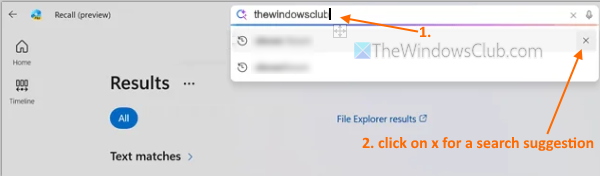
This option helps to clear a particular search history in Recall. The steps are as follows:
- Press Win+J hotkey to open the Recall interface
- Select Timeline from the Navigation pane
- Click on the Search box
- As soon as you start a search, you will see search suggestions in a drop-down menu
- Place your mouse cursor on a search suggestion
- Click on the x icon (or delete option)
- Repeat these steps to delete more search suggestions.
2] Clear the Search history in Recall using its Settings
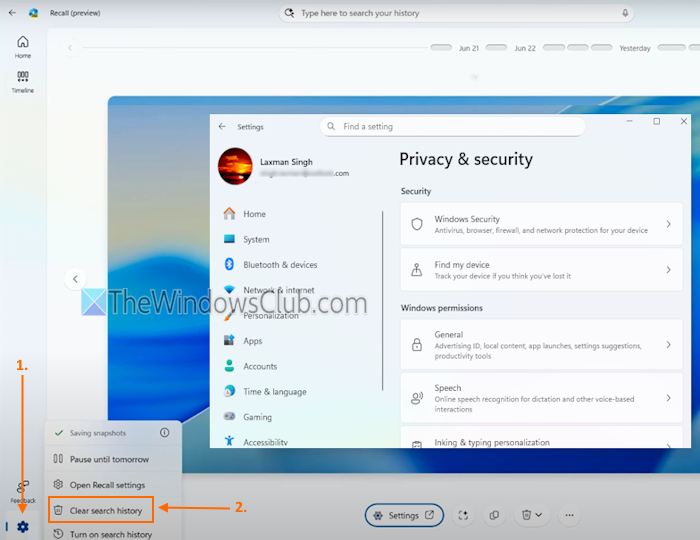
You can delete the entire saved search history of Recall using its Settings. The steps are:
- Open Recall using the taskbar, Start menu, or the shortcut key (Win+J)
- Click on the Settings icon available on the bottom left part of the Navigation pane
- Click on the Clear search history option.
Also read: How to Import or Export Recall Snapshots in Windows PC
3] Turn off Search history in Recall
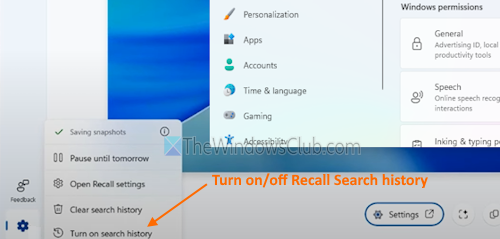
Use the following steps:
- Open the Microsoft Recall interface
- In the Navigation pane, click on the Settings icon
- Select the Turn off search history option
- In the Windows Security pop-up, press the OK button to confirm your action.
TIP: You can also reset Recall on your Windows 11 PC to clear all the search history. But this will also delete your Recall snapshots and settings.
How do I delete a Recall in Windows 11?
To delete a specific Recall snapshot, open the Recall interface and select the Timeline option in the Navigation pane. Select a snapshot and click on the Delete icon. Select the Delete snapshot option. Additionally, you can delete all Recall snapshots or delete snapshots from a specific time frame using the Settings app in Windows 11.
How do I manage Windows Recall?
To manage Windows Recall, open the Windows 11 Settings app. Navigate to Privacy & security > Recall & snapshots. There, you can use options like turn off Save snapshots, set maximum storage duration for Recall snapshots, delete snapshots, filter sensitive information for Recall snapshots, etc. For more options, you can open Recall and select a snapshot, or use the Settings icon.
Read next: How to use Recall in Windows 11: Detailed Guide.
