
In this tutorial, we will show you how to import or export Recall Snapshots in Windows 11. When using the Recall feature, an image or screenshot of the computer screen is saved every few seconds to create a photographic memory. All the Recall snapshots are encrypted and saved locally on your PC. Now, you can also export all your Recall snapshots and import or share those snapshots with third-party apps or websites when needed. You will have the option to Export previously saved snapshots or use the Export snapshots from now on option.
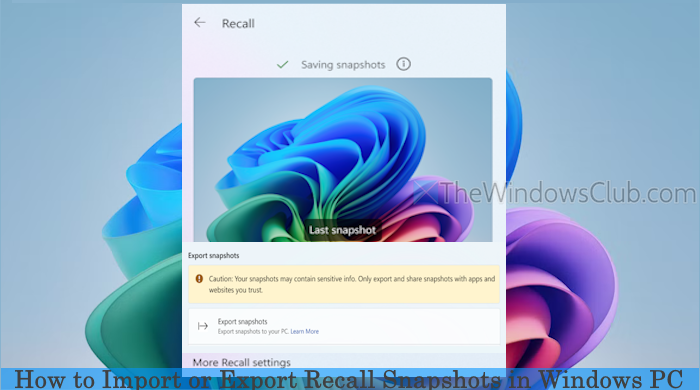
The export process remains encrypted. That means your snapshots are encrypted and then saved to your PC. As of now, the snapshot export feature is currently available in preview to Copilot+ PC devices. Additionally, this feature is only applicable to the European Economic Area (EEA) users.
Before we proceed to export Recall snapshots, have a look at some important options:
- A unique Recall export code (32-character) is shown the first time you open Recall or enable Recall snapshots. Keep this export code in a safe place because it won’t be shown again
- Windows Hello authentication is required to export Recall snapshots
- The export code is needed to decrypt the exported snapshots. Without this export code, the site or app that you wish to share your data with won’t be able to decrypt the snapshots
- If you lose the export code, you can generate a new one, but you have to reset the Recall on your PC. That also means you have to follow the initial setup again
- The export information includes the snapshots taken by you or Recall
- Snapshot details (like snapshot saved time and date) related to each snapshot are also saved, including the associated information from opened apps
- Once decrypted, a snapshot is a JPG file, and associated metadata for each *.jpg file is a JSON file.
How to get the Recall Export Code?
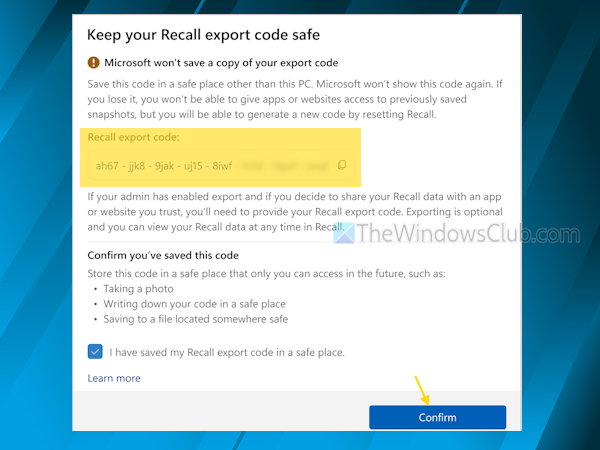
Open Settings > go to Privacy & settings > Recall & snapshots > Save snapshots. The first time you open or set up Recall, the Recall export code is generated automatically, as visible in the image above. Press the Confirm button. As your exported Recall snapshots are encrypted, this Recall export code is the only key to allow websites or apps access to the exported snapshots.
How to Import or Export Recall Snapshots in Windows 11
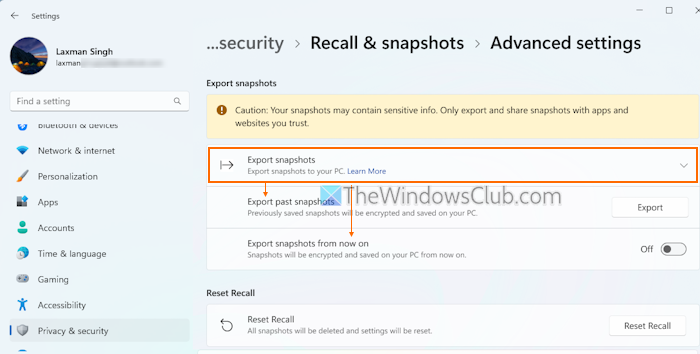
Here are the steps to export Recall snapshots on a Windows 11 PC:
- Press the Win+I hotkey to launch the Windows 11 Settings app
- Select Privacy & security
- Access Recall & snapshots
- Click on the Advanced settings option
- Expand the Export snapshots section
- You will have two options to export your Recall snapshots. These are:
- Export past snapshots: Here, press the Export button, and you can choose to save snapshots from the past 7 days, 30 days, or everything. Select Next, and then select the output folder to export snapshots. Use the Export option and authorize the export using Windows Hello authentication
- Export snapshots from now on: Move the available toggle to turn on this option and select Next to choose the output folder. Confirm the action using the Export option and authorize the action using Windows Hello.
That’s it. And, when you want to stop exporting your Recall snapshots from now on, follow the above steps, and turn off the toggle for the Export snapshots from now on option.
Related: Turn on or off Filter Sensitive Information for Recall Snapshots
Import or Share Exported Recall snapshots
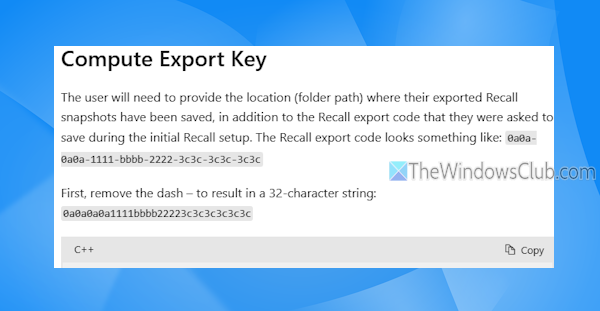
As of now, there’s no direct way to import Recall snapshots to another PC or the same device. But you can export the Recall snapshots to share with apps and websites that you trust. For doing so, you need to:
- Share your Recall export code, and
- The output path or folder where your Recall snapshots were exported (say C:\Desktop\Recall).
After this, the developer of the site or app where you want to export the snapshots can follow and use samples and public documentation (from learn.microsoft.com) to decrypt the Recall snapshots to export in the app.
That’s all. Hope this helps.
Now read: How to Exclude an App or Website from Recall Snapshot in Windows
Where are Windows 11 Recall snapshots stored?
Each snapshot taken by you or Recall is saved locally on your Windows 11 device only. No snapshot or associated data is sent to Microsoft or third parties. All the Recall AI processing is done locally, and your Recall snapshots remain encrypted. Even the exported snapshots from Recall are encrypted and can only be decrypted using a unique Recall export code.
Read: Change Maximum Storage Duration for Recall Snapshots in Windows 11
How to access Microsoft Recall screenshots?
You can open the Recall interface to access your saved snapshots. Press the Win+J hotkey or click on the Recall icon on the taskbar to open its interface and select Timeline. Now, you can hover over the timeline to see the snapshots in a preview window or a preview thumbnail. Selecting a particular preview thumbnail or location loads the related snapshot. Once done, you can interact with the content, copy the snapshot, delete the snapshot, and use other available options.
