
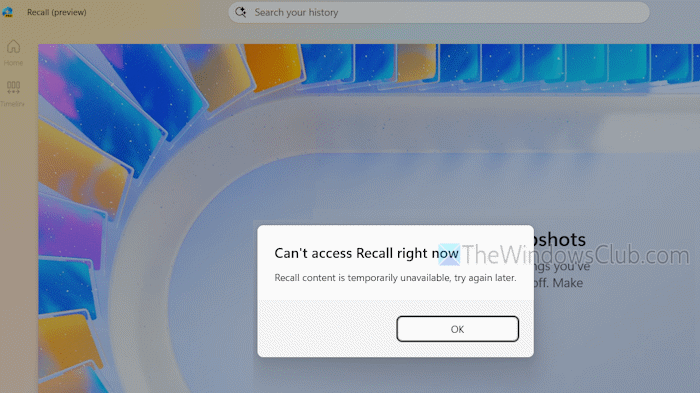
Some users have reported that when they open Recall on their Windows 11 PC, a “Can’t access Recall right now” error message appears. Thus, they can’t use Recall. For some users, the error message appears even when Recall is running, and the Save snapshots option is enabled. The error message goes like this:
Can’t access Recall right now
Recall content is temporarily unavailable, try again later.
We have covered some working solutions to fix this issue. Before that, turn off and on Recall to save snapshots, and update Windows to see if it works. If not, you can use the fixes covered below.
Why does Microsoft Recall not work?
Microsoft Recall may not work, or you can’t open Recall in Windows 11 if the minimum hardware requirements are not met. In addition, if the option to save snapshots is disabled or greyed out, snapshots are corrupted, and the aihost.exe file is missing, damaged, or not running, this can also cause Recall to stop working.
Can’t access Recall right now in Windows 11
To fix the Can’t access Recall right now error on Windows 11, use the following solutions:
- Delete Recall Snapshots
- Check the aihost.exe file
- Enable saving snapshots for use with Recall
- Reset Recall
- Reinstall Recall.
Let’s check these fixes.
1] Delete Recall Snapshots
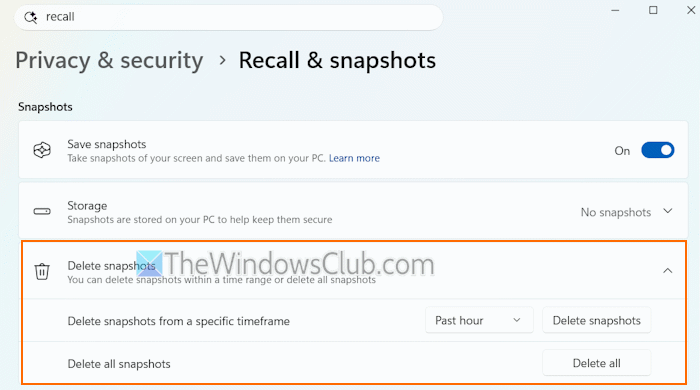
Sometimes, corrupted snapshots may cause trouble in using Recall properly. If that is the case, you can delete Recall snapshots to solve the problem. You can delete all the Recall snapshots or delete snapshots from a specific timeframe (Past 30 days, Past hour, Past 24 hours, and Past 7 days). The latter option is beneficial if you know the timeframe when the problem first started.
In the Settings app (Win+I), go to Privacy & security > Recall & snapshots > and expand the Delete snapshots section. Use the Delete all snapshots option or the Delete snapshots from a specific timeframe option.
2] Check the aihost.exe file
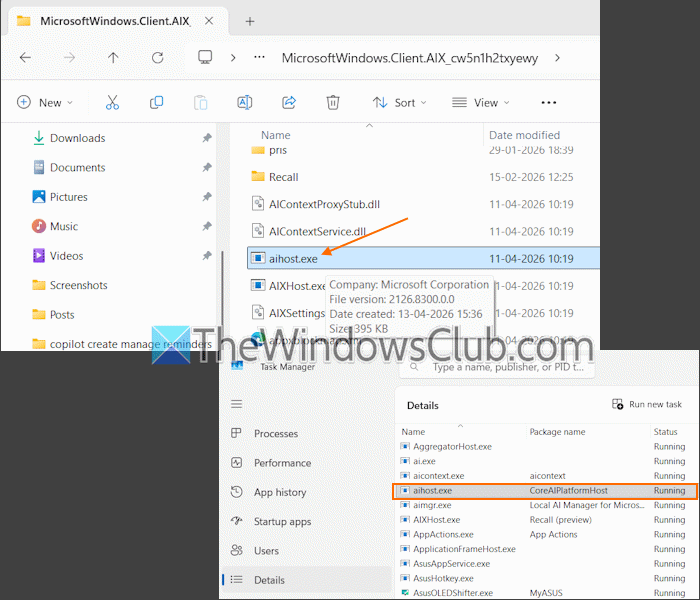
This is one of the best solutions to fix this problem and use Recall in Windows 11. It worked for me also. The aihost.exe is a legit application file (by Microsoft Corporation) and is essential to run Recall smoothly and power other artificial intelligence functions in Windows 11. And, I found that if the aihost.exe file is missing, damaged, or not running, the Can’t access Recall right now error message appears after opening Recall.
To solve the issue, open the Task Manager > go to the Details tab > and check the aihost.exe file status (Running or Stopped). If the aihost.exe file is not running, you can run it from its source location. Open File Explorer, paste the following path in the address bar, and press Enter:
C:\Windows\SystemApps\MicrosoftWindows.Client.AIX_cw5n1h2txyewy
Look for the aihost.exe file and double-click on it.
In case the file is corrupted or missing, you can copy it from a PC where Recall is running fine, and paste it in its original directory on the PC where you have this issue. Restart your PC.
Related: Recall is not saving snapshots in Windows PC
3] Enable saving snapshots for use with Recall
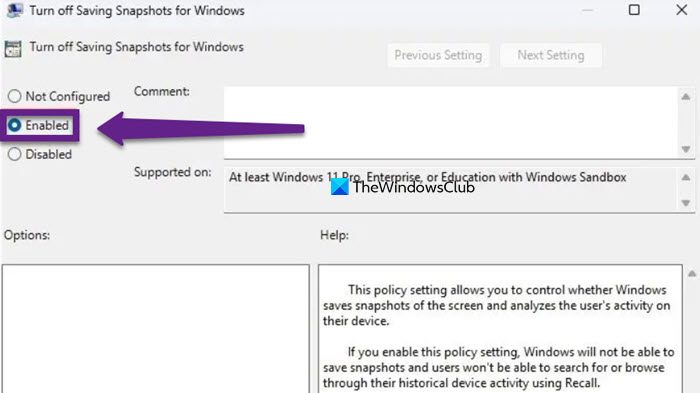
If a setting in Group Policy Editor is configured to disable snapshot saving for Recall, this could cause issues with Recall. You will be able to open Recall, but all options and access to previously saved snapshots will be disabled. So, you need to enable saving snapshots for use with Recall using Local Group Policy Editor.
Type gpedit.msc in the Search box and press the Enter key. In the Local Group Policy Editor window, access the Turn off saving snapshots for use with Recall setting (under Windows AI folder), and set it to Not Configured mode:
User Configuration > Administrative Templates > Windows Components > Windows AI
Also read: How to clear Search history in Recall on Windows PC
4] Reset Recall
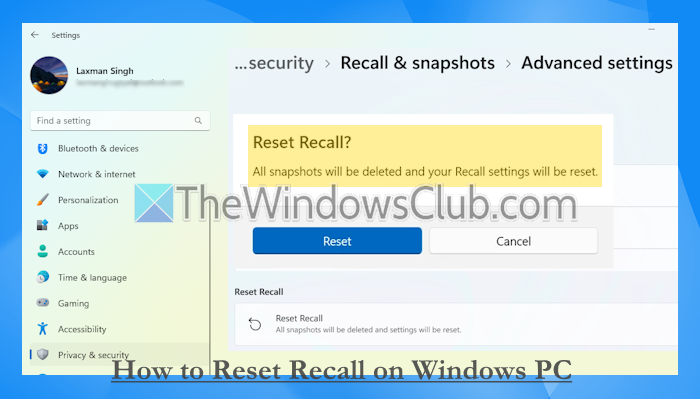
You can also reset Recall in Windows 11 to fix this issue. However, it will delete all your snapshots, reset all settings to default, and start you from the beginning.
5] Reinstall Recall

If the Recall installation is not done properly, it can also cause various problems, including this one. So, if nothing works, you need to reinstall Recall in Windows 11. You can uninstall or install Recall in Windows 11 using the CMD, Windows Terminal, and Windows Features.
Hope this helps.
Now read: How to Import or Export Recall Snapshots in Windows PC
Is Recall disabled by default?
Yes, Recall remains disabled by default in Windows 11 on a personal computer. But you can enable it or install it manually via Windows Features or Windows Terminal, and configure it to capture and store snapshots in the Settings app. Recall is also disabled on managed devices, and users can’t enable it if the Allow Recall Policy is set to disabled by IT admins.
Read next: How to download and install Recall on an unsupported computer.
