
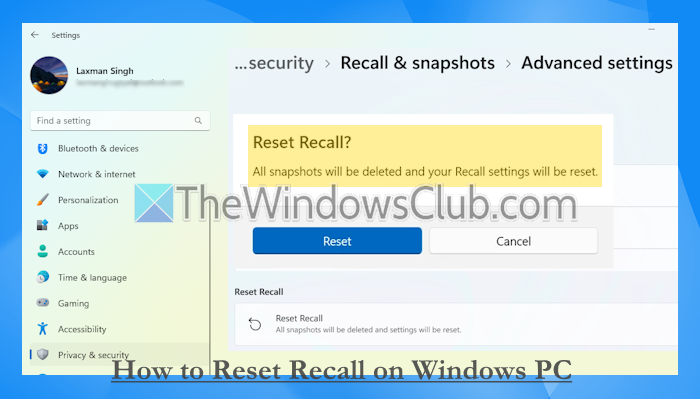
In this tutorial, we will show you how to reset Recall on a Windows 11 Copilot+ PC. This is a new, built-in option that can be accessed through the Settings app. By resetting the Recall feature, all your Recall snapshots are deleted, and Recall settings will be reset. If you’re having trouble using Recall or need to start from scratch, this option is helpful. This option is similar to resetting a Microsoft Store app. Earlier, we have seen how to enable or disable Recall snapshots. Now, we will see a step-by-step guide to reset Recall on Windows 11.
What is the Recall feature in Windows 11?
Recall (preview) is a built-in feature on Snapdragon-powered, AMD, and Intel-powered Copilot+ PCs. When you open Recall in Windows 11, you can opt in to save screenshots to let Windows regularly take snapshots (or screenshots) of your computer screen and save them locally. Recall uses those snapshots to create a photographic memory (as a timeline) that you can use to pick up where you left off quickly. You can search for the text, describe what you’re looking for, or browse the timeline to see snapshots.
Apart from this, you can also use options like turn on or off Filter Sensitive Information for Recall snapshots, delete snapshots, exclude an app or website from Recall snapshots, and more.
Read: How to use Recall in Windows 11
How to reset Recall on Windows 11
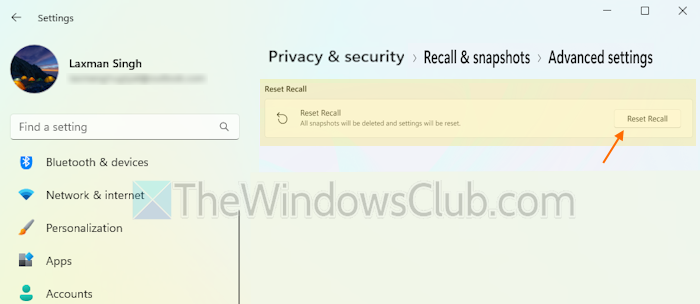
Follow these steps to reset Recall on a Windows 11 PC:
- Press the Win+I shortcut key to open the Settings app
- Select the Privacy & security category
- Access the Recall & snapshots page. It is present under the Windows permissions section
- Scroll down the page
- Click on the Advanced settings option
- Look for the Reset Recall option
- Press the Reset Recall button
- A confirmation box will pop up
- Press the Reset button in that pop-up.
If a Windows Security prompt appears, press the OK button.
That’s all.
Now read: Can’t open Recall in Windows PC
How to completely remove Recall from Windows 11?
To completely remove or uninstall Recall in Windows 11, you can use Windows Features. You can type Windows features in the Search box and hit Enter to open it. Scroll down the list of options and uncheck the Recall option. Press the OK button and restart your Windows 11 PC. Alternatively, you can also remove the Recall feature using the DISM command in the Command Prompt window or use Windows PowerShell to uninstall it.
Read next:
