
In recent versions of Google Chrome, a new AI Mode has been integrated into the address bar and the new tab page search box. While this can help provide a quick AI summary of search results, many users want to use the classic Google as they did in the past, without the AI bloat.
If the same goes for you, and you wish to disable AI mode in Chrome’s address bar and search box drop-down list. Then there’s a way to do it via Windows’ registry keys. And here’s how it works.
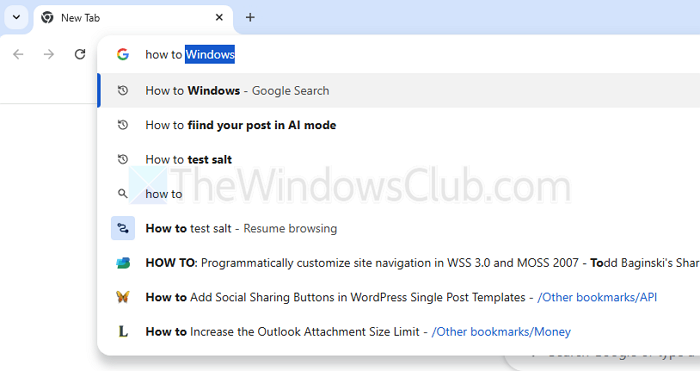
Disable AI Mode in Chrome’s address bar and search box
There are two ways to disable AI mode in Chrome.
- Registry Editing
- Chrome AI settings
However, these settings can be overridden by Chrome if Google chooses to enforce it.
1] Registry Editing
- Press Windows Key + R, type Run, and press Enter.
- Type regedit and press Enter to open Registry Editor.
- Go to the following path:
HKEY_LOCAL_MACHINE\SOFTWARE\Policies - Right-click on Policies and select New > Key, and name it Google.
- Right-click on the newly created key Google and select New > Key, and name it Chrome.
- Now, in the right-side pane, right-click and select New > DWORD (32-bit) Value option.
- Name it as AIModeSettings.
- Finally, double-click on AIModeSettings and set the value to 1.
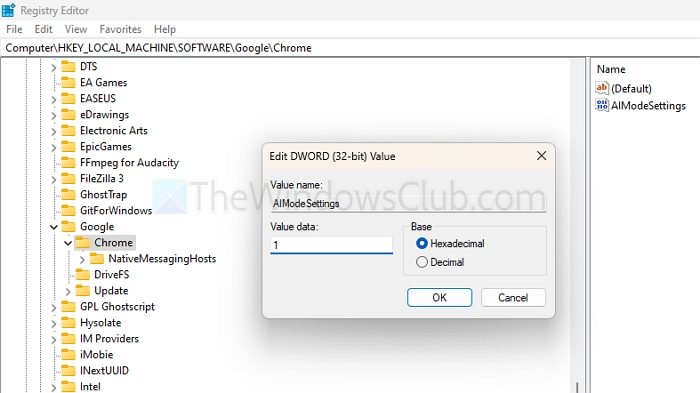
- Once done, simply restart Chrome browser, and you should get rid of the AI mode option.
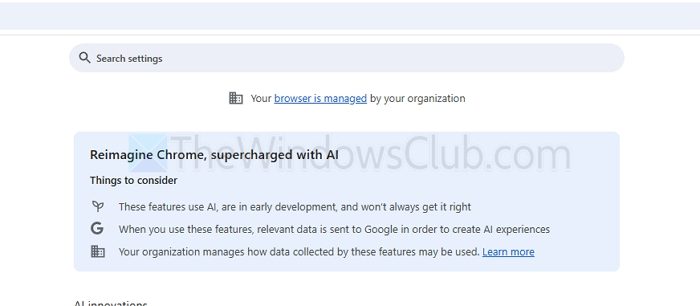
After applying the mentioned policy or registry change, you might see the message “Your browser is managed by your organization” in the Chrome Settings page or the main 3-dot menu. This is normal and simply indicates that a policy has been applied to the browser. There’s no need for concern—you can safely ignore this message.
Read: How to disable all AI features in Chrome browser
2] Disable AI mode from Chrome Settings
- Open Chrome
- Type and go to chrome://settings/ai
- Turn off AI Mode if it’s available for you.
You can also visit Search Labs and disable AI mode if you prefer not to use it. However, since this is rolling out globally, turning off from settings will only help.
Read: How to turn off Google AI Search Results and make it display links
In the end, remember that AI mode in Google Search is a web-based feature, so you cannot completely disable it. If you want to reduce AI bloat, consider using alternative search engines such as Bing or DuckDuckGo, which display fewer AI-assisted search results.
Will disabling AI Mode through the Registry Editor affect Chrome updates or cause browser instability?
Disabling AI Mode using the Registry Editor only modifies specific behavior related to AI suggestions in the address bar and search box. It does not interfere with Chrome’s ability to update or operate normally. However, it’s always recommended to back up your registry before making any changes, just in case.
What if the ‘Google’ or ‘Chrome’ registry keys don’t exist?
You’ll need to manually create the Google and Chrome subkeys under the Policies key before adding the AIModeSettings value.
