
If the option to clear cookies and site data when you quit Chrome is missing, here is how to find it. This option has been removed in the recent version of Chrome, and you will have to use the Don’t allow sites to save data on your device setting instead.
Why is Clear cookies and site data when you quit missing in Google Chrome?
If the Clear cookies and site data when you close windows option is missing in Google Chrome, these could be the reasons:
- The older GUI option has been deprecated.
- You are using a Work or School profile.
- Chrome is retaining data from your Google account, which fetches data when you synchronize it.
- Your user profile has some problems.
- You have set incorrect settings in Group Policy and Registry Editor.
Clear cookies and site data when you quit Chrome missing
If the Clear cookies and site data when you quit Chrome option is missing, follow these solutions:
- Newer version doesn’t have the option
- Check Group Policy Editor
- Verify Registry settings
- Create new Chrome profile
- Disable synchronization
- Disable all experimental features
- Disable all extensions
- Terminate all processes using Task Manager
To learn more about these solutions, continue reading.
1] Newer version doesn’t have the option
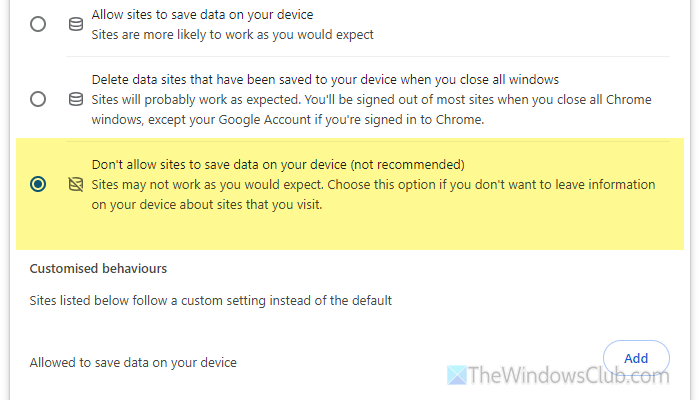
If you are using the latest version of Google Chrome, you will not find the old option in the Settings panel. Google has removed that option but added a new one that lets you save or delete data when you close all Google Chrome windows.
To find the new setting, go to Privacy and security > Site settings > Additional content settings > On-device site data. Alternatively, copy-paste this path chrome://settings/content/siteData to directly go to the setting.
Here you can find three options:
- Allow sites to save data on your device
- Delete data sites that have been saved to your device when you close all windows
- Don’t allow sites to save data on your device
Select the third option.
2] Check Group Policy Editor
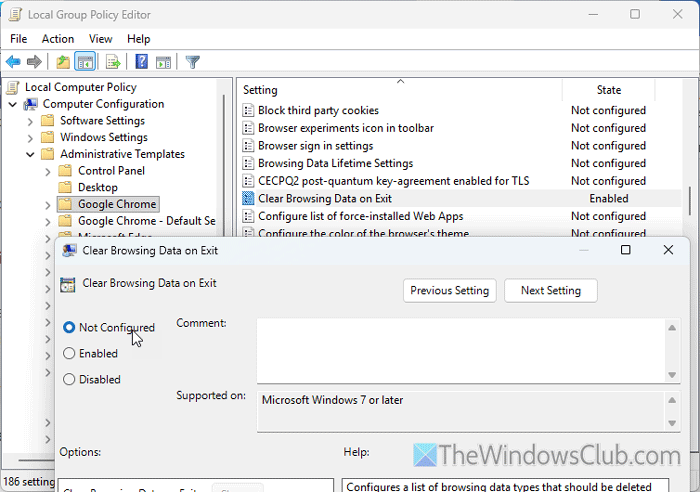
The Group Policy Editor includes an option to enable or disable this feature in Google Chrome. If you have set this setting via Group Policy, you will find the GUI option disabled or grayed out.
Open the Local Group Policy Editor on your computer and navigate to this path:
Computer Configuration > Administrative Templates > Google Chrome
Double-click on the Clear Browsing Data on Exit setting, choose the Not Configured option, and click the OK button to save the change.
Finally, restart your computer.
Note: This solution works only if you installed the Google Chrome template in Group Policy. If you haven’t done so, skip it.
3] Verify Registry settings
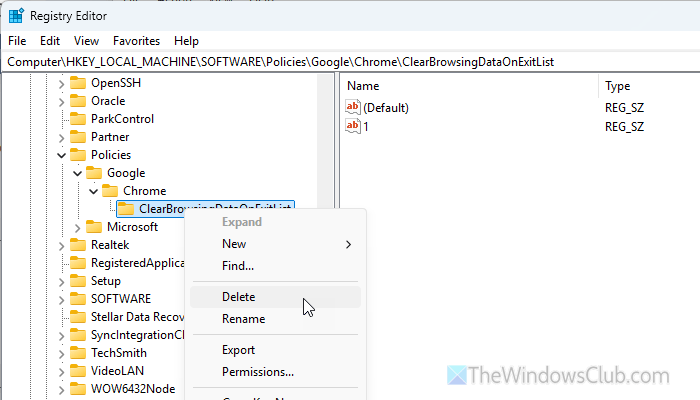
The same setting can be set via Registry Editor as well. If you have made an incorrect change in the Registry Editor, you may have trouble finding this option.
To verify that, open the Registry Editor and navigate to this path:
HKEY_LOCAL_MACHINE\SOFTWARE\Policies\Google\Chrome
Right-click on the ClearBrowsingDataOnExitList key and delete it.
Finally, close all the windows and restart your computer.
4] Create new Chrome profile
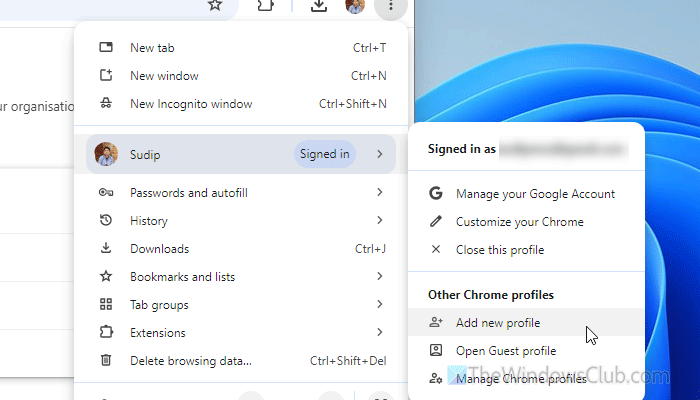
At times, this problem may occur due to a corrupted user profile. That is why it is suggested to create a new Chrome profile. For that, click the three-dotted icon, then click the current profile > select the Add new profile option.
Next, choose the Stay signed out option and start browsing a few sites. Once done, try enabling the same setting mentioned in the first solution to see whether it deletes the data.
5] Disable synchronization
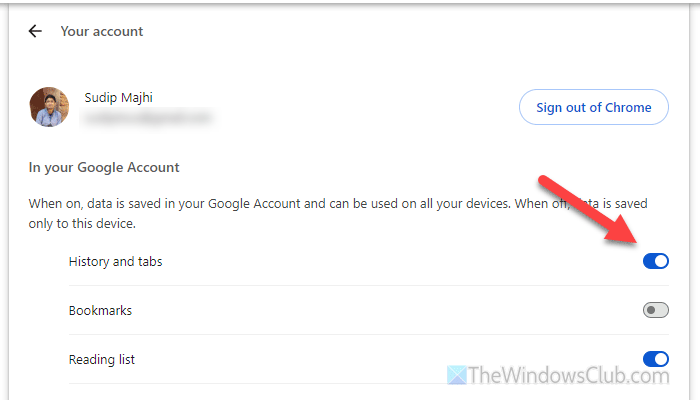
If you enable data synchronization, Chrome can retain deleted data when you sign back in. That is why it is recommended to disable synchronization and check whether it resolves the issue.
For that, open the Chrome Settings panel and go to the You and Google tab and click on the user account.
Toggle the corresponding buttons to turn them OFF.
However, if it doesn’t work, you can sign out of your Google account and check whether the problem is due to out-of-the-box synchronization.
Read: Google Chrome sync not working on Windows PC
6] Disable all experimental features
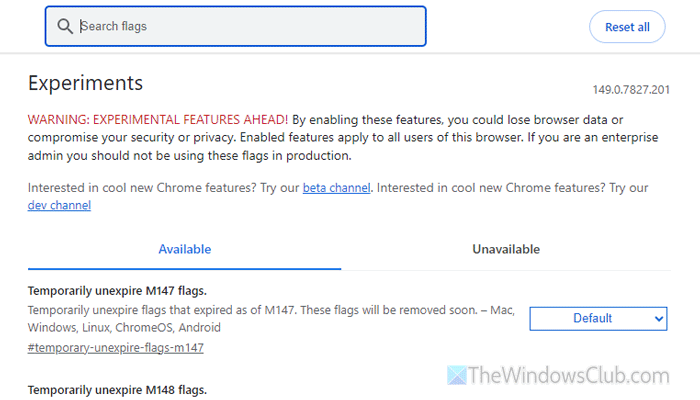
If you have enabled various experimental features in Google Chrome, it may cause the same problem as mentioned above. That is why you can disable them and check whether the problem persists.
For that, enter chrome://flags in the address bar first. Then, click on the Reset all button.
7] Disable all extensions
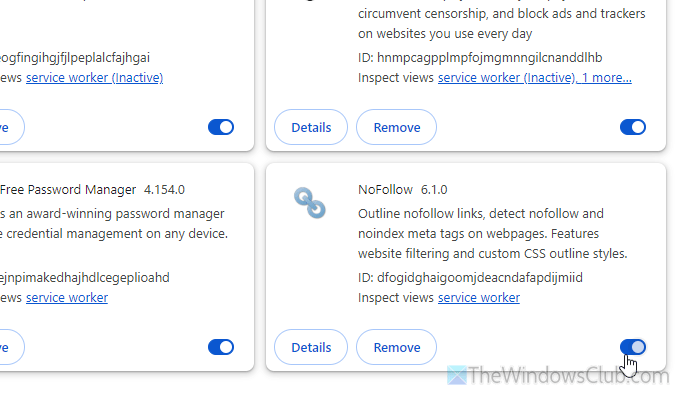
This problem might occur if you use extensions to save and synchronize browsing data in Google Chrome. If you have installed any such extensions, it is highly recommended that you disable them all. Then check whether the problem is still there. If not, enable one extension at a time to find the culprit.
8] Terminate all processes using Task Manager
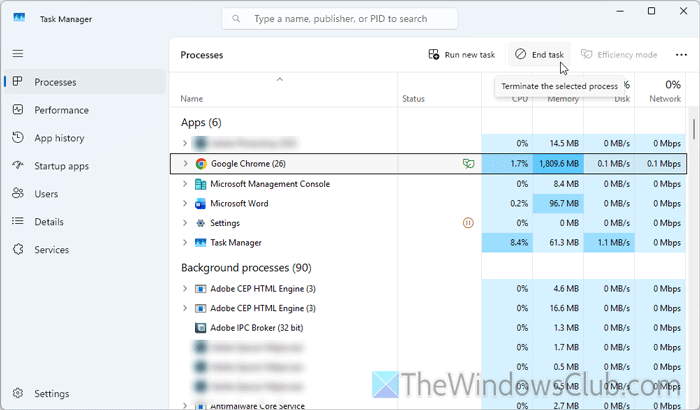
This feature works only when you close all the windows and terminate all background processes. If any Chrome process is running in the background, you won’t be able to delete data automatically. That is why it is recommended to open the Task Manager and terminate all the processes one by one.
Read: Stop multiple Chrome processes from running in Task Manager
How to automatically clear browsing data when closing Google Chrome window?
To automatically clear browsing data when closing Google Chrome window, you need to open the Settings and go to this path: chrome://settings/content/siteData. Choose the Delete data sites that have been saved to your device when you close all windows option.
Where is Clear cookies and site data when you close all windows?
To find the Clear cookies and site data when you close all windows option, open the Settings panel and go to Privacy and security > Site settings > Additional permissions > On-device site data. Here you can find all three options that you can set as per your requirements.
