
If you want to automatically clear Chrome browsing data on exit, here is how you can do that. You can automatically clear Chrome browsing data on exit via Chrome’s Settings panel, or you can set things up with the help of the Local Group Policy Editor and the Registry Editor. Not only browsing data, but you can also remove download history, cookies, site data, cache, passwords, site settings, hosted app data, etc., using this guide.
How to automatically clear Chrome browsing data on exit
The option to Clear cookies and site data when you close all windows has been replaced by Don’t allow sites to save data on your device in the recent version of Chrome, and you will have to use this setting instead.
Don’t allow sites to save data on your device in Chrome
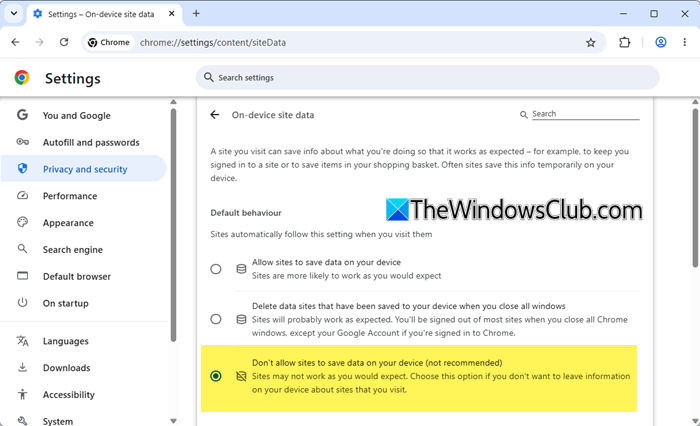
To automatically clear Chrome browsing data on exit in the latest versions of Chrome browser:
- Launch Chrome > Click on the 3-dots to open Settings
- Select Security and Privacy settings
- Select Site settings > Additional content settings > On-device site data
- Here you will see Don’t allow sites to save data on your device
- Select this setting and restart Chrome browser.
To directly go to the setting, copy-paste this path chrome://settings/content/siteData in Chrome address bar and hit Enter.
This will clear download history, cookies, site data, cache, passwords, site settings, hosted app data, etc.
In earlier versions of Chrome, this is how you had to do it.
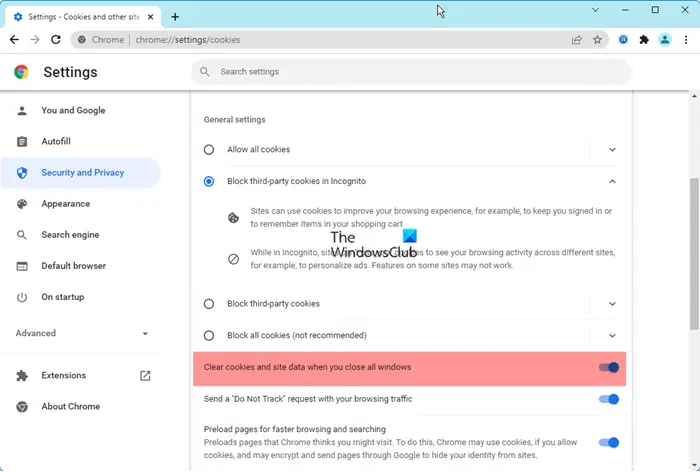
- Launch
- Chrome > Click on the 3-dots to open Settings
- Select Security and Privacy settings
- Click on Cookies and Site data
- Enable Clear cookies and site data when you close all windows
- Restart Chrome browser.
Automatically remove Chrome browsing data on exit using Group Policy Editor
To use the Local Group Policy Editor method, you need to download and install the Group Policy template of Google Chrome. To automatically clear Chrome browsing data on exit using Group Policy setting, follow these steps:
- Press Win+R to open the Run prompt.
- Type gpedit.msc and press the Enter button.
- Go to Google Chrome in Computer Configuration.
- Double-click on the Clear Browsing Data on Exit setting.
- Choose the Enabled option.
- Click the Show button.
- Enter the parameters that you want to delete.
- Click the OK button twice.
To learn more about these steps, continue reading.
At first, you need to open the Local Group Policy Editor on your computer. For that, press Win+R, type gpedit.msc, and press the Enter button.
Then, navigate to this path:
Computer Configuration > Administrative Templates > Google Chrome
Here you can find a setting called Clear Browsing Data on Exit. You need to double-click on this setting and choose the Enabled option.
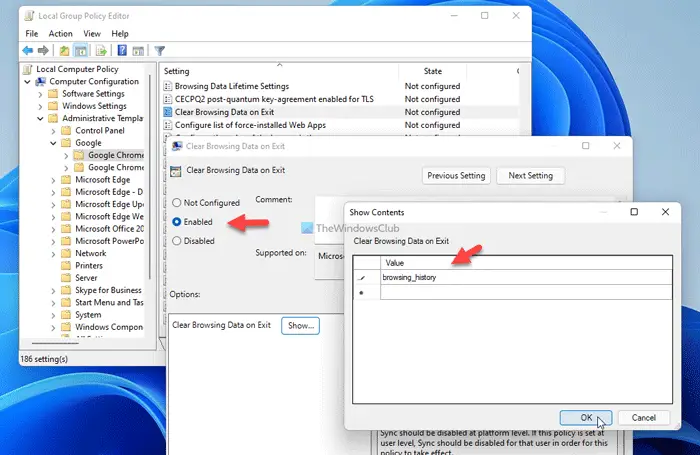
Then, click on the Show button and enter the items you want to remove on exit. For example, you can use the following parameters:
- browsing_history
- download_history
- cookies_and_other_site_data
- cached_images_and_files
- autofill
- password_signin
- site_settings
- hosted_app_data
Once done, click the OK button twice to save the change.
Now you need to restart Google Chrome.
Read: Clear cookies and site data when you quit Chrome missing
How to automatically remove Chrome browsing data on exit using Registry
To automatically remove Chrome browsing data on exit using Registry, follow these steps:
- Press Win+R to display the Run dialog.
- Type regedit > press the Enter button > click the Yes button.
- Navigate to Policies in HKLM.
- Right-click on Policies > New > Key.
- Name it as Google.
- Right-click on Google > New > Key.
- Name it as Chrome.
- Right-click on Chrome > New > Keyand set the name as ClearBrowsingDataOnExitList.
- Right-click on ClearBrowsingDataOnExitList > New > String Value.
- Name it as 1.
- Double-click on it and set the Value data as the parameters.
- Repeat these steps to create another String value named 2 and set the Value data accordingly.
Let’s check out these steps in detail.
At first, press Win+R > type regedit > press the Enter button and click the Yes button to open the Registry Editor on your computer. Once it is opened, navigate to the following path:
HKEY_LOCAL_MACHINE\SOFTWARE\Policies
Right-click on Policies > New > Key, and name it as Google. Then, right-click on Google > New > Key, and name it Chrome.
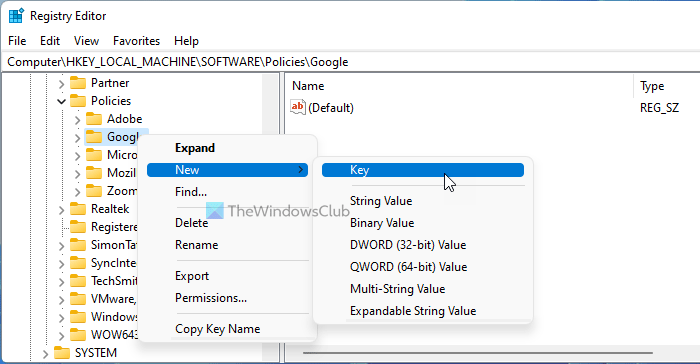
After that, right-click on the Chrome key > New > Key, and set the name as ClearBrowsingDataOnExitList.
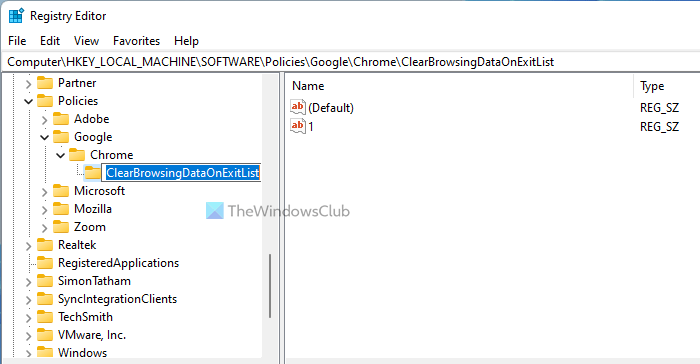
Next, right-click on ClearBrowsingDataOnExitList > New > String Value, and name it 1.
Double-click on it to set the Value data as the aforementioned parameters.
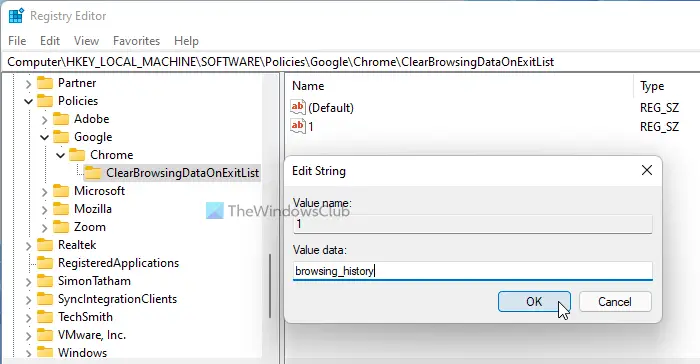
If you want to delete multiple items on exit, you need to create multiple String Values.
Once done, click the OK button and reboot your computer.
That’s all! Hope this guide helped.
Read: How to automatically Import another browser data into Edge at the first run
Can you set Google Chrome to delete history on exit?
Yes, you can set Google Chrome to delete history on exit. As mentioned earlier, you cannot do that with the built-in options. However, you can set things up with the help of the Local Group Policy Editor and the Registry Editor. For that, you need to follow the aforementioned steps.
Read: Chrome Browsing History disappeared and not showing
How do I automatically clear browsing data in Chrome?
To automatically clear browsing data in Chrome, you can follow the above-mentioned guides. It is possible to remove Chrome browsing data on exit using REGEDIT and GPEDIT. However, if you follow the GPEDIT method, you need to download and install the Group Policy template first.
Related:
