
If you want to prevent bookmark editing in Google Chrome on a Windows 11/10 computer, this post will help. Once you have done this, you won’t be able to add a new bookmark, modify (edit), or delete existing bookmarks in the Chrome browser. The hotkeys and options to bookmark the current tab and bookmark all tabs won’t work. Bookmark this tab icon will also be gone from the Omnibox of Chrome browser. In addition to that, you can’t rename or delete a bookmark folder in the bookmark manager or use the edit, delete, cut, add page, and add folder right-click menu options of the Chrome browser. All such options will either be greyed out or removed from Google Chrome.
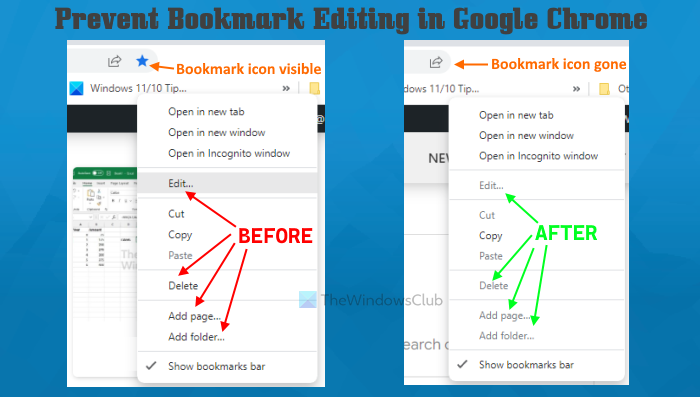
You can continue using the bookmarks you already saved in Chrome. The only change is that any modifications or changes to bookmarks will be restricted or disabled. You can choose to make this change permanent or temporary. When you want to add new bookmarks, delete or modify bookmarks, you can re-enable bookmark editing.
How to prevent Bookmark Editing in Google Chrome on Windows 11
Here are the two built-in features of Windows 11/10 that help to prevent bookmark editing in Google Chrome:
- Group Policy Editor
- Registry Editor.
Before proceeding, we recommend you create a system restore point. When it is done, use any of the below-mentioned options.
1] Prevent Bookmark Editing in Google Chrome on Windows 11/10 using Group Policy Editor
To use this option for this task, you need to first integrate Google Chrome with Group Policy. Once you’ve done that, you can follow these steps:
- Open Group Policy Editor
- Access the Google Chrome folder
- Access the Enable or disable bookmark editing setting
- Use the Disabled option
- Press the OK button.
Let’s check all these steps.
At first, open Group Policy Editor of Windows 11/10. To do this, you can type gpedit in the Search box and hit the Enter key.
When the Group Policy Editor window opens, go to the Google Chrome folder. This can be done using the following path:
Computer Configuration > Administrative templates > Classic Administrative Templates (ADM) > Google > Google Chrome
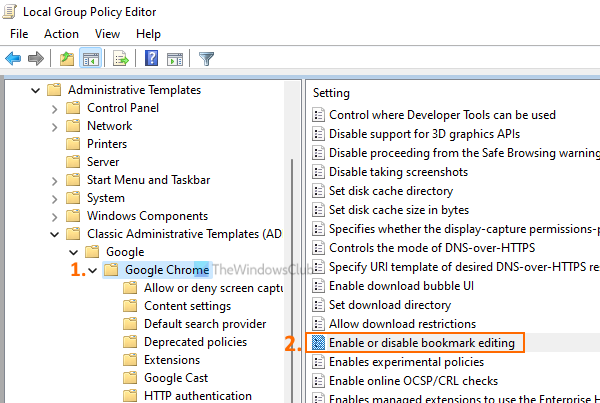
Look for the Enable or disable bookmark editing setting on the right-hand section and double-click that setting to open or access it in a new window.
Now, select the Disabled option present in the top-left part of this setting. Finally, click on the OK button.
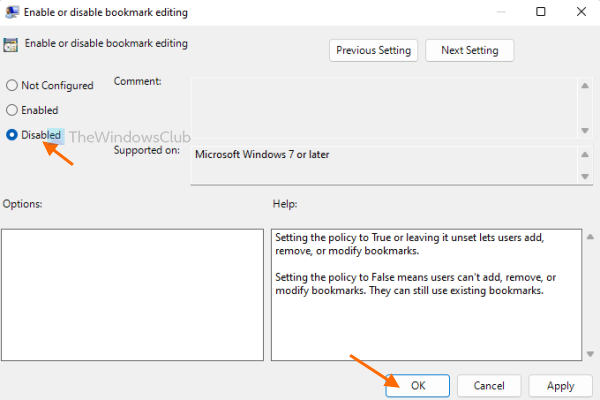
The changes are applied instantly and bookmark editing will be disabled for Google Chrome. You don’t need to restart Chrome or refresh open tabs.
To enable editing bookmarks in Google Chrome again, repeat the above steps, and access Enable or disable bookmark editing setting window. This time, select the Not Configured option and hit the OK button.
Related: How to prevent changes to Favorites on Microsoft Edge.
2] Disable Bookmark Editing in Google Chrome on Windows using Registry Editor
The steps are as follows:
- Open the Registry Editor window
- Access the Policies key
- Create a Google Registry key
- Add a Chrome Registry key
- Create EditBookmarksEnabled DWORD value
- Restart Google Chrome.
Here is the explanation of all these steps.
In the first step, you have to open the Registry Editor window. To do that, type regedit in the Search box, and press Enter.
Access the Policies Registry key. Here is the path for this key:
HKEY_LOCAL_MACHINE\SOFTWARE\Policies
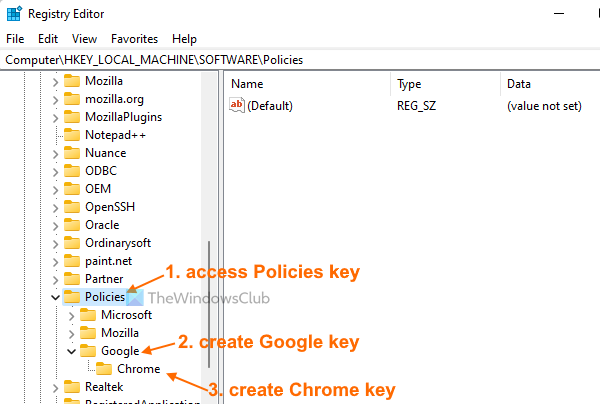
After selecting the Policies key, create a Google Registry key. To do this, first, create a new Registry key, and then rename that new key to Google.
Under this Google Registry key, add a new Registry key with the name Chrome.
Now open the right-click context menu of the Chrome key, open the New menu, and use the DWORD (32-bit) Value option. This will add a new DWORD value that you need to rename to EditBookmarksEnabled.
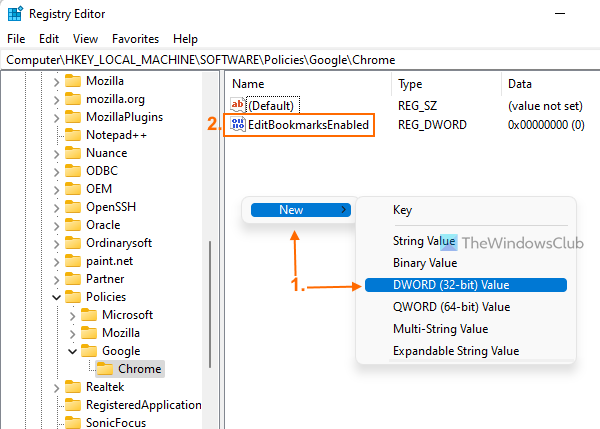
Finally, restart Google Chrome. This will enable the setting that disables Chrome’s bookmark editing options.
To enable bookmark editing once again in the Chrome browser, you need to access the Policies key, and then delete the Google Registry key.
Restart Chrome (if it’s open), and you can start editing your bookmarks again.
Hope it is helpful.
How do I lock my Bookmarks in Chrome?
To lock bookmarks in the Chrome browser, you can try some free Chrome extensions. Such extensions let you set a password to access the saved bookmarks or create a password-protected list of bookmarks. Alternatively, you can prevent bookmark editing in Google Chrome if you are using a Windows 11/10 computer. For that, you can use Group Policy Editor and/or Registry Editor features of Windows 11/10. The steps to use both features to disable editing bookmarks in the Chrome browser are covered in this post separately.
How do I remove edit Bookmarks?
If you want to prevent editing bookmarks in Google Chrome, you can do this on a Windows 11/10 computer using two native options. These options are Registry Editor and Group Policy Editor. Once you apply the setting, the Edit option for bookmarks will be greyed out. Other options, like Add a bookmark, Delete a bookmark folder, Delete a bookmark, etc., also won’t work. To use any of these options, see this post for step-by-step instructions on disabling bookmark editing in Google Chrome.
Read next: How to Show or Hide Bookmarks Bar in Google Chrome on Windows PC.
