
Google Chrome is one of the most used web browsers. Since ChatGPT, every company, including Google, has been introducing AI features into its products. Google Chrome also has AI features. It is becoming hard now to use Google Chrome without its AI features. If you prefer Chrome without its AI features, you can disable most of them permanently. Follow this guide to know how to disable Google Chrome AI features on Windows 11.
How to disable all AI features in Chrome browser on PC
You can disable AI features in Chrome on Windows 11 in two ways. One method lets you re-enable them at any time, and the other permanently disables them. They are:
- Disable AI features in Chrome settings
- Disable Google Chrome AI features permanently on Windows 11
Let’s get into the details of each method.
1] Disable AI features in Chrome settings
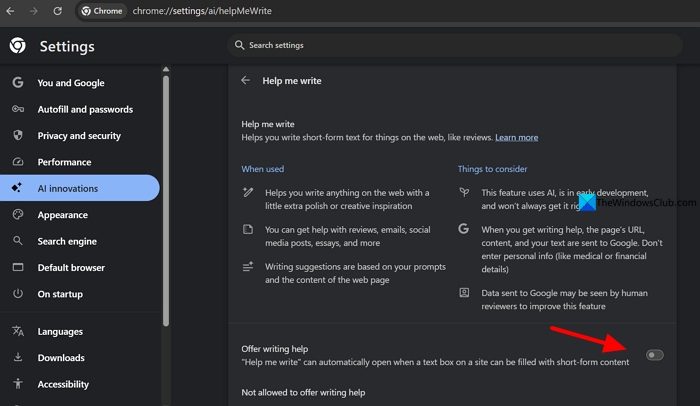
We can disable most AI features in Google Chrome’s settings. If we disable them this way, we can re-enable them at our convenience and use them. Open the Settings page on Chrome and click AI innovations. Toggle the button beside Offer writing help.
Now, head to chrome://flags/ and search for AI. Find the highlighted AI features and disable them by clicking on the dropdown beside them, and selecting Disabled.
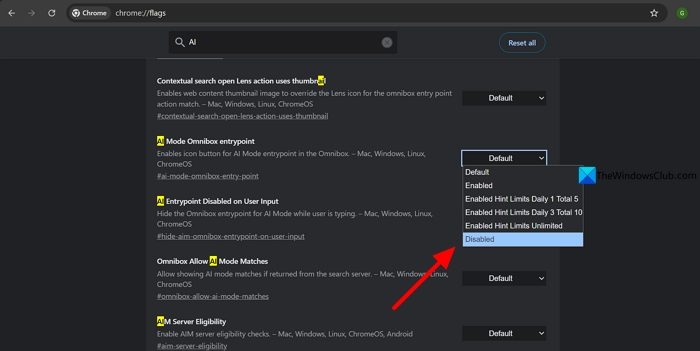
Read the context below them, and disable only the AI features to avoid breaking the browser. After disabling all AI features in Chrome flags, restart your browser to see the changes take effect. Most AI features are disabled now. To enable it, just head to the Chrome flags page and enable it the same way.
Read: Disable AI Mode in Chrome Address bar and Search box
2] Disable Google Chrome AI features permanently on Windows 11
This is a permanent method to disable AI features on Chrome on Windows 11. It involves changing Registry Entries. Before getting into the process, open Registry Editor and back up the Registry for safety. Then, head to the following path.
HKEY_LOCAL_MACHINE\SOFTWARE\Policies
Right-click on the Policies and select New. Click Key.
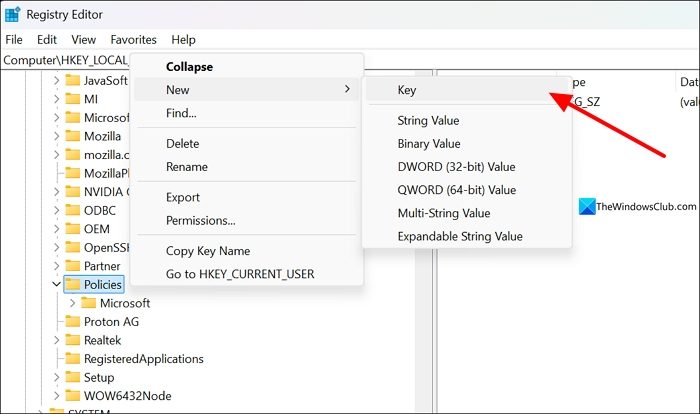
Name it Google and press Enter. Then, right-click on Google and create a new Key and name it Chrome. Right-click the Chrome key, select New, and DWORD (32-bit) Value.
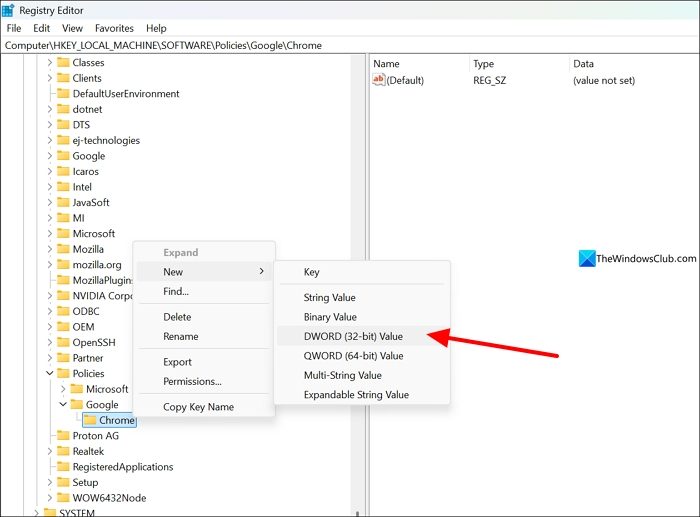
Name it AIModeSettings. Double-click on it to open it and set its Value data to 2, and click OK.
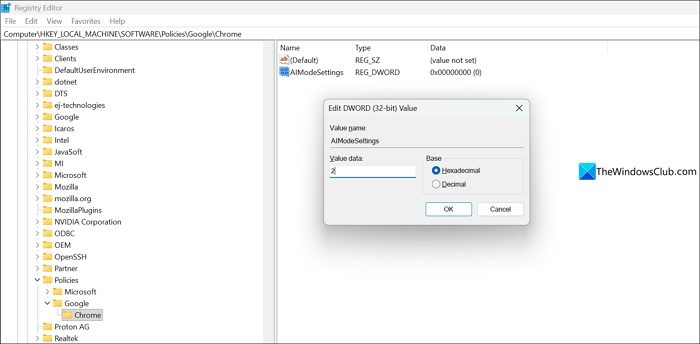
Similarly, create DWORD (32-bit) Value keys for the following names and set their value data to 2, and click OK. Create one after another and name them as suggested.
HelpMeWriteSettings

CreateThemesSettings

HistorySearchSettings

TabCompareSettings

AutofillPredictionSettings

DevToolsGenAiSettings

TabOrganizerSettings
After creating all these DWORD keys, now is the time to create some more, name them as suggested below and set their value data to 1, and click OK.
GeminiSetting

SearchContentSharingSettings

GeminiActOnWebSettings

GenAILocalFoundationalModelSettings
After creating all these keys, restart your PC to apply the changes. You can now use Google Chrome with any AI features.
Read: How to stop Chrome from downloading 4GB Gemini Nano AI Model (weights.bin) on Windows 11
Also read: How to disable AI in Windows 11
Can I remove AI Mode from Google Chrome?
You can remove AI mode from Google Chrome using Chrome flags. Open chrome://flags/ in Google Chrome and search for AI. Find AI Mode Omnibox entrypoint, AI Entrypoint Disabled on User Input, and Omnibox Allow AI Mode Matches. Click the dropdown next to each and select Disabled.
Read: How to disable AI in Firefox on Windows 11
Does Chrome have AI built in?
Yes, Google has introduced many AI features in Google Chrome. They include AI mode, HelpMeWrite, a theme-generating feature, etc. Google is actively adding more AI features to Chrome to make it a fully functional AI browser and to compete with new browsers like Comet and Atlas.
Related read: How to turn off Google AI Search Results and make it display links.
