
What is weights.bin Gemini Nano AI Model file in Chrome? Can I delete it? If you’ve recently discovered a file named weights.bin inside your Chrome User Data folder and were surprised by its size, you’re not alone. Many users notice this file taking up significant storage space, sometimes even several gigabytes, and wonder whether it’s safe to remove or if it could affect the browser’s performance.
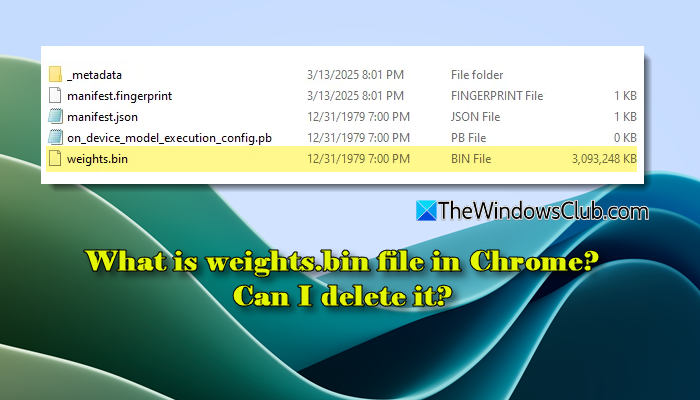
In this post, we’ll explain what the weights.bin file is, why it exists, why it becomes so large, and whether you should keep it or delete it from your system.
What is weights.bin file in Chrome? Can I delete it?
The weights.bin file is part of Chrome’s on-device machine learning system. It stores model “weights” (data parameters) that help the browser enable certain AI-based features, improve performance, and enhance security. Chrome downloads the Gemini Nano AI model when you interact with AI-powered features and stores it in the weights.bin file. While you can delete the file, Chrome may automatically recreate it if the associated feature is still enabled.
Chrome’s expansion of its built-in AI initiative
In 2024, Google Chrome expanded its built-in AI initiative by introducing APIs and browser features that enable the local execution of AI models. As part of this shift, Chrome began integrating lightweight on-device AI models directly into the browser runtime. These models are distributed through Chrome’s component update system and stored locally inside the user’s profile directory, where they can run using the device’s CPU, GPU, or NPU.
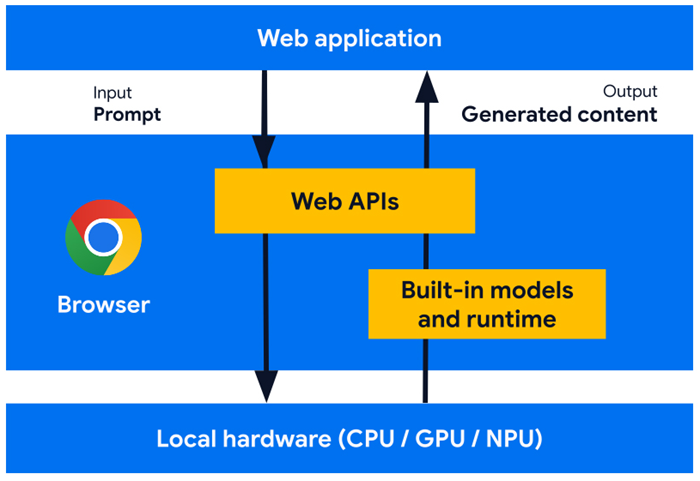
The downloads also include the model’s trained data files. The weights.bin file stores those trained parameters, which the AI model uses to process input and generate responses.
What the weights.bin file does and why it can be large
The term “weights” refers to the numerical parameters of a trained machine learning model. These parameters determine how the model processes input and generates output.
Because machine learning models can contain millions (or even billions) of parameters, the file storing them can be quite large. For some users, it can even reach several gigabytes in size, depending on the model version and Chrome configuration. The large size is not necessarily a problem. It reflects the complexity of the AI model being stored locally.
The impact of Chrome’s on-device AI model on storage and performance
Even though Chrome uses a lightweight version of AI models, running them locally does have some system-level implications:
- Background download and visibility: Users are not typically prompted before the model is downloaded. As a result, many users only become aware of it after noticing the OptGuideOnDeviceModel folder or the large weights.bin file in their profile directory.
- Disk space usage: The most noticeable impact is storage consumption. The downloaded model package can occupy several gigabytes of disk space in some installations. On devices with limited storage, such as laptops with smaller SSDs, this can be significant.
- CPU and memory usage: The model is loaded when specific AI-powered features are triggered. During those instances, the browser may use additional CPU and RAM resources to process requests locally. On systems with modern hardware acceleration (GPU or NPU), Chrome can offload part of the workload to improve efficiency. On older systems, processing may rely more heavily on the CPU.
- Battery considerations: On portable devices, any additional computation can have a minor impact on battery life when the model is actively being used.
Can you delete the weights.bin file in Chrome?
Yes, you can delete the weights.bin file, and Google Chrome will continue to function normally for general browsing. However, if the related on-device AI feature remains enabled, Chrome may automatically download the file again in the background.
To delete the weights.bin file in Windows 11, close your Chrome browser, open File Explorer, and then navigate to the following location:
C:\Users\<Username>\AppData\Local\Google\Chrome\User Data\Default\OptGuideOnDeviceModel\
Select weights.bin, and then click the Delete icon in the top menu. Restart your browser for the changes to take effect.
If you delete it, Chrome may re-create or redownload it. The better way is to delete it and then turn off the Chrome flag and disable all AI-related features in Chrome as explained below.
Disable the Optimization Guide On-Device Model in Chrome
weights.bin is part of Chrome’s Optimization Guide On-Device Model component. If this feature remains enabled, Chrome can automatically re-download the AI model files, including weights.bin, during updates or background checks.
To prevent this, you can disable the optimization guide on-device model feature in Chrome.
Open Google Chrome. Type the following in the address bar:
chrome://flags
In the search box, type “optimization”. Locate the flag named Enables optimization guide on device and set it to Disabled.
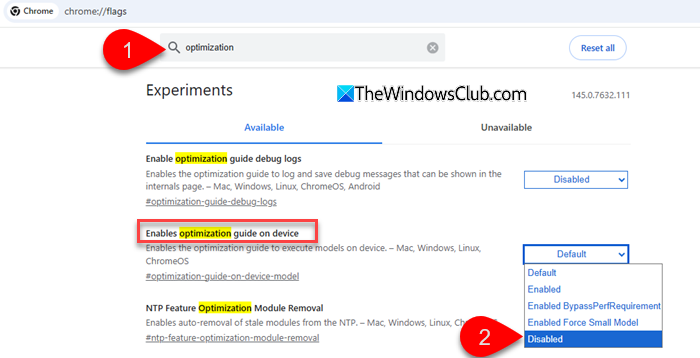
Restart Chrome to apply the changes.
Stop Chrome from downloading 4GB Gemini Nano AI Model on Windows 11
To stop Google Chrome from downloading 4GB Gemini Nano AI Model on Windows 11, navigate to the the following path:
HKEY_LOCAL_MACHINE\SOFTWARE\Policies
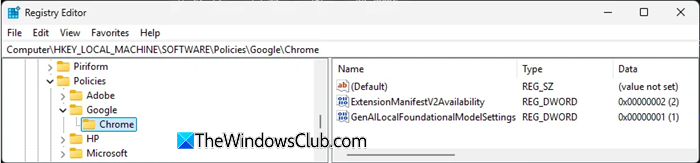
Right-click Policies > Select New> Choose Key and name the new key as Google.
Again right-click this new Google key, Select New > Choose Key and name the new key as Chrome.
Now right-click the Chrome folder, select New and choose DWORD (32-bit) Value.
Give it the name GenAILocalFoundationalModelSettings and set its value to 1.
Restart your computer.
You can also execute the following command in an elevated command prompt to get the same result:
reg add "HKLM\SOFTWARE\Policies\Google\Chrome" /v "GenAILocalFoundationalModelSettings" /t REG_DWORD /d 1 /f
Note: If you want to completely stop Chrome from downloading or using local AI models, you can disable all AI-related features in the browser. We have covered the full step-by-step process in our detailed guide on how to disable all AI features in Chrome on PC.
That’s all! I hope you find this useful.
TIP: You can stop Microsoft Edge from downloading Gen AI Local Foundational AI Model on Windows 11 using Registry or Group Policy Editor.
Can I delete weights bin in Chrome?
The weights.bin file is not malware, nor is it a random leftover file. It is part of Chrome’s shift toward running AI models directly on users’ devices for improved performance, privacy, and offline functionality. If disk space is limited or you prefer not to use local AI features, you can go to %Userprofile%\AppData\Local\Google\Chrome\User Data\Default\OptGuideOnDeviceModel\ and remove or disable it. Otherwise, the file is a normal component of Chrome’s evolving AI infrastructure.
What Chrome files can I delete?
You can safely delete certain temporary files from Google Chrome to free up space, such as the Cache, Code Cache, and GPUCache folders inside your Chrome profile directory. Avoid deleting core profile files unless you are resetting or troubleshooting the browser. The weights.bin file can also be deleted, but Chrome may re-download it if the on-device AI feature remains enabled.
Read Next: Disable AI Mode in Chrome Address bar and Search box.
