
Microsoft Edge has been downloading GenAILocalFoundationalModel on Windows PCs without our knowledge. It runs in the background and powers the AI features on the browser by enabling some features without connecting to the cloud server. In this guide, we show you how to stop Microsoft Edge from downloading AI models on Windows 11.

We have already seen how Google Chrome silently downloads a 4GB weights.bin file in the background without our knowledge, and how to stop Chrome from downloading this Gemini Nano AI model to our PCs. Now let us see how to do it in Microsoft Edge.
How to stop Microsoft Edge from downloading AI models on Windows 11
Microsoft automatically downloads the GenAILocalFoundationalModel via Microsoft Edge on Windows. You can stop this from happening in the following ways.
- Using Registry Editor
- Using Group Policy settings
- Using Edge flag.
Let’s see how to disable it.
1] Using Registry Editor
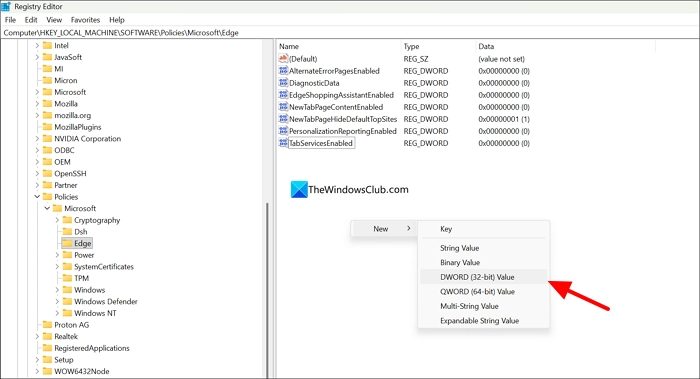
To disable or stop Microsoft Edge from downloading GenAILocalFoundationalModel on your PC, click the Start menu, search for Registry Editor, and open the Registry Editor from the search results. Head to the following path in the Registry Editor.
Computer\HKEY_LOCAL_MACHINE\SOFTWARE\Policies\Microsoft\Edge
Right-click in the folder, hover over New, and select DWORD (32-bit) Value.
Name the new value as GenAILocalFoundationalModelSettings. Then, double-click on it and set the Value data to 1.
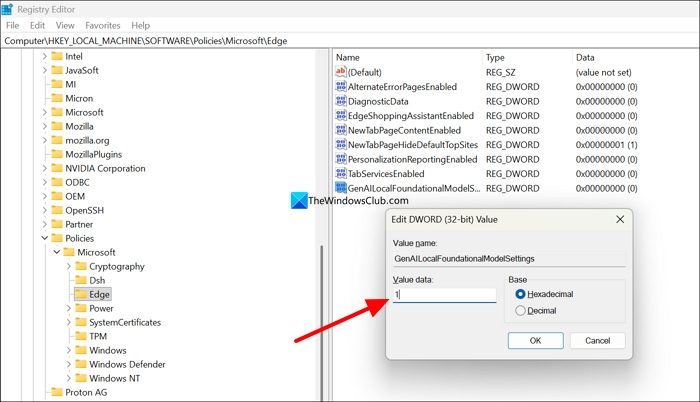
Click OK to save the changes. Restart your PC to apply the changes. It will stop Microsoft Edge from downloading Gen AI Local Foundational Models to use for the AI features on Microsoft Edge.
You can also execute the following command in an elevated command prompt to get the same result:
reg add "HKLM\SOFTWARE\Policies\Microsoft\Edge" /v "GenAILocalFoundationalModelSettings" /t REG_DWORD /d 1 /f
2] Using Group Policy settings
If you are an administrator and do not want to tweak the policy on each system in your administrative network, you can configure it using Group Policy settings.
To configure Microsoft Edge with group policy objects, you will have to first install Edge ADMX administrative templates that add rules and settings for Microsoft Edge to the group policy Central Store.
Open the Group Policy Editor as an administrator and navigate to the following setting:
Administrative Templates/Microsoft Edge/Generative AI
Find the setting named Settings for GenAI local foundational model.
Double-click on it to open it. Check the button beside Enabled. In the Options section below, click the dropdown and select Disallowed (Value 1).
Click OK to save changes. It would apply to all the systems under your administrative control.
The value Allowed (0) means that Edge will download the model automatically.
3] Using Edge flag
Open edge://flags and search for this flag:
Automatic model download
Set it to Disabled and restart Edge.
Hope this helps.
Read: How to enable or disable Visual Search in Microsoft Edge
Does Edge browser use AI?
Yes, Microsoft Edge uses AI and downloads Gen AI Local Foundational Models to run AI features locally on the browser without connecting to cloud servers. These happen in the background, and as a user, we are not able to see the processes or how they work. We can just stop them from running.
Can I use Microsoft Edge without AI?
Using Microsoft Edge without AI or its features is entirely possible without compromising on the browser security. You can disable AI features in Microsoft Edge Settings and Edge flags, and even use the Registry Editor to completely remove AI features and local foundational models.
Related read: Opt out of AI data training in Microsoft Edge.
