
Searching the web using images is a lot easier than typing text. Bing’s Visual Search feature has been designed with this purpose in mind. It lets you find similar images, products, pages that include an image, and even recipes. Now, the same feature has been added to the Microsoft Edge browser. Let’s find out how to enable or disable Visual Search in Microsoft Edge.
Enable or disable Visual Search in Microsoft Edge
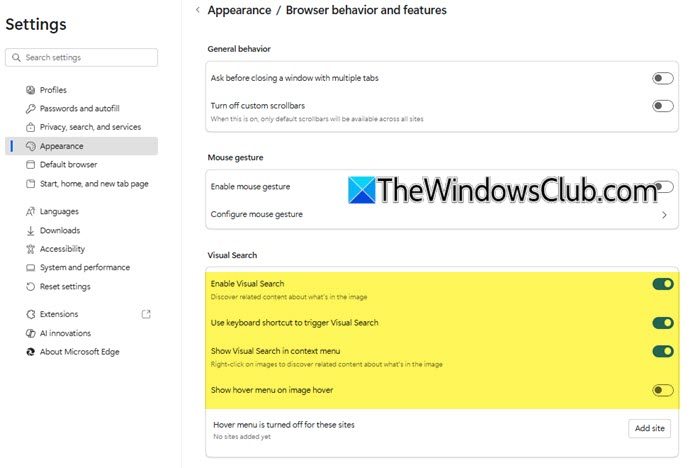
When enabled, Visual search in Microsoft Edge returns insights for an image. Insights are visually similar images or web pages that include the image, and more. So, depending on your preferences, you can enable or disable this feature in the browser. Here’s how it’s done!
- Launch Microsoft Edge browser.
- Select Settings and more menu.
- Choose Settings.
- Scroll down to the Appearance section.
- On the right, find Browser behavior and features section.
- Locate Visual Search.
- Toggle the switch to On or Off as required for the following items:
- Enable Visual Search
- Use keyboard shortcut to trigger Visual Search
- Show Visual Search in context menu
- Show Hover menu on image hover.
That’s how you can quickly explore more related content about products, landmarks, celebrities, animals or plants you see in an image on a webpage.
When done, close the window and exit. Restart the browser to allow the changes to take effect.
Now, simply right-click on images to discover more related content about the things you see in the image.
Is Edge a Chrome browser?
It is not a Chrome browser but a browser, based on Chromium version, a free and open-source web browser project, principally developed and maintained by Google. All versions released with the Chromium name and logo are built by other parties. Edge like Chrome is compatible with all supported versions of Windows, and macOS.
Is Edge better than Chrome?
That’s debatable but it has all the features that can help you protect your data and save time and money. Microsoft Edge features such as Collections, Vertical Tabs, and Immersive Reader help you organize and get the most of your time while browsing, streaming, searching, sharing, and more.
Related: How to Reset, Repair or Reinstall Edge browser.
