
The Vertical tab feature lets you switch between tabs directly from the left-hand side of the browser. If you want to get Microsoft Edge like vertical tab in Google Chrome, here is how you can do that. You can take the the help of some extensions or enable them via Chrome Settings.
Google Chrome now officially supports vertical tabs. You can enable them directly in Chrome’s settings or use extensions if you’re on an older build. This feature moves your tabs from the top bar to a sidebar, making it easier to manage many open tabs. So update your Chrome browser and then follow this post.
How to get Vertical tabs in Chrome

To enable and show Vertical tabs in the Google Chrome browser in Windows 11, take these steps:
- Open Chrome Settings.
- Navigate to the Appearance section.
- Locate the Side Panel Tabs or Vertical Tabs toggle.
- Turn the toggle to the ON position.
Your tabs will shift to the left sidebar.
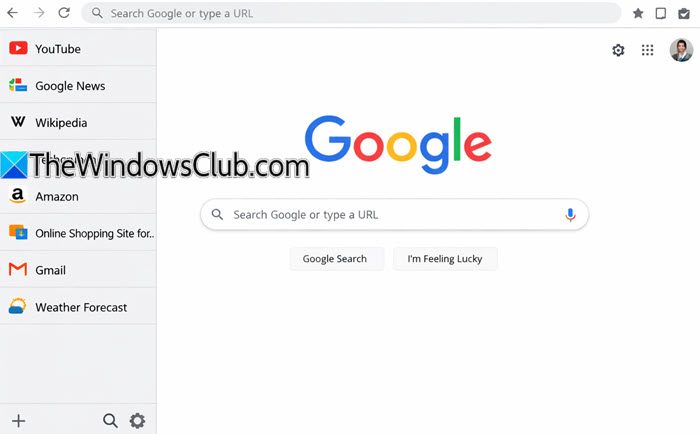
In Vertical Tabs, titles are fully visible, unlike compressed horizontal tabs. It is ideal for widescreens, frees vertical space and also aids faster navigation. You will notice reduced clutter, especially when working with 25+ tabs.
You can also resize the Vertical tab menu. Place your mouse cursor on the edge of the Vertical tab menu and drag it to the left or right. Moving it to the left will collapse tabs, and only the icons of opened tabs will be visible. You can also use the Collapse tabs/Expand tabs icon available on the top-left corner.
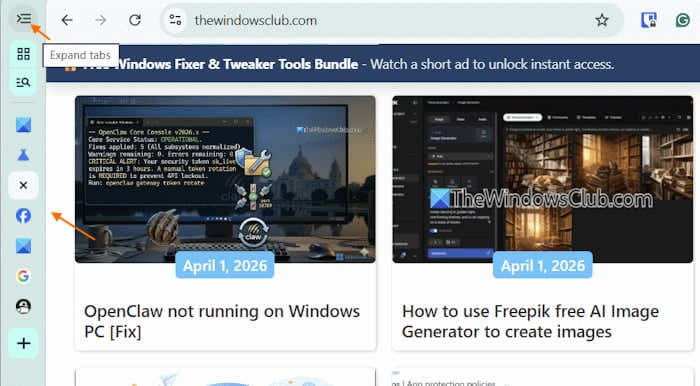
To switch back to horizontal tabs or to move tabs to the top, right-click on an empty area in the Vertical tab menu and select the Move tabs to the top option.
TIPS:
- You can also go to
chrome://flags/, search for Vertical Tabs, enable it, and restart the Chrome browser. - You can right-click in an empty space in the top tab bar and choose “Move tabs to the side” to move the tabs to the left side.
Use Extensions to get Vertical tabs in Chrome
These are the best extensions to get vertical tab in Chrome:
- Vertical Tabs
- Vertabs
- Vertical Tabs
- Vertical Tabs for Google Chrome
1] Vertical Tabs
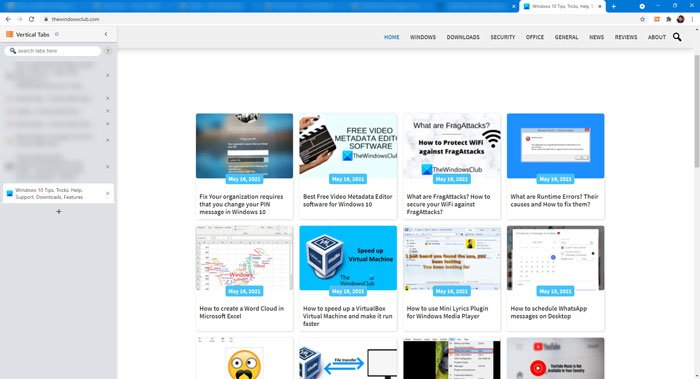
Vertical Tabs is a handy extension that adds vertical tab functionality to Google Chrome. It displays a list of opened tabs when you click the respective icon after installing the extension. From there, it is possible to switch from the current tab to another within moments. You can adjust the sidebar position, squeeze the webpage when the sidebar opens, show/hide tab title, automatically show/hide the sidebar, enable/disable dark theme. Download Vertical Tabs from chrome.google.com.
2] Vertabs
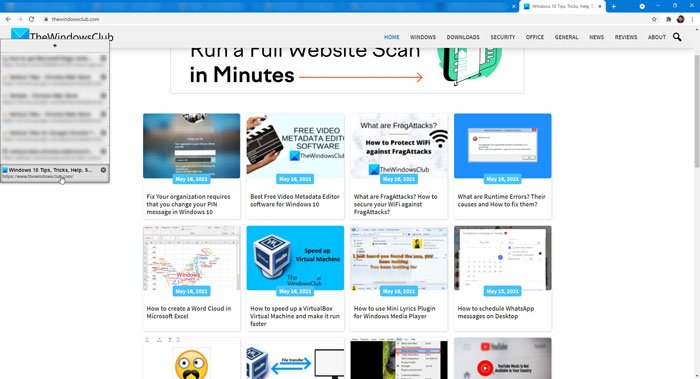
When the Vertical Tabs extension displays an integrated panel, it shows a display-on-hover panel. In other words, you must hover over the semi-hidden panel to display the tab list on the left-hand side. Here, it shows a list of all the open tabs in a single window, and you can switch from one to another by clicking the title. It has a couple of settings that let you change the sidebar position and the number of pixels Vertabs will show when not hovered. Download Vertical Tabs from chrome.google.com.
3] Vertical Tabs

This extension displays the tab list differently, allowing you to adjust the panel width or make it full screen to suit your requirements. Like other vertical tab extensions, it allows users to navigate between tabs or close a specific tab from the sidebar panel. Although the user interface is quite outdated, it does the job pretty well. Download Vertical Tabs from chrome.google.com.
4] Vertical Tabs for Google Chrome

Vertical Tabs for Google Chrome displays a hover-on panel on the left-hand side, allowing users to view and manage all open tabs. In other words, the side panel becomes (almost) invisible when not in use, and you can show it by hovering your mouse over it. It is possible to close any open tab by clicking on the corresponding cross button. Download Vertical Tabs from chrome.google.com.
That’s all!
