
Microsoft has released Group Policy Templates that support the new Microsoft Edge web browser based on Chromium. Group Policies are a great way to customize the behavior of installed software on Windows 11/10. It is mainly used by System Administrators to customize computer configurations.
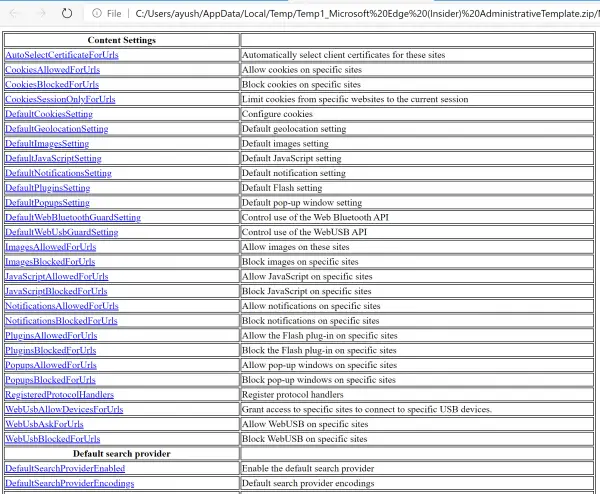
Group Policy Templates for Microsoft Edge browser
It is worth noting that these Group Policy Templates are only available in English (US version) and are not final. They will be continuously updated and refined to the most optimal version as the release becomes generally available.
1] About the Edge Group Policy Templates
You can get the latest version of the Group Policy Templates from the official Microsoft servers. To keep yourself with the latest about the development of these Group Policy Templates, please refer to the official Microsoft Edge documentation page on docs.microsoft.com. The new cross-platform Edge runs on Windows, macOS, iOS and Android devices.
2] Adding these Group Policy Templates to the Group Policy Editor
The package that you download will contain the Group Policies for both Windows 10 and macOS.Extract the folder called windows to your computer locally.
Open the Group Policy Editor. Right-click on Computer Configuration > Administrative Templates and select Add/Remove Templates.
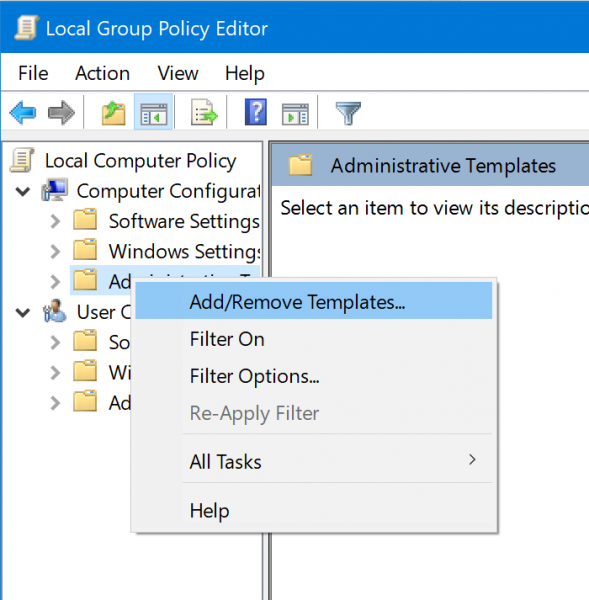
Select Add and navigate to the following path inside that extracted windows folder: windows\adm\en-US
Select msedge.adm
Close the Add/Remove Templates… dialog box.
You will now find all the Group Policies under the following path:
User Configuration > Administrative Templates > Classic Administrative Templates.
There is also an HTML file included that contains all the policies indexed for a user’s preference.
3] Things one should know
Microsoft has made the following notes that they expect a user to know:
- This is a work in progress. We are sharing this early draft with you for your feedback, but the list will change between now and our final release, with policies being added, removed or changed based on feedback.
- The HTML file includes both Mac and Windows policies.
- Policies for managing updates aren’t included; those will be in a separate administrative template file.
- These are only in English (US). We are working on localizing the policy descriptions and documentation before our final release.
Download New Group Policy settings for Microsoft Edge
Microsoft now has a dedicated page where they provide information about new features and non-security updates. In the latest update, sixteen policies have been added to Microsoft Edge Stable Channel. IT admins or Admin users can manually download Group Policy settings for Edge (Chromium) and merge them with existing policies.
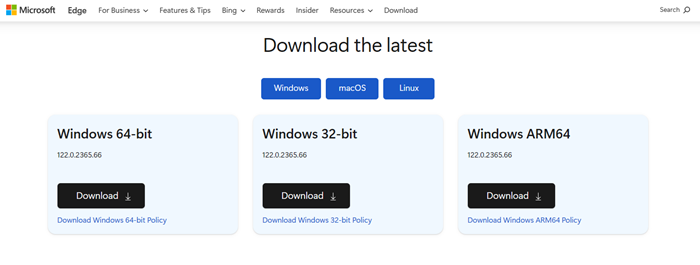
To download the updated Administrative Templates, go to the Microsoft Edge Enterprise landing page. There, you can select the channel or build and platform and click on the Download button for your system.
It will download a CAB file that needs to extract in the policy folder or Copy the msedge.admx file to the PolicyDefinition folder.
Example: %systemroot%\sysvol\domain\policies\PolicyDefinitions.
Or you can use the Group Policy Editor to import the Microsoft Edge templates.
I hope the release of these Group Policy Templates for the new Microsoft Edge Chromium browser is helpful to you.
How to install Edge extension using GPO?
You can install Edge extensions using the Group Policy Editor. But before this, you have to download the administrative templates for Edge. After installing the Administrative templates for Edge, open Group Policy Editor and go to the “User Configuration > Administrative Templates > Microsoft Edge > Extensions” path, and double-click on the “Control which extensions are installed silently” setting. Enable this setting and enter the extension ID.
How to allow popups in Edge using GPO?
You can allow and block popups for specific websites in Edge using Group Policy Editor. First, download and install the Administrative Templates for Edge, then launch the Group Policy Editor, and go to the “Computer Configuration > Administrative Templates > Microsoft Edge > Content setting” path. Now, click on the allow popups settings and enter the website addresses.
Read:
- Group Policy Settings Reference Spreadsheet & ADMX Templates for Windows 11
- How to Install or Update Group Policy Administrative Templates (ADMX).
