
If you’ve upgraded your computer to Windows 11, then some of you might want to have the Group Policy Settings Reference Spreadsheet & Group Policy ADMX Templates for the operating system.
What are Administrative Templates for Windows 11?
Administrative Templates are basically a feature that is linked to the Group Policy. It’s a Microsoft technology for centralized management of computers and users in an Active Directory environment. With these template files, administrators can manage registry-based policy settings at any time.
In terms of system requirements, you will need to have Windows 11, Windows 10, Windows 8, Windows 8.1, Windows 7, Windows Server 2022, Windows Server 2019, Windows Server 2016, Windows Server 2012, Windows Server 2012 R2, or Windows Server 2008 R2.
What is Group Policy Settings Reference Spreadsheet?
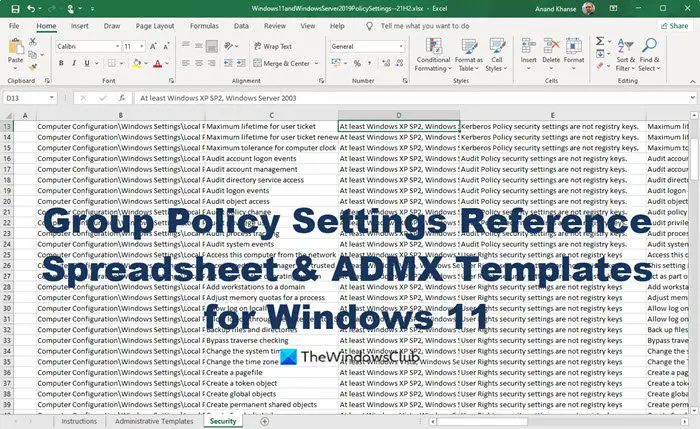
To go hand in hand with the ADMX Templates, the folks at Microsoft released a spreadsheet listing policy settings for users and computer configurations found in the Administrative Template files.
If you know what you’re doing, then it is possible to configure these policy settings whenever you edit Group Policy Objects. We should note that the spreadsheet includes all the policies available in Windows 11.
When it comes down to supported operating systems, well, the number is vast. You will need the likes of Windows 11, Windows 10, Windows Server 2022, Windows Server 2012, Windows Server 2012 R2, Windows Server 2008, Windows Server 2008 R2, Windows 8, Windows 8.1, Windows 2000, Windows 2000 Server, Windows 7, Windows Server 2003, Windows Vista, Windows XP Microsoft Excel or Excel Viewer.
Windows 11 Group Policy ADMX Templates
Group Policy tools use Administrative template files to populate policy settings in the user interface. This allows administrators to manage registry-based policy settings. News and Interest ADMX is currently available only in English language and once it is available in other languages a new version of ADMX templates will be republished.
Downloading this file is super easy.
- For Administrative Templates (.admx) for Windows 11 2025 Update (25H2) go here.
- For Administrative Templates (.admx) for Windows 11 2024 Update (24H2) go here.
- For Windows 11 23H2 Administrative Templates go here.
- Administrative Templates (.admx) for Windows 11 2022 Update (22H2) are available here on Microsoft.com.
- For Windows 11 Update (21H2), visit Microsoft.com here and be sure to click on the Download button in red. The file size is just over 13MB.
Group Policy Settings Reference Spreadsheet for Windows 11
This spreadsheet lists the policy settings for computer and user configurations that are included in the Administrative template files delivered with for Windows 11. You can configure these policy settings when you edit Group Policy Objects.
To download this file:
- For Group Policy Settings Reference Spreadsheet for Windows 11 2025, go here.
- For Group Policy Settings Reference Spreadsheet for Windows 11 2024 Update (24H2) go here.
- For Group Policy settings reference spreadsheet for Windows 11 23H2, go here.
- For Windows 11 2022 Update (22H2) the Group Policy Settings Reference Spreadsheet is available here on Microsoft.com.
- For Windows 11 Update (21H2), you must visit Microsoft.com here and click on the orange Download button to get it on your computer. The size of this download is very small – just 742KB.
Hope you find these downloads useful.
Manage Central Store for Group Policy Administrative Templates in Windows
The Group Policy Administrative Templates in Windows OS are created using .admx and .adml files, with the Central Store used to store these policy files.
As an admin, one important task is to create and administer registry-based policy settings in Windows. The Group Policy Administrative Templates in Windows machines are created using .admx and .adml files. Admins can use the Central Store to store and replicate Windows-based policy files in a domain environment.
Group Policy Administrative Templates
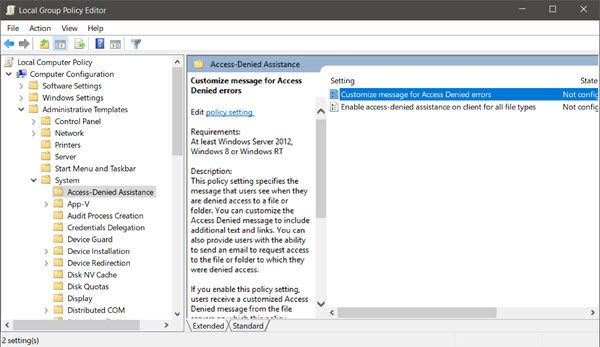
Setting Group Policy administrative templates in Windows is about admins controlling the working environment for user and computer accounts. This feature is present on every PC running the Windows NT OS family. From Windows Vista and Windows Server 2008 onwards, Group Policy got a new format: registry-based policy settings.
The Registry-based policy settings are under the Administrative Templates category in the Group Policy Object Editor. Those are defined using a standards-based XML file format called ADMX files. Thus, a Group Policy administrator must create the templates using the ADMX files. The new file format has replaced ADM files, which used their own markup language. However, in the admins’ day-to-day Group Policy administration tasks, the presence of ADMX files is negligible.
Read: How to find the Registry key for the corresponding Group Policy setting
Tools used to create Group Policy Administrative Templates in Windows
To create the Group Policy Administrative Templates in Windows 10/8/7, admins can use the following tools:
- Group Policy Object Editor
- Group Policy Management Console
Both these tools have been around for quite a long time and remain unchanged.
How to manage Central Store for Group Policy Administrative Templates
Windows uses a Central Store to store Administrative Templates files. Before you start using the Group Policy Administrative Templates in Windows in the form of .admx files, you have to create a Central Store. The Central Store is created in the SYSVOL folder on a Windows domain controller.
Central Store is a file location checked by the Group Policy tools. Further, the Group Policy tools also use any .admx files in the Central Store. The files in the Central Store are later replicated to all domain controllers.
How to create a Central Store
To create a Central Store for .admx and .adml files, create a folder with the name PolicyDefinitions in the following location (for example) on the domain controller:
\\contoso.com\SYSVOL\contoso.com\policies
Then, copy all files from the PolicyDefinitions folder on a source computer to the PolicyDefinitions folder on the domain controller. The source location can be either of the following:
- The C:\Windows folder on a Windows 8.1-based or Windows 10-based client computer
- The C:\Program Files (x86)\Microsoft Group Policy\client folder if you have downloaded any of the Administrative Templates separately
The PolicyDefinitions folder on the Windows domain controller stores all .admx files and .adml files for all languages enabled on the client computer.
This way, you can create and manage the Central Store for Group Policy Administrative Templates in Windows.
Since creating and managing the Central Store for Group Policy Administrative Templates in Windows is a critical task for admins, it is necessary to know all the steps involved.
For more information, read the complete guide on managing the Central Store of the Group Policy Administrative Templates in Windows on Microsoft.com.
Read: How to Install or Update Group Policy Administrative Templates (ADMX).
Where are Group Policy Administrative Templates stored?
Administrative template files (ADMX and ADM files) containing group policies are stored in C:\WINDOWS\Inf by default. Policy definitions are stored in C:\WINDOWS\PolicyDefinitions.
Where are GPO scripts stored?
The INI files, also known as scripts, are stored in the SYSVOL folder on every domain controller (DC). They are then replicated to all DCs in the domain. Whenever a user logs in to a computer that is joined to the domain, the relevant GPO’s script file is read to determine which scripts to execute.
Related reads:
- How to search Group Policy for specific GPO in Windows
- How to Install Group Policy Management Console
- How to Install or Update Group Policy Administrative Templates (ADMX).
