
Recently, we talked about how to resolve the issue of folders and files turning into shortcuts inside a USB drive. Now, we came across yet another very similar problem concerning USB devices. This time we found that whenever we plug the USB drive, things work perfectly, but when we physically remove the disk, you may see some system folders transferred into it. Basically, these seem like System folders like $SysReset, etc. Have a look at the following screenshot.
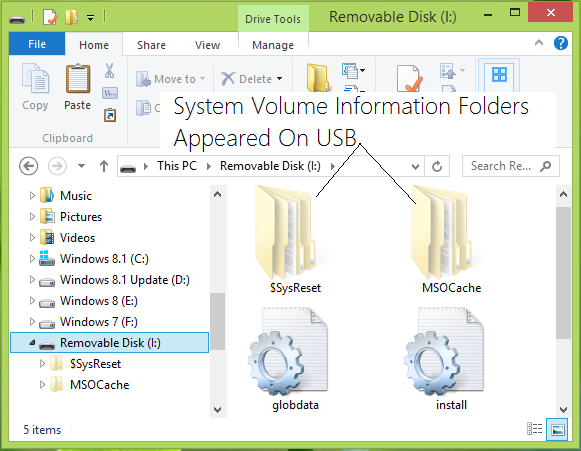
Prevent System Volume Information folder creation on USB
When we first started experiencing this issue, we deleted the transferred folders, and they were erased. But then we plugged the USB in and removed it again; the same thing happened. If you are facing this problem too, you may get irritated by it. While disabling System Restore will remove this problem, that cannot be the solution. There are three ways you can resolve this issue.
Read: System Volume Information folder in Windows.
Using GPEDIT Do not allow locations on removable drives to be added to libraries setting
1. In Windows Pro & Enterprise Editions, press Windows Key + R combination, type put gpedit.msc in Run dialog box and hit Enter to open the Local Group Policy Editor.
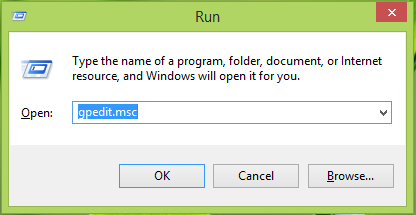
2. Navigate here:
Computer Configuration > Administrative Templates > Windows Components > Search
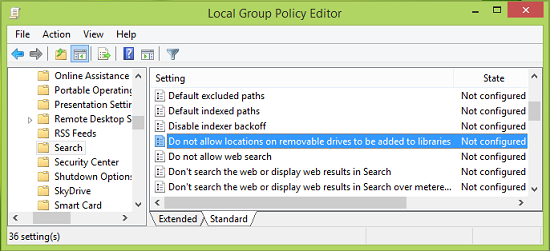
3. In the right pane of the above-shown window, look for the setting named Do not allow locations on removable drives to be added to libraries and double-click it.
This policy setting configures whether or not locations on removable drives can be added to libraries. If you enable this policy setting, locations on removable drives cannot be added to libraries. In addition, locations on removable drives cannot be indexed. If you disable or do not configure this policy setting, locations on removable drives can be added to libraries. In addition, locations on removable drives can be indexed.
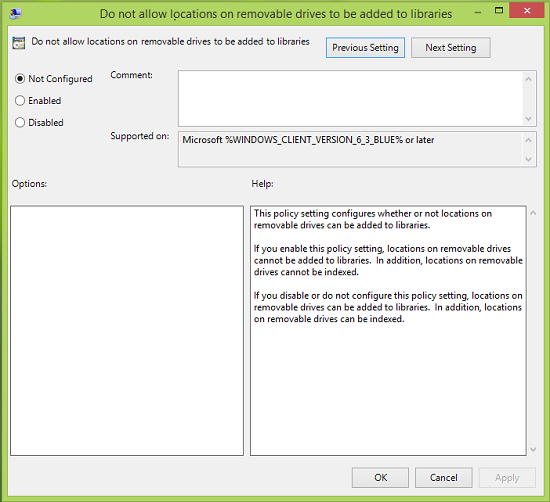
4. In the above-shown window, click on Enabled and then click Apply followed by OK. Close the Local Group Policy Editor and restart the machine, plug in the USB and plug out. You’ll no longer face the trouble.
Using REGEDIT DisableRemovableDriveIndexing key
If your edition of Windows does not have the Group Policy Editor, do the following:
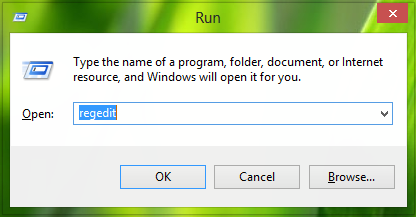
1. Press Windows Key + R combination, type put regedit in Run dialog box and hit Enter to open the Registry Editor.
2. Navigate here:
HKEY_LOCAL_MACHINE\SOFTWARE\Policies\Microsoft\Windows
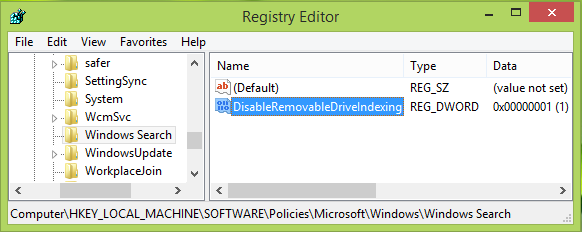
3. In the left pane of this location, right-click over Windows key and select New -> Key. Name the newly created sub-key as Windows Search.
Now select the same sub-key and come to its right pane as shown in the image above. Right-click in the blank space, select New -> DWORD Value. Name the newly created DWORD as DisableRemovableDriveIndexing. Double-click on the same DWORD to get this:
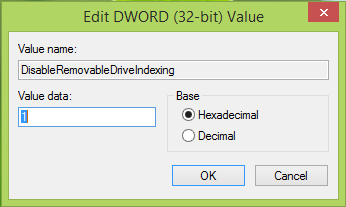
4. In the above-shown box, input the Value data as 1. Click OK. You may now exit Registry Editor and reboot; this should fix the issue significantly.
By disabling the Storage Service
Open Windows Services and locate Storage Service (StorSvc).
Double‑click on it and set its Startup type to Disabled.
Restart your PC.
This stops Windows from generating WPSettings.dat inside the folder.
If your USB is formatted as NTFS, the folder is more persistent. Using exFAT or FAT32 reduces its recurrence. Moreover, removing the folder manually without disabling services will cause Windows to recreate it immediately.
I hope this helps!
