
What is the System Volume Information folder in Windows 11/10? Where is it located? Is it consuming huge disk space on your system and is the size growing large? We will try to answer these questions in this post and also discuss whether you can delete this folder.
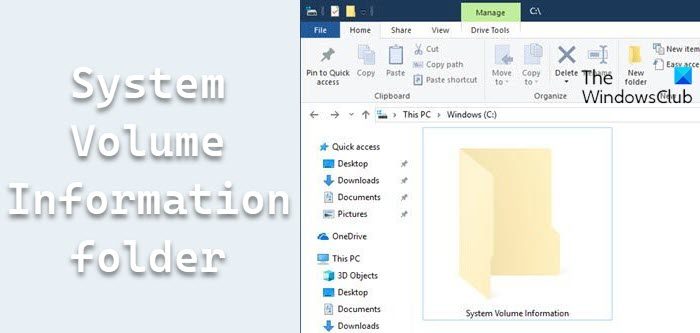
System Volume Information folder in Windows 11
The System Volume Information folder is a protected Windows operating folder. To see it, you have to make Windows show hidden and protected files and folders. Then you will see it on the root of a drive. It is present in every partition on your computer and stores crucial information including:
- System Restore Points
- Volume Shadow Copy
- Indexing Service Database
- NTFS Disk Quota Settings
- Distributed Link Tracking Service Database
- DFS Replication and File deduplication service database.
It is present in every drive by default. However, you can prevent its creation on USB drives.
Where is System Volume Information folder in Windows 11
In Windows 11, the System Volume Information folder is a hidden, protected system directory located at the root of every drive. For example:
C:\System Volume InformationD:\System Volume Information(for secondary drives or partitions)
This folder cannot be accessed on hard drives or NTFS-partitioned external drives. You cannot delete them on these drives either. You have to give your username access to it via its Properties > Security tab. However, the contents of the folder could be accessed, and the folder can be deleted for exFAT- or FAT32-partitioned external drives.
To gain access to the System Volume Information folder, execute the following command:
cacls "driveletter:\System Volume Information" /E /G username:F
This command adds the specified user to the folder with Full Control permissions.
To remove the permission, execute:
cacls "driveletter:\System Volume Information" /E /R username
Running the following command will show you what is stored in this directory:
vssadmin list shadowstorage
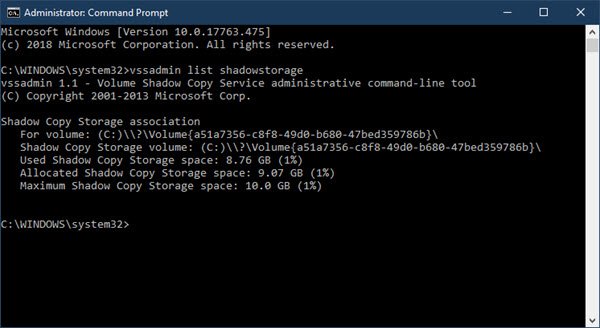
System Volume Information folder is large or huge
With limited space on hard drives and even worse on external drives, the fact that the System Volume Information folder occupies a few GBs of the volume could be concerning. By default, the System Restore setting allows up to 10GB of space to be used for system restore per drive. The System Volume Information folder could occupy all that volume and yet be larger.
Can you delete the System Volume Information folder?
The System Volume Information folder stores crucial information; you should not delete it, nor are you allowed to do so on internal drives or NTFS-partitioned external drives. For exFAT- or FAT32-partitioned external drives, it is up to you to decide after considering the pros and cons.
You can do two things:
- Delete all old System Restore Points and Previous versions of files
- Restrict the disk usage by System Restore Points.
While the System Volume Information folder stores a lot of information, it is not feasible to manage all of it. However, since the System Restore points occupy the major chunk of space in the folder, we could reduce the maximum size the utility could use in a drive. The procedure to restrict the disk usage by System Restore Points is as follows:
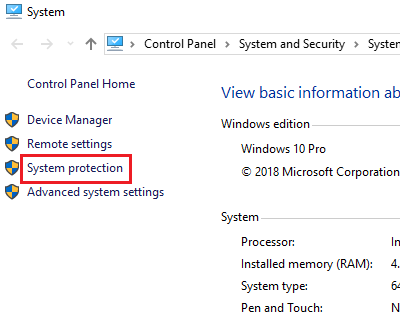
- Open Control Panel
- Select System and Security
- Click on System
- Press the System Protection tab
- Under Protection Settings, click to select the System Disk and then click Configure.
- Under Disk Space Usage, move the Max Usage slider to the right to increase the disk space usage for System Restore points.
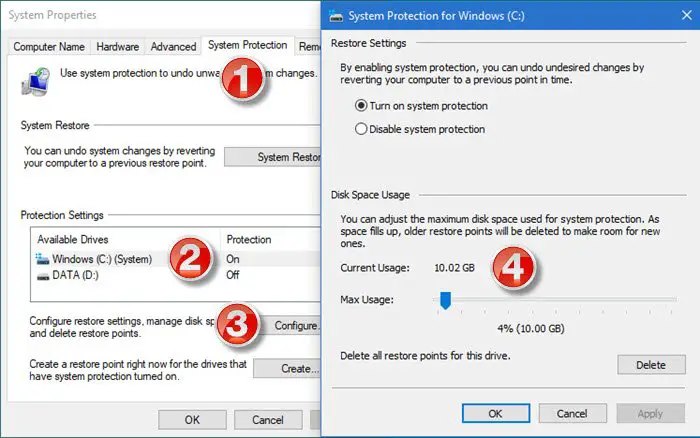
Reducing the count will reduce the volume the system restore points could occupy in the System Volume Information folder.
However, if the folder is large already, you might consider deleting the system restore points using the Delete button, obviously after considering the pros and cons.
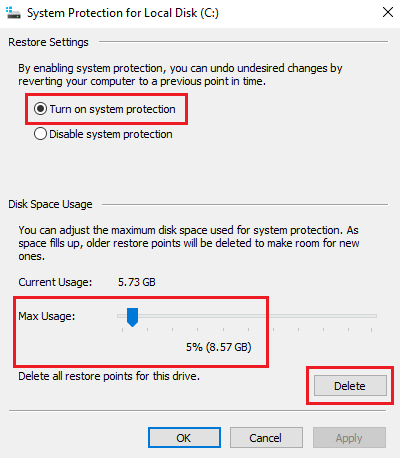
You could also shift the radio button to Disable system protection to do away with the system restore mechanism for the drive – but that is something you should not do for the System Drive.
I hope this answers your questions.
