
Modern processors are designed to increase their clock speeds automatically when additional performance is needed. In Windows 11, a setting called Processor Performance Boost Mode lets you control how aggressively the CPU uses these boost frequencies. This setting is hidden by default on most PCs and must be enabled manually before it appears in Power Options. In this guide, we will explain what Processor Performance Boost Mode does, discuss its available boost options, and show you how to enable and configure it in Windows 11.
What does Processor Performance Boost Mode do?
Modern processors support technologies such as Intel Turbo Boost and AMD Precision Boost, which allow them to temporarily increase their clock speed above the base frequency when additional performance is needed. Processor Performance Boost Mode is a power-management setting that determines how aggressively Windows allows the CPU to use these boost frequencies.
A more aggressive boost mode can improve system responsiveness and application performance, but it may also increase power consumption, temperature, and fan noise. Less aggressive modes can help reduce heat and improve battery life, especially on laptops and other portable devices.
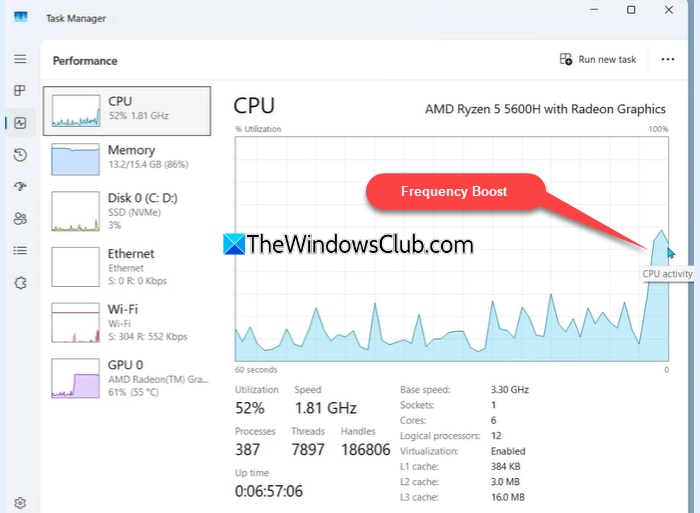
Note: Beginning with the June 2026 Windows 11 update, Microsoft is rolling out a new Low Latency Profile (LLP) feature that temporarily boosts CPU frequencies during app launches and certain system interactions. While LLP improves responsiveness, it is separate from the Processor Performance Boost Mode setting discussed in this guide. Processor Performance Boost Mode remains an advanced power-management option that allows users to control how aggressively their CPU uses turbo or boost frequencies.
Enable Processor Performance Boost Mode in Windows 11
To enable Processor Performance Boost Mode in Windows 11, you need to modify a Registry value that controls its visibility.
Note: Incorrect changes to the Registry can cause system instability or other issues. Therefore, it is recommended that you create a System Restore Point or back up the Registry before proceeding.
Press Win + R to open the Run dialog box. Type ‘regedit‘ and click OK. If the User Account Control (UAC) prompt appears, click Yes to allow Registry Editor to open.
In Registry Editor, navigate to the following location:
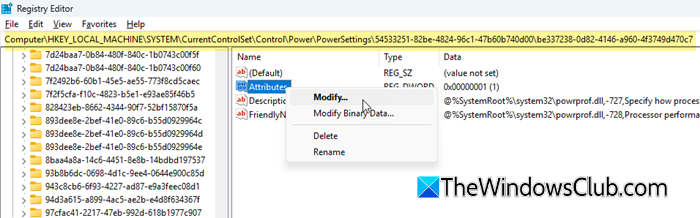
HKEY_LOCAL_MACHINE\SYSTEM\CurrentControlSet\Control\Power\PowerSettings\54533251-82be-4824-96c1-47b60b740d00\be337238-0d82-4146-a960-4f3749d470c7
This Registry key stores the settings related to Processor Performance Boost Mode. In the right pane, locate the Attributes DWORD value and double-click it (or right-click and select Modify).
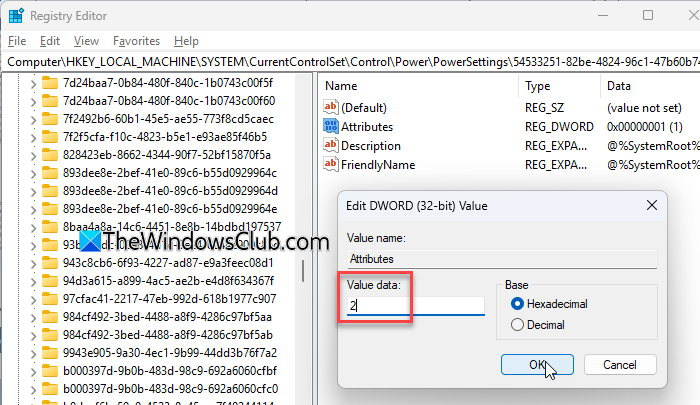
Change its Value data from 1 to 2, and then click OK. Close Registry Editor.
Next, type ‘Edit power plan’ in Windows Search and open it. Click Change advanced power setting.
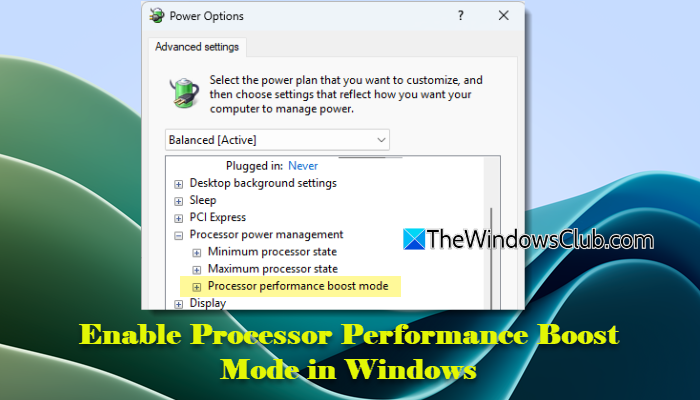
In the Power Options dialog, expand Processor power management. You should now see a new option named Processor performance boost mode.
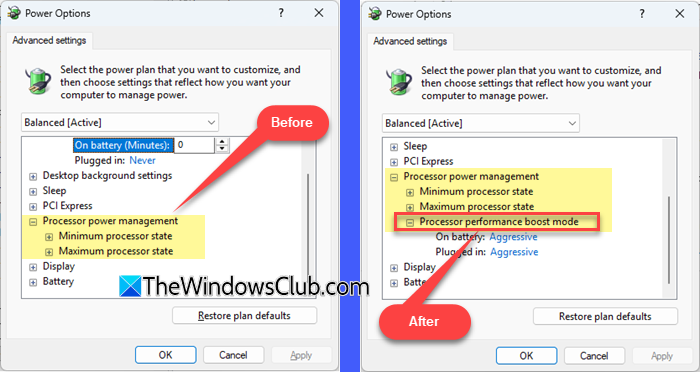
You do not usually need to restart your computer, but if the setting does not appear, restart Windows and try again.
Expand Processor performance boost mode and choose the desired setting for On battery and Plugged in.
Click Apply and then OK to save the changes.
Alternative method: You can also run the following PowerCfg command in an elevated Command Prompt or Windows Terminal to unhide the Processor Performance Boost Mode setting:
powercfg -attributes SUB_PROCESSOR PERFBOOSTMODE -ATTRIB_HIDE
However, this method may not work on all Windows 11 versions. If the setting does not appear in Power Options after running the command, use the Registry method instead.
Processor Performance Boost Mode options explained
Processor Performance Boost Mode lets you choose from several boost options, enabling you to balance performance, power consumption, and thermal output to suit your needs.
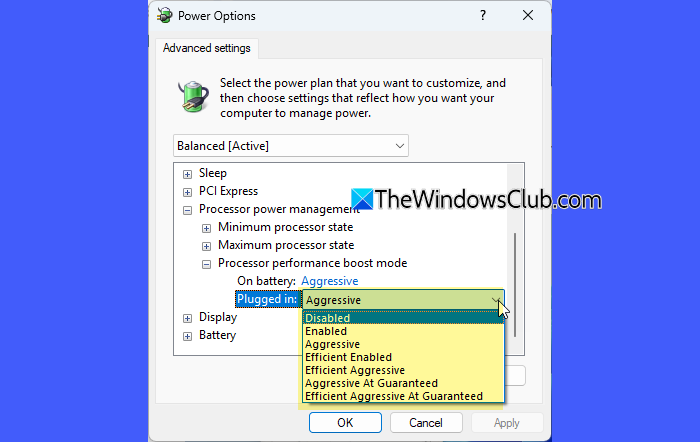
The available boost options are:
Classic Modes
| Mode | What it does | Best for |
|---|---|---|
| Disabled | Prevents the processor from using boost frequencies above its base clock speed. | Laptops where battery life, lower temperatures, and quieter operation are the priority. |
| Enabled | Allows normal boost behavior when additional performance is needed. | Every day use with a balance of performance and efficiency. |
| Aggressive | Prioritizes performance by allowing the processor to boost more quickly and frequently. | Gaming PCs, workstations, and other systems with adequate cooling. |
| Efficient Enabled | Allows boosting while placing greater emphasis on power efficiency. | Laptops that need better battery life without completely disabling boost. |
| Efficient Aggressive | Provides more responsive boosting while still considering power efficiency. | Mixed-use systems that require a balance between performance and efficiency. |
At Guaranteed Variants
The term guaranteed frequency refers to the processor’s base or guaranteed performance level.
| Mode | What it does | Best for |
|---|---|---|
| Aggressive at Guaranteed | Aggressively boosts the processor above its guaranteed performance level whenever conditions allow. | Performance-focused users who want higher boost activity. |
| Efficient Aggressive at Guaranteed | Similar to Aggressive at Guaranteed, but attempts to deliver higher performance more efficiently. | Users seeking strong performance while keeping power consumption under better control. |
Note:
- Not all boost mode options are available on every computer. The options displayed depend on the processor model, system firmware (BIOS/UEFI), power plan, and Windows version installed on the device.
- Processor Performance Boost Mode does not overclock the CPU. It only affects how Windows manages the processor’s existing boost behavior and does not raise the processor beyond its manufacturer-defined limits.
- After changing the boost mode, use your PC for a few days and monitor its performance, temperatures, battery life, and fan noise. Small changes can have different effects depending on your processor, cooling solution, and workload.
That’s all! I hope you find this useful.
Read: Configure Processor Scheduling for better performance in Windows.
Is it safe to disable Processor Performance Boost Mode?
Yes, it is generally safe to disable Processor Performance Boost Mode. Doing so does not damage the processor or affect system stability. It simply prevents the CPU from using boost frequencies above its base clock speed. However, you may notice reduced performance in demanding tasks such as gaming, video editing, and other CPU-intensive workloads.
Read Next: CPU Stuck at low clock speed in Windows.
