
The Low Latency Profile is a feature designed to enhance the performance of Windows 11 PCs. Previously, it was available as an add-on feature that could be activated through the Vive Tool. In a recent Windows Update, KB5094126, Microsoft released this long-awaited feature for all Windows 11 users. The primary goal of introducing this profile in Windows 11 is to boost the system’s responsiveness. It reduces delays when you click the interactive elements, such as the Start button, Windows Search, or launch an app, by forcing the CPU to its maximum potential. In this article, we will talk about the Windows 11 Low Latency Profile feature.
What is Windows 11 Low Latency Profile?
Windows 11 continuously receives new features and improvements from Microsoft, aimed at making the operating system faster and more responsive. Microsoft enabled the Low Latency Mode on users’ Windows 11 devices via the recent Windows Update KB5094126. The Low Latency Profile, a performance optimization feature, is enabled by default in Windows 11 and is designed to reduce delays between user input and the operating system’s response time. Hence, the profile helps make users’ systems faster and more responsive than before.
Computer systems with Low Latency Profile react faster whenever a user performs actions such as clicking the Start menu, launching an application, using Windows Search, or interacting with other system elements. There is no manual option in Windows 11 to turn the Low Latency Profile ON or OFF. It runs silently in the background and helps improve your system’s performance and response time.
Windows 11 Low Latency Profile (CPU Boost) explained
Let’s talk about how the Low Latency Profile works. When this profile is active, Windows 11 forces the CPU to its maximum speed for a very short period, say for 1 to 3 seconds. This happens every time you launch an app, click the Start Menu, click Windows Search or Action Center, and interact with any system elements, such as the Windows 11 Notification Center.
Normally, Windows 11 dynamically adjusts the processor performance to balance speed, efficiency, and system stability. However, when this mode is active, the CPU reaches its maximum performance for a few seconds before returning to normal. This concept is known as the Race to Sleep.
Currently, the Low Latency Mode accelerates app launch and core shell experiences, such as Start Menu, Windows 11 Search, and Windows 11 Action Center. Additionally, it significantly reduces rendering delays in the right-click context menu, ensuring an instantaneous response.
How to check if your Windows 11 system has the Low Latency Profile feature
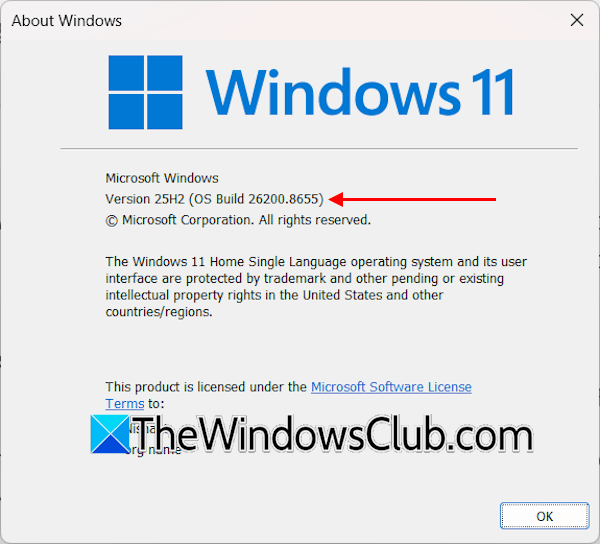
Windows 11 build 26200.8655 and later has this mode active by default. You can check your current Windows 11 version using the Winver tool. Launch the Run command box, type winver, and click OK. If your Windows build is earlier than 26200.8655, check for Windows Updates manually. Download and install the updates. If you have KB5094126 installed, you have the feature already.
You can check if your system has the Low Latency Profile by using the following methods:
- Using the Task Manager
- Using the third-party tool, HWiNFO
Let’s see both of these methods one by one.
1] Check if your system has the Low Latency Profile using the Task Manager
As you know, this profile forces the CPU to run at maximum efficiency whenever you launch an application or use Windows Shell Experience, such as the right-click context menu, Start Menu, or Windows Search. Hence, you need to monitor your CPU’s graph while performing these actions. If the CPU graph shows a spike for a few seconds and then returns to normal, it means your system has this mode active by default.
I monitored the CPU graph in the Task Manager on my system and noticed that the CPU runs at its maximum efficiency whenever I perform any of the above-mentioned actions. To monitor the CPU graph, launch the Task Manager and navigate to the Performance tab. Now, select CPU. As you can see in the video above, the CPU graph on my system spiked when I launched Brave, causing the browser to launch faster. After launching Brave Browser, the CPU returned to normal.
2] Check if your system has the Low Latency Mode using HWiNFO
HWiNFO is a free system information utility for Windows computers. It shows the CPU clock. You can monitor these clock cycles to check if your system has this mode. Install this tool on your system and launch it. Alternatively, you can also use its portable version. If your CPU clock instantly spikes to its maximum limit when you perform any of the actions mentioned above, the Low Latency Profile is working on your system.
Refer to the video above: when I clicked the Start Menu and launched Windows 11 Settings, the CPU clock frequency reached a higher limit.
I hope this helps.
Should I activate Low latency mode in Windows 11?
You do not need to activate low-latency mode on Windows 11, as Microsoft has enabled it by default on all Windows 11 computers with build 26200.8655 and later. You can check whether your system has this mode in Task Manager or with a third-party tool such as HWiNFO.
Is 32 GB RAM overkill for Windows?
No, 32 GB RAM is not overkill for Windows 11. For a smooth experience with Windows 11, your system should have at least 16 GB of RAM. However, if your work requires heavy tasks, 16 GB RAM is not enough. You can upgrade RAM as per your requirements.
Read next: Task View not working or opening in Windows.
