
If Local Group Policy Editor is not opening in Windows 11, here is what you can do to fix the issue. Here we will discuss different scenarios along with the solutions so that you can relate to it and troubleshoot the problem within moments.
Why is Group Policy Editor not opening in Windows 11?
If the Group Policy Editor is not opening, one of these could be the reason:
- You are using Windows 11 Home edition, which does not include it.
- There are some issues with the system files related to the Local Group Policy Editor.
- Group Policy Editor has been corrupted after importing a template.
- There are some problems with your Registry files.
- You have installed third-party security or parental control software that is preventing you from opening the Local Group Policy Editor.
Group Policy Editor not opening in Windows 11
If Group Policy Editor is not opening in Windows 11/10, follow these solutions:
- Check your Windows 11 version
- Use administrator user account
- Open Group Policy Editor with administrator permission
- Fix Registry file corruption
- Reinstall Group Policy Editor package
- Temporarily disable third-party security software
- Try in Clean Boot State
- Remove any template that you have installed recently
To learn more about these solutions, continue reading.
1] Check your Windows 11 version
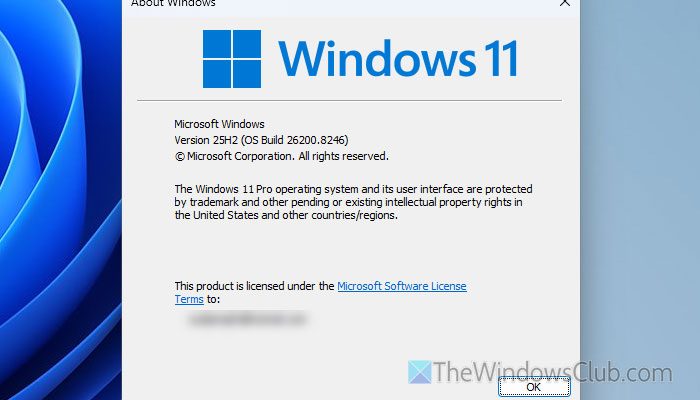
It is the very first thing you should check before following any other solutions. Open Run box, type winver and check your version.
For your information, Windows 11 Home edition doesn’t have Local Group Policy Editor. In other words, if you use this particular version, you cannot find or open GPEDIT on your computer.
However, you can follow this guide to add Group Policy Editor to Windows 11 Home edition.
2] Use administrator user account
You must open the Local Group Policy Editor when you are logged into an admin account. Otherwise, it may not open or work. Although Standard users can open it, it may not work consistently.
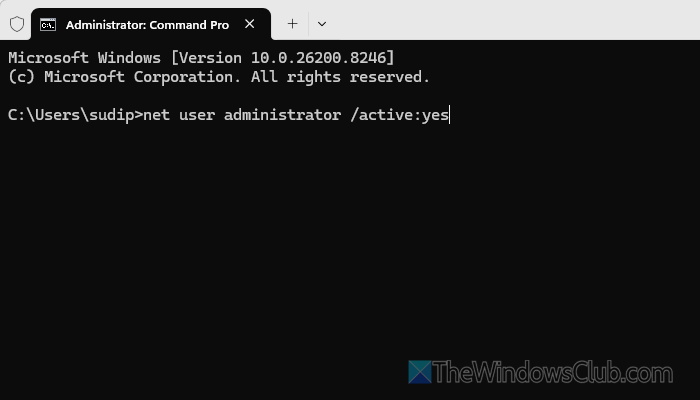
Having said that, you can use the Local Administrator account to open, view, and change any policy. In case you do not have an admin account, you can opt for the built-in Administrator account. To enable it, open the Terminal with admin permission and enter this command:
net user administrator /active:yes
Following that, set up this account and view or change anything in the Group Policy Editor.
Read next: How to repair a corrupt Group Policy in Windows 11.
3] Open Group Policy Editor with administrator permission
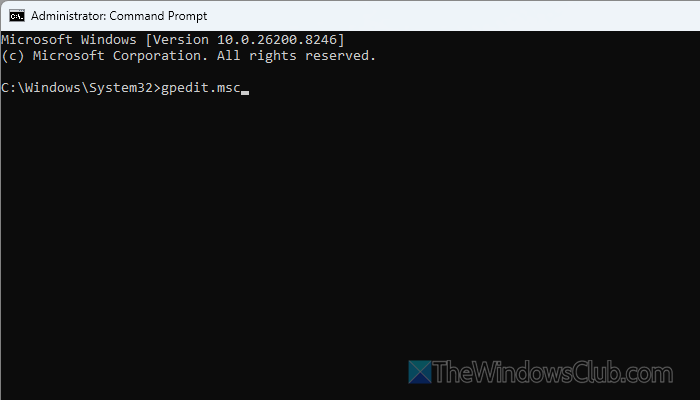
To open the Group Policy Editor with administrator permission, you have two options.
First, press Win+R to open the Run prompt, type gpedit.msc, and press Ctrl+Shift+Enter.
Second, you can search for CMD in the Taskbar search box and open Command Prompt with administrator privilege. Then, enter gpedit.msc and hit the Enter button.
Read: Failed to open the Group Policy Object on this computer
4] Fix Registry file corruption
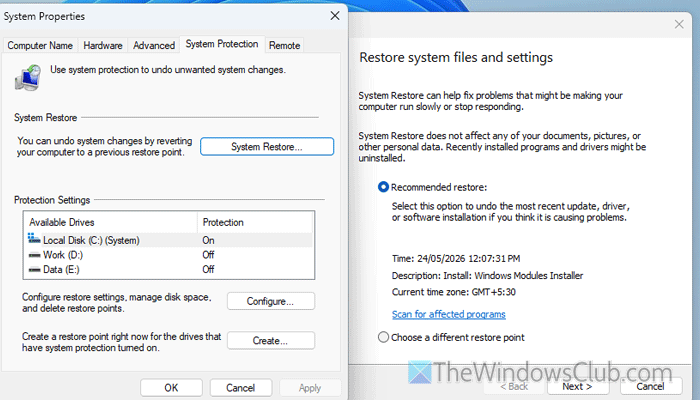
As the Group Policy Editor and Registry Editor are interlinked, there is a chance of a flawed Group Policy Editor when Registry files are corrupt. That is why you should also fix the Registry Editor.
For that, you can do the following:
- Use System File Checker and DISM scan.
- Perform a System Restore.
- Perform Automatic Startup Repair.
You can find more about fixing the Registry Editor if you follow this article.
5] Reinstall Group Policy Editor package
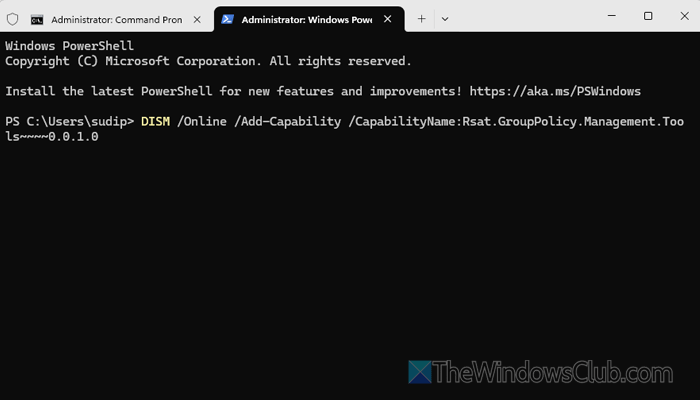
To reinstall the Group Policy Editor package in Windows 11, open the Terminal with admin permissions and ensure you have a PowerShell instance open. If so, enter this command:
DISM /Online /Add-Capability /CapabilityName:Rsat.GroupPolicy.Management.Tools~~~~0.0.1.0
You will have to restart your computer once it is done.
Read: Install Group Policy Management Console in Windows 11
6] Temporarily disable third-party security software
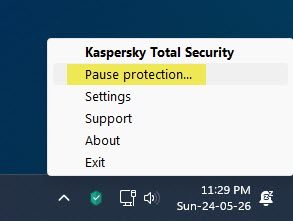
There are so many third-party security software programs, such as antivirus, firewall, etc. If you use any of these, it is recommended to disable them temporarily and check whether this resolves the issue.
In most cases, people who use parental control software often encounter the problem of being unable to open a particular program or utility on their computer.
Read: How to check if Antivirus is working properly or not on Windows PC
7] Try in Clean Boot State
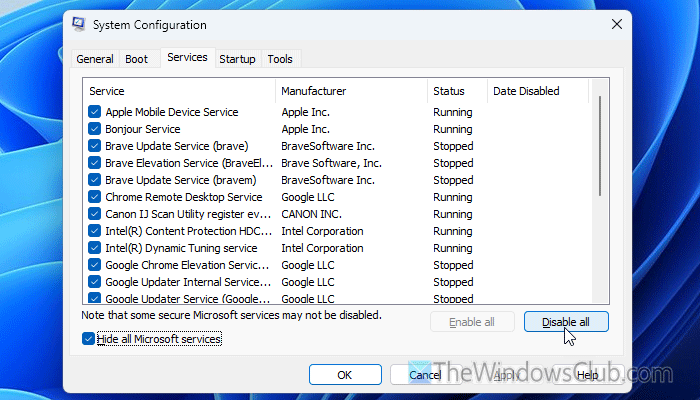
It is suggested to open the Local Group Policy Editor in Clean Boot state. Clean Boot State is such a state where all third-party programs, processes, etc. are disabled. Thus, you will be able to determine whether this problem is caused by an internal driver, software, or something else.
To perform a Clean Boot State, press Win+R > type msconfig, and press the Enter button. Go to the Services tab, and tick the Hide all Microsoft services checkbox.
Click the Disable all and OK buttons. Click the Restart button.
Once you are logged in, try to open the Local Group Policy Editor.
Read: Error when you open Local Group Policy Editor in Windows 11
8] Remove any template that you have installed recently
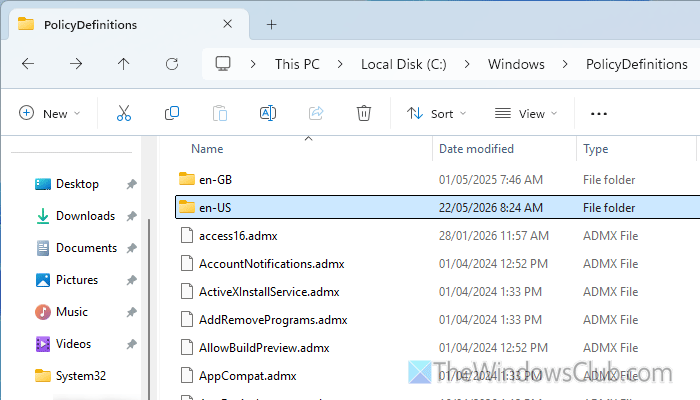
Irrespective of the method you use, the Group Policy Editor stores all templates here:
C:\Windows\PolicyDefinitions and C:\Windows\PolicyDefinitions\en-US.
If you recently installed a template and the problem started afterward, it is recommended to remove that template.
For that, open the File Explorer and navigate to this path:
C:\Windows\PolicyDefinitions
Find the template you have recently added and remove it. Then, go to the en-US folder or this path
C:\Windows\PolicyDefinitions\en-US
And remove the language file. Once done, try opening the Local Group Policy Editor.
Related: Error when you open Local Group Policy Editor in Windows 11
How do I open the Group Policy editor in Windows 11?
To open the Group Policy Editor in Windows 11, press Win+R to open the Run prompt. Then, type gpedit.msc and hit the Enter button. You can also search for gpedit.msc in the Taskbar search box and click the corresponding result.
How to fix gpedit.msc missing in Windows 11?
If gpedit.msc is missing in Windows 11, you may be using the Home edition. Also, if there are some issues with the corresponding system files, you won’t be able to open the Group Policy Editor on your computer. Running SFC and DISM scans can help fix the Group Policy Editor.
Read: Failed to open the Group Policy Object on this computer.
