
In this post, we will show you how to automatically sign off inactive remote desktop users on a Windows 11/10 PC.
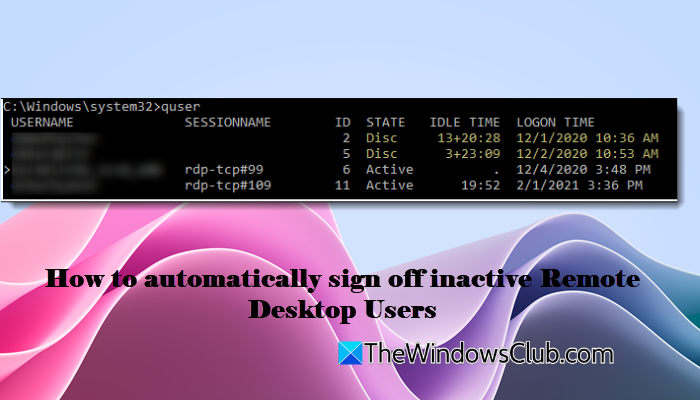
Remote Desktop is commonly used by IT administrators, businesses, and remote workers to access and manage computers from another location. However, sometimes users lose their connection or close the RDP window without logging off. Leaving RDP sessions signed in but inactive or disconnected can consume system resources, create security risks, and affect overall system performance. Therefore, it is important to configure Windows to sign off such sessions automatically.
How to automatically sign off inactive Remote Desktop Users
To automatically sign off inactive Remote Desktop users in Windows 11/10, follow these methods:
- Use Group Policy Editor
- Use Remote Desktop Session Host Configuration
- Use RDS Collection settings
Let us see these methods in detail.
1] Use Group Policy Editor
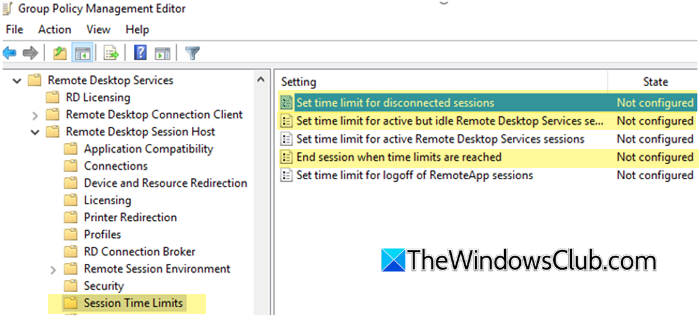
Local Group Policy Editor lets you set time limits for idle and disconnected sessions and ensure users are automatically logged off once those limits are reached.
Press Win + R to open the Run dialogue. Type gpedit.msc, and press Enter.
In the Group Policy editor window, navigate to the following path:
Computer Configuration > Administrative Templates > Windows Components > Remote Desktop Services > Remote Desktop Session Host > Session Time Limits
Configure the following policies:
A] Set time limit for disconnected sessions:
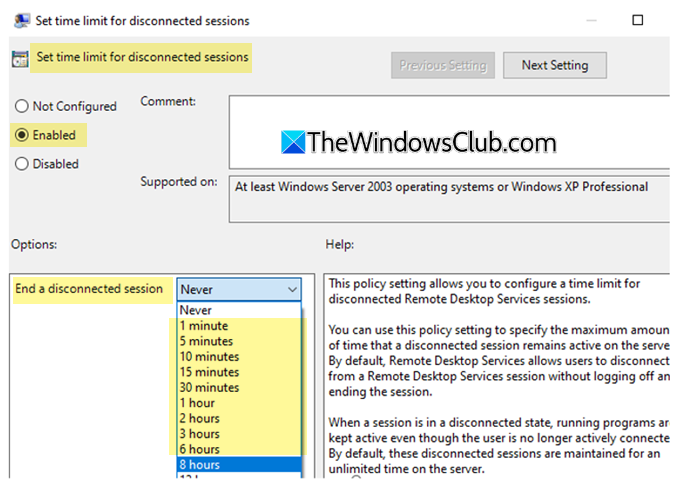
Set this policy to Enabled. Then, under Options, use the End a disconnected session dropdown to specify how long a disconnected session can remain before it is automatically logged off. Avoid setting up a very short time, as users may have disconnected temporarily and may need to reconnect and continue their work.
B] Set time limit for active but idle Remote Desktop Services sessions:
Set this policy to Enabled. Then, under Options, use the Idle session time dropdown to specify how long a session can remain idle before it is automatically disconnected.
C] End session when time limits are reached:
This policy acts like a master switch. Set this to Enabled to ensure that sessions are automatically signed off once the configured limits are reached.
Click Apply and then OK. Then reboot your PC (or run gpupdate /force) to apply the changes
2] Use Remote Desktop Session Host Configuration
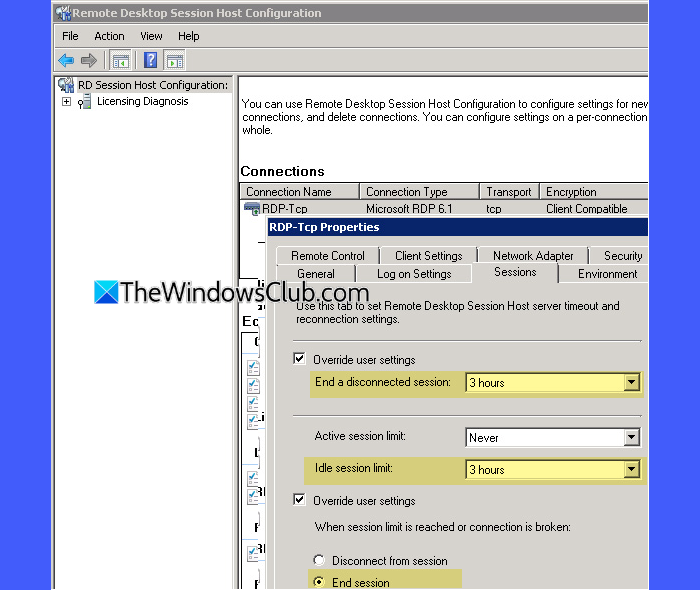
On systems running Windows Server (single server), you can configure session limits directly through Remote Desktop Session Host settings.
Press Win + R, type tsconfig.msc, and press Enter.
Click Connections in the left pane of the RD Session Host Configuration window. Then in the right pane, double-click RDP-Tcp.
Switch to the Sessions tab in the RDP-TcpProperties window. Configure the following settings:
- End a disconnected session: Set how long a disconnected session should remain before it is logged off
- Idle session limit: Specify how long a session can remain inactive before it is disconnected
- Under When session limit is reached or connection is broken, select End session to automatically log off users.
Click Apply and then OK.
3] Use RDS Collection settings
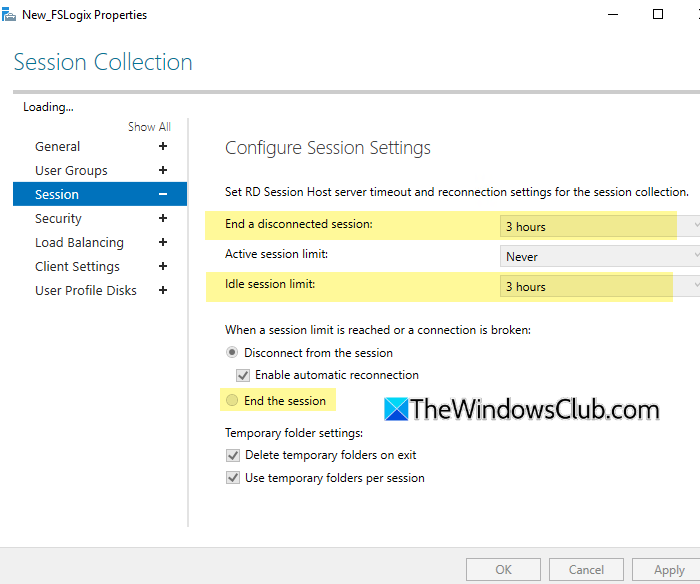
If you host multiple Remote Desktop servers in an Windows Server environment, you can configure session time limits using RDS Collection settings.
Open Server Manager. Go to Remote Desktop Services > Collections.
Select your active session collection. In the Tasks menu, click Edit Properties. Next, go to the Session tab and configure the following settings:
- End a disconnected session: Set how long a disconnected session should remain before it is automatically logged off.
- Idle session limit: Set how long a session can remain inactive before it is disconnected.
- Select End the session under When session limit is reached or connection is broken.
Click OK or Apply.
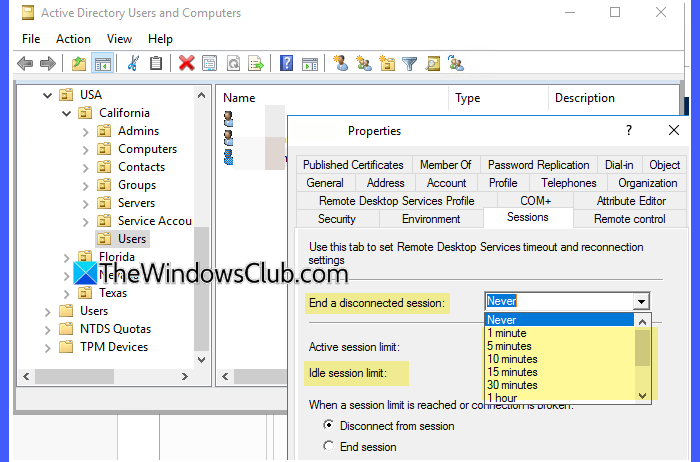
Note: You can also configure Remote Desktop session limits at the user level using Local Users and Groups (lusrmgr.msc) or Active Directory Users and Computers (dsa.msc). This allows you to define session timeouts for specific users instead of applying them system-wide. However, this method is less commonly preferred compared to Group Policy or RDS-based configuration.
I hope you find this useful.
Read: Windows could not start the Remote Desktop Services.
How to log users off automatically after a period of inactivity?
You can automatically log off inactive Remote Desktop users by configuring session time limits in Windows. In Local Group Policy Editor, set limits for idle and disconnected sessions and enable the option to end sessions when limits are reached. On server environments, similar settings can be configured using RDS Collection or Session Host settings.
How to force log off Remote Desktop session?
To force log off a Remote Desktop session, you can end the user’s session directly from the system. Open an elevated Command Prompt, run query session to identify the Session ID, and then run logoff <SessionID> to terminate it. You can also log off users from tools like Task Manager (Users tab > RDP user > Right-click > Sign off) or Server Manager in Windows Server.
Read Next: Increase the number of Remote Desktop Connections in Windows 11.
