
If you receive the error message “The user account has been locked because there were too many logon attempts” while connecting to a remote computer on your Windows 11/10 PC, this post will help you fix the issue.
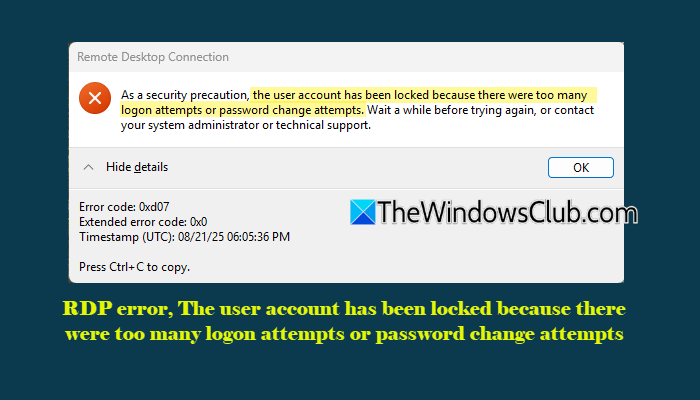
When you connect to a remote computer using Remote Desktop (RDP), Windows verifies your credentials and signs you in if the username and password are correct. However, if it detects multiple failed sign-in attempts and the number of attempts exceeds the configured account lockout threshold, it may temporarily lock your account and display the following error message:
Remote Desktop Connection
As a security precaution, the user account has been locked because there were too many logon attempts or password change attempts. Wait a while before trying again, or contact your system administrator or technical support.
Error code: 0xd07
Extended error code: 0x0
In this post, we will explain why this error occurs and how to fix it on a Windows 11/10 PC.
Why is my RDP account locked Too many attempts?
Your RDP account has likely been locked because the Account Lockout Policy configured in Windows (or your domain) detected too many failed sign-in attempts. This is a security measure designed to protect your account from unauthorized access and brute-force attacks. These failed sign-in attempts are not always caused by entering an incorrect password; they may also result from cached credentials, scheduled tasks, Windows services, disconnected Remote Desktop sessions, or another device still trying to authenticate using an outdated password.
RDP error: The user account has been locked because there were too many logon attempts
To fix the RDP error, “The user account has been locked because there were too many logon attempts”, use these solutions:
- Remove outdated saved credentials
- Check Event Viewer (Event ID 4740)
- Review the Account Lockout Policy
- Verify the LAN Manager authentication level
Let us see these solutions in detail.
1] Remove outdated saved credentials
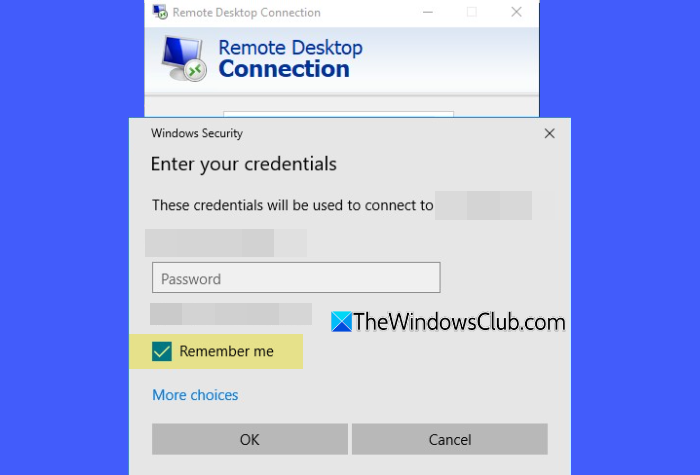
When you connect to a remote computer using Remote Desktop, you may select the Remember my credentials (or Remember me) option to avoid entering your username and password every time. Windows then saves these credentials in Credential Manager for future use.
If you later change your account password but do not update the saved credentials, Windows or other applications may continue trying to authenticate using the old password. Repeated failed authentication attempts count toward the configured account lockout threshold and may eventually cause Windows to lock your account as a security measure.
To remove the saved credentials, follow these steps:
- Open Control Panel.
- Go to User Accounts > Credential Manager.
- Select Windows Credentials.
- Look for any entries related to the remote computer or RDP connection.
- Expand the entry and click Remove.
Close and reopen the Remote Desktop client, then connect again using the correct username and password.
Next, check other places where the old password may still be stored and update it to prevent further lockouts:
- Scheduled Tasks: Open Task Scheduler (taskschd.msc) and update the credentials for any tasks configured to run under the affected account.
- Windows Services: Open Services (services.msc), check services that log on using the affected account, and update the password if required.
- Other devices and applications: If the account is used on another computer, mobile device, Outlook profile, or mapped network drive, update the saved password there as well.
If the account is already locked, wait until Windows automatically unlocks it (based on the configured account lockout duration) or ask your administrator to unlock the account before trying again.
2] Check Event Viewer (Event ID 4740)
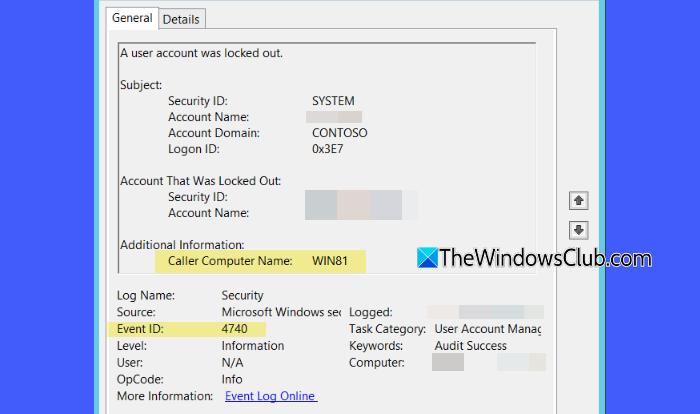
If clearing cached credentials does not resolve the issue, check the Windows Security log for Event ID 4740, which is generated whenever a user account is locked. The event includes the Caller Computer Name, which can help identify the computer from which the failed authentication attempts originated.
Follow these steps:
- Press Win + R, type eventvwr.msc, and press Enter.
- Navigate to Windows Logs > Security.
- In the Actions pane on the right side, click Filter Current Log.
- Enter 4740 in the <All Event IDs> box and click OK.
- Open the latest Event ID 4740 entry and review the Caller Computer Name field.
If the Caller Computer Name points to another device, check that device for outdated saved credentials, scheduled tasks, Windows services, or applications that may still be using an old password. Once the source of the failed authentication attempts is identified and corrected, try connecting via Remote Desktop again.
Note: You can also look for Event ID 4625, which records failed logon attempts and may provide additional details about the authentication failures that triggered the account lockout.
3] Review the Account Lockout Policy
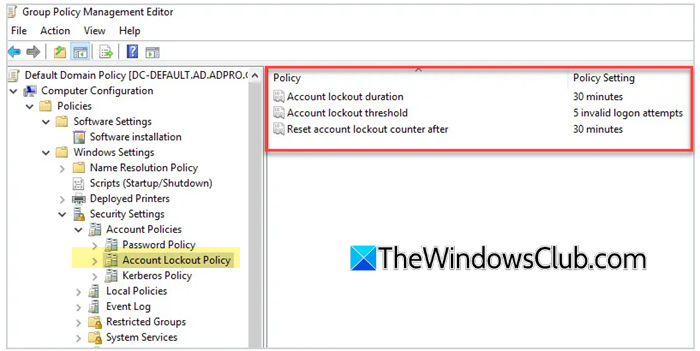
If the issue persists, review the Account Lockout Policy configured on the computer or domain. This policy determines how many failed sign-in attempts are allowed before an account is locked, how long it remains locked, and when the failed-attempt counter is reset.
To review the policy:
- Press Win + R, type secpol.msc, and press Enter.
- Navigate to Security Settings > Account Policies > Account Lockout Policy.
- Review the following settings:
- Account lockout threshold: Specifies the number of failed sign-in attempts allowed before the account is locked.
- Account lockout duration: Specifies how long the account remains locked before it is automatically unlocked.
- Reset account lockout counter after: Specifies how long Windows waits before resetting the failed sign-in attempt counter.
If these settings are configured too aggressively for your environment, consider adjusting them.
Note:
- In a domain environment, these settings are usually managed through Group Policy and may need to be changed by your system administrator.
- Administrators may set the Account lockout threshold to 0 as a temporary troubleshooting measure to disable account lockouts. However, this significantly reduces security by allowing unlimited failed sign-in attempts and increasing the risk of brute-force attacks. If you use this workaround, restore the original policy as soon as the issue is resolved.
4] Verify the LAN Manager authentication level
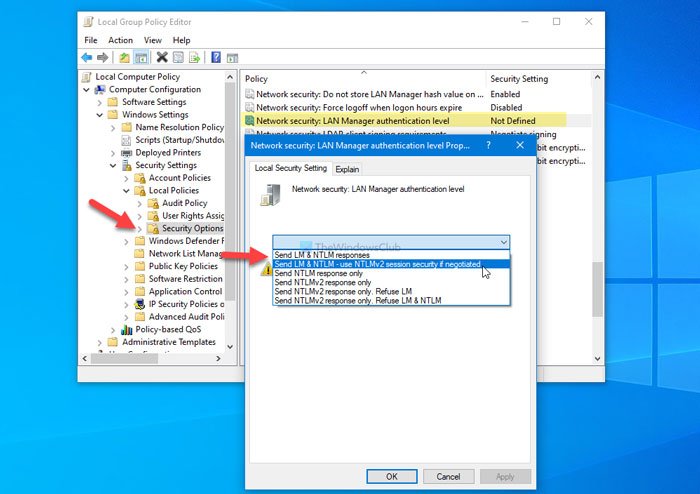
Note: This solution primarily applies to Active Directory domain environments where users are locked out after a successful initial Remote Desktop connection.
If you can connect to the remote computer successfully the first time but receive the account lockout error on subsequent RDP attempts, the RDP server and the Domain Controller may be using different LAN Manager authentication levels. This authentication mismatch can cause repeated failed authentication attempts and eventually lock the account.
To verify the LAN Manager authentication level, press Win + R, type gpedit.msc, and press Enter.
Navigate to:
Computer Configuration > Windows Settings > Security Settings > Local Policies > Security Options
Double-click Network security: LAN Manager authentication level. Compare the configured value with the corresponding setting on the Domain Controller.
If the settings do not match, configure the RDP server to use the same authentication level as the Domain Controller. Apply the changes and restart the server.
Alternatively, you can verify the setting in the Registry Editor by navigating to:
HKEY_LOCAL_MACHINE\SYSTEM\CurrentControlSet\Control\Lsa
and checking the value of the LmCompatibilityLevel registry entry. Before modifying the LmCompatibilityLevel registry value, back up the registry or create a System Restore point. Incorrect registry modifications can cause system instability.
I hope this helps.
Read: Remote Desktop Connection error code 0x3000008.
How do you unlock an account on RDP?
If your RDP account is locked, wait until the configured lockout period expires, then try signing in again. If you have administrative privileges, you can also unlock the account through Computer Management (for local accounts) or Active Directory Users and Computers (for domain accounts), or ask your system administrator to unlock it.
Read Next: Account getting locked out frequently in Active Directory.
