
Remote Desktop is an essential tool for remote administration and virtual desktop access, but the default session limits in Windows often surprise users. Depending on your edition, you might be restricted to a single active user session (Windows 11/10) or only two concurrent administrative connections (Windows Server). This post walks you through different methods for enabling multiple simultaneous RDP sessions, from unsupported client hacks to fully supported server deployments, and wraps up with the specific steps to exceed the 2-session limit on Windows Server.
Enable multi-session for Remote Desktop
Windows Server supports a full multi-user environment through the Remote Desktop Services (RDS) role. This turns the server into a session host that can handle tens or hundreds of concurrent users, each with their own desktop, applications, and settings.
To enable multi-session for Remote Desktop, follow the steps mentioned below.
- Meet the prerequisites
- Install the RDS Roles
- Activate the License Server and add CALs
- Create a Session Collection
- Adjust Session Limit
- Connect Users
Let us talk about them in detail.
1] Meet the prerequisites
First, make sure you meet the prerequisites listed below.
- A domain-joined Windows Server (Standard or Datacenter).
- Administrative privileges on the server.
- RDS Client Access Licenses (CALs) – Per User or Per Device – already purchased.
If you have these privileges, go to the next step.
2] Install the RDS Roles
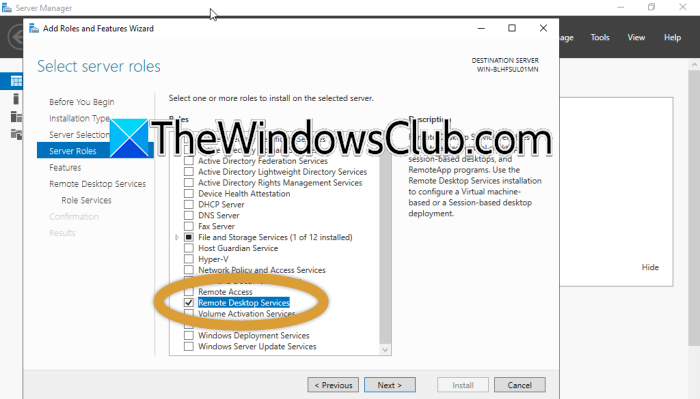
The first thing you need to do is install the RSD Roles if you haven’t already. Since this is a fresh setup, we will install this role; if you already have it installed, feel free to skip this step.
- In Server Manager, go to Add Roles and Features.
- Now, look for the Remote Desktop Services installation.
- Select Session-based desktop deployment.
- Choose Quick Start if all roles will run on the same server (simple single-server setup).
The wizard installs RD Session Host, RDS Connection Broker, and RD Licensing. Once done, restart the server.
3] Activate the License Server and add CALs
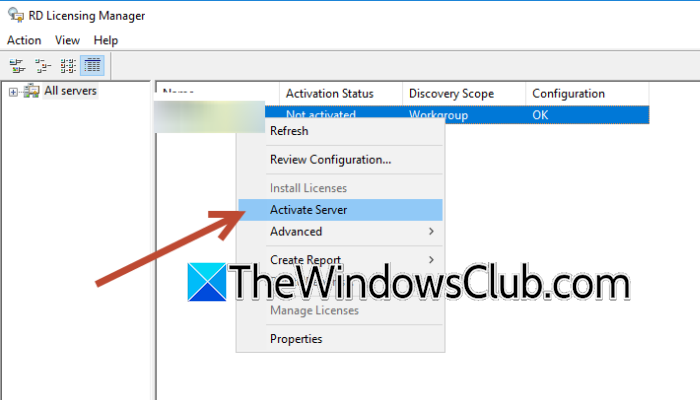
To enable multi-session RDS, we need a proper license. Do keep in mind that without CALs, you have a 120-day grace period during which unlimited users can connect. After that, only the 2 administrative sessions work. Follow the steps mentioned below to do the same.
- Go to Server Manager.
- Now, navigate to Tools > Remote Desktop Services > Remote Desktop Licensing Manager.
- You then have to right-click the server and select Activate Server.
- Once the wizard completes activation, right-click on the server again and this time, click on Install Licenses.
- Choose your license program (e.g., Enterprise Agreement, Open License) and enter the number of CALs you bought.
Finish the wizard. The licensing server is now ready.
4] Create a Session Collection
A Session Collection is the container that links your Session Host server, the users who can connect, and any profile settings. Think of it as the “pool” of desktop users that will be placed into when they log on. Follow the steps mentioned below to do the same.
- In the Server Manager, go to Remote Desktop Services on the left, then select Collections.
- Go to Tasks > Create Sessions Collection.
- Give the collection a name (e.g., “General RDS Sessions”).
- Select the RD Session Host service to host sessions.
- Now, add the user groups that are allowed to connect (e.g., “Domain Users”).
You can optionally configure user profile disks for persistent settings, then complete the wizard.
Always double-check that the groups you add here match the actual users who will be connecting. You can later fine-tune the collection’s properties, such as session timeouts or load-balancing behavior.
5] Adjust Session Limits
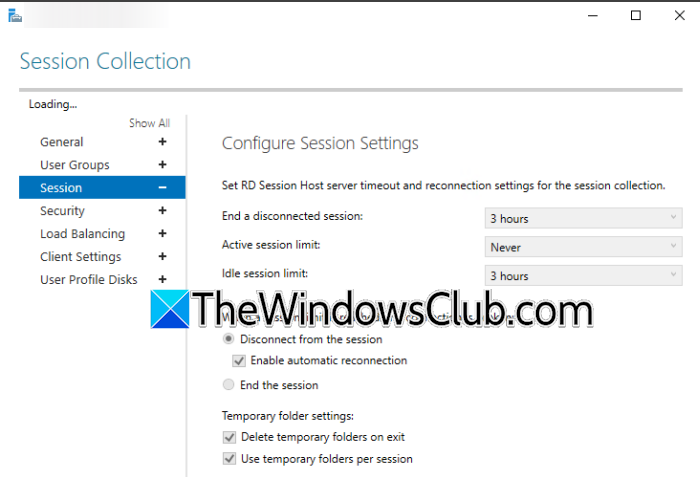
You may want to set boundaries around how long a session can stay idle or how disconnected sessions are handled. These limits help keep server resources from being wasted on abandoned sessions. You can do that by following the steps below.
- Right-click the new collection and choose Properties.
- Go to the Session tab.
- Set idle timeout, disconnect limits, and reconnection rules as your organization requires.
- On the Load Balancing tab, adjust the relative weight if you have multiple Session Hosts.
If you’re unsure, leave these at their default values initially and monitor user behavior. Overly aggressive limits can interrupt workflows, while no limits may strain resources.
6] Connect Users
Users can connect by opening Remote Desktop Connection and entering the Connection Broker’s fully qualified domain name (e.g., rdsbroker.yourdomain.local) instead of a specific session host, allowing the broker to handle session placement and reconnection automatically. Log in with a standard user account in the collection’s allowed group, and you’ll land in a full desktop session independent of other users; if the connection fails, verify the user’s group membership and ensure the broker’s certificate is trusted by the client.
Hopefully, with these steps, you will be able to enable multi-session RDS.
Read: Remote desktop can’t connect to the remote computer on Windows 11
How do I allow more than 2 RDP sessions to a Windows server?
To exceed the two-session administrative limit, deploy the Remote Desktop Services session host role as described earlier. After installing the RD Session Host, Connection Broker, and Licensing roles, activate the license server with appropriate Client Access Licenses (CALs). Create a session collection targeting allowed users. Without valid CALs, only a 120‑day grace period is granted; afterward, only the two admin sessions remain. This supported method scales to many concurrent users while staying fully compliant.
Read: Enable RDP for multiple users on Windows 11
How to open Remote Desktop on multiple screens?
To use multiple monitors in Remote Desktop, open the Remote Desktop Connection client, click Show Options, go to the Display tab, and check Use all my monitors for the remote session. Alternatively, launch it from Run with the command mstsc /multimon. Once connected, the remote desktop will span all your local screens, letting you work across monitors as if you were sitting right at the remote machine.
Also Read: Increase number of Remote Desktop Connections in Windows 11.
