
If you receive the The Replication Group cannot be created error while configuring Distributed File System Replication (DFSR) in Windows Server, it usually indicates a problem with Active Directory, DNS, permissions, or an existing DFSR configuration. The issue prevents administrators from creating a new replication group, delaying file synchronization across servers. In this article, we will see what to do if you see that the Replication Group cannot be created in Windows Server.
SCCMRG: The replication group cannot be created. There are insufficient permissions to create the replication group.
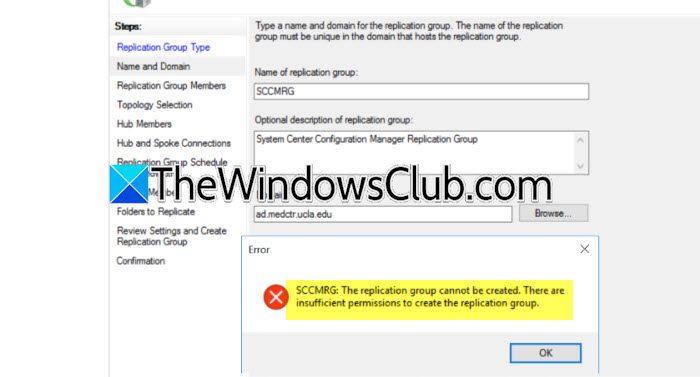
DFS The Replication Group cannot be created in Windows Server
This error commonly occurs when the DFS Replication service cannot communicate properly with Active Directory or when stale DFSR objects already exist. It may also appear due to insufficient administrative permissions, DNS resolution issues, replication issues within Active Directory, or the DFS Replication service being stopped or unhealthy on one or more servers. A corrupted DFS namespace configuration can also trigger the error.
If the replication group cannot be created in Windows Server, follow the solutions mentioned below.
- Verify Active Directory replication is healthy
- Check DNS resolution between all DFS servers
- Remove stale DNS Replication configuration
- Ensure the DFS Replication configuration
- Create the replication group using a Domain Admin account
Let us talk about them in detail.
1] Verify Active Directory replication is healthy
The DFS Replication service stores its configuration in Active Directory. If AD replication is failing or hasn’t completed, the replication group creation wizard cannot write or retrieve the required configuration, causing the operation to fail. You need to follow the steps mentioned below to do the same.
- Open Command Prompt as an admin.
- Run the following command.
repadmin /replsummary
- Check whether any replication failures are reported.
- If failures exist, resolve the AD replication errors first.
- Force replication by running.
repadmin /syncall /AdeP
Wait a few minutes and try creating the replication group again.
2] Check DNS resolution between all DFS servers
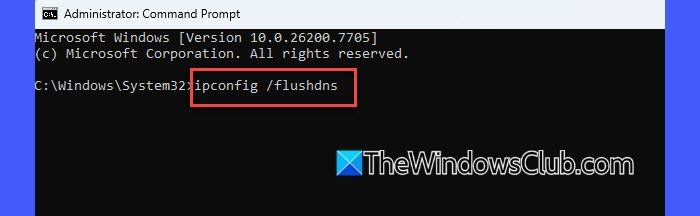
DFSR relies on proper DNS name resolution to communicate with domain controllers and replication partners. Incorrect DNS settings or unresolved server names often prevent the replication group from being created successfully.
For that, open Command Prompt on each server and verify name resolution.
nslookup <ServerName>
To test connectivity, run ping <ServerName>.
Ensure every server uses the domain DNS Server.
Now, to flush the DNS cache, run ipconfig /flushdns.
Retry creating the replication group.
3] Remove stale DFS Replication configuration
If an earlier replication group was deleted improperly, orphaned DFSR objects may still exist in Active Directory. These stale objects can conflict with new replication groups, preventing their creation. You need to follow the steps mentioned below.
- Open Active Directory Users and Computers.
- Enable Advanced Features from the View menu.
- Navigate to the DFSR configuration container if required.
- Remove any obsolete DFS Replication objects related to the failed group.
- Allow Active Directory replication to complete.
Open DFS Management and create the replication group again.
4] Ensure the DFS Replication service is running
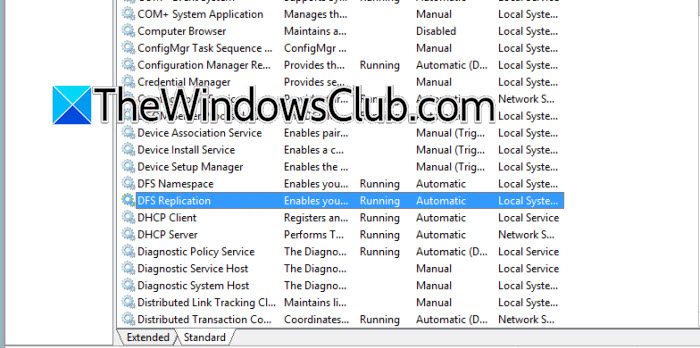
The Replication Group wizard depends on the DFS Replication service. If the service is stopped or disabled on any participating server, Windows may fail to create the replication group. To check the status of the DFS Replication service, follow the steps mentioned below.
- Press Win + R, type services.msc, and hit Enter.
- Locate DFS Replication.
- Double-click the service.
- Set the Startup type to Automatic.
- Click on Start if the service is stopped.
- Repeat the same process on all servers participating in replication.
Try creating the replication group again.
5] Create the replication group using a Domain Admin account
Creating a DFS Replication group requires sufficient permissions to modify Active Directory. If your account lacks the necessary privileges, the wizard may fail with this error. You need to follow the steps mentioned below to do the same.
- Sign in using a Domain Admin or Enterprise Admin account.
- Open DFS Management as Administrator.
- Verify that your account has permission to create DFS namespaces and replication groups.
- Launch the New Replication Group Wizard again.
- Complete the configuration and verify that the group is created successfully.
This should do the job for you.
Hopefully, with the help of these solutions, your issue will be resolved.
Read: How to install and configure DNS on Windows Server
How do I check DFS Replication service status?
You can verify the DFS Replication service by opening Services (services.msc) and locating DFS Replication in the list. Ensure the service is running and its startup type is set to Automatic. Alternatively, open Command Prompt as an administrator and run sc query DFSR to check its current status. If the service is stopped, start it and retry creating the replication group after confirming all participating servers are operational.
Read: DoH is now generally available on Windows DNS Server
Do I need Domain Admin permissions for DFSR?
Yes, creating a DFS Replication group typically requires Domain Admin or equivalent permissions because the configuration is stored in Active Directory. If your account lacks the necessary privileges, the wizard may fail while creating or updating replication objects. Running DFS Management with an account that has sufficient administrative rights ensures Windows can write the required settings to Active Directory and complete the replication group creation successfully.
Read: Configure DNSSEC on Windows Server.
