
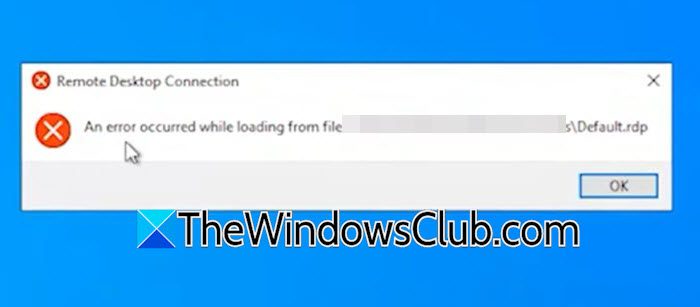
You double‑click your saved RDP shortcut, expecting a quick remote connection, and instead you’re staring at a small dialog: “An error occurred while loading from file C:\Users\Administrator\Documents\Default.rdp”. This frustrating message brings remote work to a dead stop, but don’t worry, in most cases, the fix is simple and takes less than a minute. In this post, we will see what to do if the Remote Desktop is unable to open the connection file.
Remote Desktop unable to open connection file on Windows computer
The error appears because the Remote Desktop client (mstsc.exe) cannot read the Default.rdp file stored in your Documents folder. According to Microsoft and common Windows experience, the Default.rdp file has become corrupted. This often happens after an improper system shutdown, a blue‑screen crash while an RDP session was active, or after a third‑party remote tool (TeamViewer, AnyDesk, or a VPN client) interfered with the file. The corruption makes the file unparseable, so the Remote Desktop client throws the exact error you see, including the full file path.
If Remote Desktop cannot open the connection file, follow the solutions below.
- Delete the corrupted Default.rdp File
- Restore the correct .rdp File Association
- Clear Hidden RDP Cache and Registry MRU Entries
- Manually Recreate the RDP Connection File from Scratch
An error occurred while loading from file Default.rdp
1] Delete the corrupted Default.rdp File
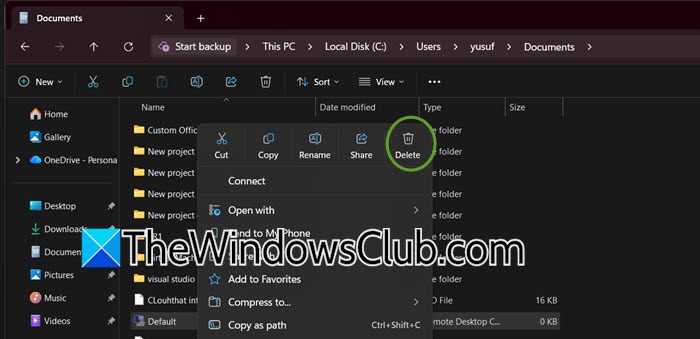
By deleting the damaged Default.rdp, Remote Desktop creates a fresh, uncorrupted copy automatically the next time you launch mstsc.exe. To do so, follow the steps mentioned below.
- Open File Explorer and go to C:\Users\Administrator\Documents or C:\Users\<username>\Documents.
- Enable Hidden items from the View tab (the Default.rdp file is sometimes hidden)
- Locate Default.rdp, right‑click it, and select Delete.
- Press Win + R, type mstsc, press Enter; Remote Desktop will launch and recreate a new Default.rdp automatically
Now, test your connection again; the error should be gone now.
2] Restore the correct .rdp File Association
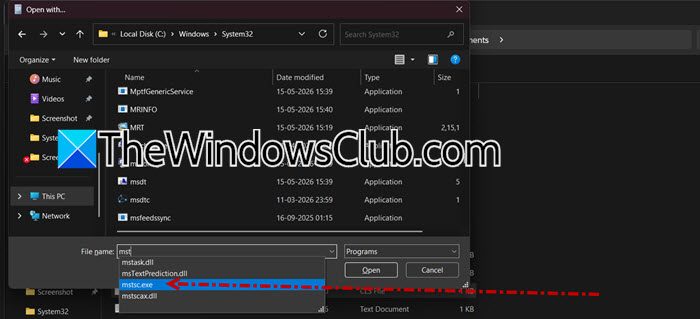
There is a chance that another program has stolen the file association for .rdp files. When you double-click any .rdp file, Windows tries to open it with the wrong application instead of the built-in Remote Desktop client, leading to this loading error. Follow the steps mentioned below to do the same.
- Right-click on any .rdp file (or create a dummy one) and select Open with > Choose another app.
- Select Remote Desktop Connection. If it is not listed, click More apps > Look for another app on this PC.
- Browse to C:\Windows\System32 and select mstsc.exe.
- Check Always use this app to open .rdp files” and click OK.
- As administrator, run this command in CMD to force the association system‑wide – ftype RDP.File=”%systemroot%\system32\mstsc.exe” “%1”.
Finally, check if the issue is resolved.
3] Clear Hidden RDP Cache and Registry MRU Entries
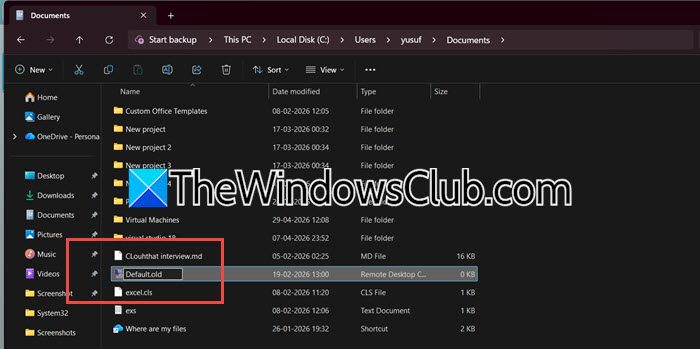
Sometimes, numerous corrupted cache files or outdated registry entries can prevent the client from reading the Default.rdp file. Clearing these files and entries gives Remote Desktop a fresh start. To clear hidden RDP cache and Registry MRU entries, follow the steps mentioned below.
- Navigate to C:\Users\Administrator\Documents or C:\Users\<username>\Documents and rename Default.rdp to Default.old (backup, not deletion)
- Press Win + R, type %temp%, delete all temporary files older than 24 hours
- Open regedit and go to:
HKEY_CURRENT_USER\Software\Microsoft\Terminal Server Client\Default. - On the right panel, delete every entry named MRU0, MRU1, etc.
- Restart Windows and launch Remote Desktop again.
Hopefully, this time you will be able to launch the Remote Desktop.
4] Manually Recreate the RDP Connection File from Scratch
The file itself might not be corrupted; however, a temporary lock or a minor service issue can stop it from loading properly. To resolve this, you can use the Remote Desktop graphical user interface to generate a new .rdp file. This method allows you to bypass the problematic reference while preserving all your existing connection settings, ensuring a smooth and efficient setup for your remote access needs.
To do so, open Run by Win + R, type mstsc, and click OK. Now, enter the target computer name or IP address, click Show Options, and configure your settings (username, display, local resources). Then, click on Save As and save it to your Desktop with a new name. Close Remote Desktop, then double-click your newly saved file. It should connect without errors. Then, delete the original Default.rdp, once you have confirmed the new file works.
Hopefully, with these solutions, your issue will be resolved.
Read: Cannot Copy Paste in Remote Desktop Session in Windows 11
How to fix Remote Desktop Connection error?
Fixing a Remote Desktop connection error usually begins with deleting the corrupted Default.rdp file located in your Documents folder. Navigate to C:\Users[YourUsername]\Documents, enable hidden items, and delete the Default.rdp file. After that, launch Remote Desktop using the Run dialog or Start menu, and the client will automatically create a fresh working copy. If the issue persists, restore the .rdp file association with mstsc.exe via the Open with menu, or clear the MRU registry entries under Terminal Server Client in HKEY_CURRENT_USER. A quick system restart can also help resolve lingering file locks.
Read: Your computer can’t connect to the remote computer
How to open a file in Remote Desktop?
To open an existing Remote Desktop connection file, simply double-click the .rdp file if Windows correctly associates it with the Remote Desktop client. If double-clicking does not work, right-click the file, choose Open with, then select Remote Desktop Connection, and set it as the default application. You can also open the Remote Desktop client manually by typing mstsc in the Run dialog, then clicking the Open button to browse for your .rdp file. For advanced users, the command-line option mstsc.exe, followed by the full file path, works reliably as well.
Also Read: Fix Remote Desktop connection issues & errors on Windows.
