
Handling Remote Desktop with High DPI (Dots Per Inch) issues can turn out to be a very tricky issue on Windows 11/10. That said, most DPI issues can be mitigated with due diligence.
Fix High DPI issues with Remote Desktop on Windows computer
High DPI issues are usually associated with devices like the Surface when used with external monitors. With the onset of DPI issues, the taskbar, icons, text and dialogue boxes appear very small or disproportionate. The DPI issue also arises when you use multiple monitors with different display resolutions. Chances are, the Windows interface will also appear with blurry text.
Microsoft has detailed the steps needed to get things sorted out with high DPI issues and most of these steps are kind of optimizations. Before going ahead and trying to solve the DPI issue, try optimizing the settings to see if the problem is resolved.
How to handle Bad DPI on PC
Bad behavior is referred to as the DPI anomaly, whether it’s a fuzzy display, a torn screen, or a loss of quality. Display scaling is of paramount importance here, and its failure is sure to cause problems. DPI issues are not something you will witness when you are using the Surface Book in standalone mode, but try docking/undocking it to the remote desktop protocol and the problems start surfacing.
The issue is mainly due to changes in the hardware configurations of the Surface and the monitor.
One of the best ways to handle this issue is to log off before docking and log on after docking. This is because Winlogon starts when the user logs on, and the hardware configuration is noted; correspondingly, the DPI is set. Many of the applications don’t come with a feature that allows automatic DPI detection in real time.
In case you change the monitors, it’s always better to create a new windows session. Yet another mention-worthy thing is that remember to update your Windows 10 to the latest build.
Read: How to fix Windows Scaling issues for High-DPI devices.
How do I change DPI in Remote Desktop?
To do this, open the Remote Desktop Manager > File > Options > User Interface > Change the Display scaling to DPI unaware. If you cannot see the setting you can add the line in your config files as well.
How to handle DPI issues with Single Monitors
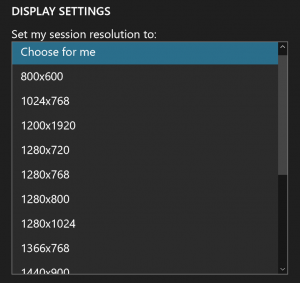
Well, single monitor situations are not usually such a fuss and the connections are just fine with no DPI issues. However, the only problem here is a side effect of the RDP (Remote Desktop Protocol) session.
In case you are using RDP on a computer in your office, once done, disconnect from the session. However, the next day, when you try to switch on the monitor, it will still display yesterday’s active session. The only resolution here is to log off from the PC.
Getting the best RDP results with Multiple Monitors
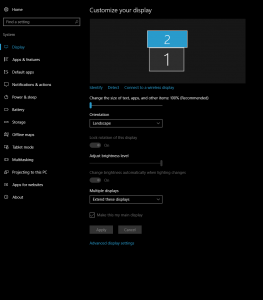
You need to decide for that, the monitor will be used and also know which monitor you want to mark as primary. Usually, the best way is to select monitor number 1 as the “Make this my Main Monitor.”
Next, try using the Microsoft Remote Desktop app preview instead of MSTSC. Now, once again, ensure that your Windows 11/10 is up to date, then get to the baseline by logging off, configuring the hardware and logging on again.
Hope this helps.
