
Active Directory account lockouts can be frustrating and disruptive, especially if you are a part of an agile organization. This can occur due to corrupted caches, misconfiguration, and other issues. In this post, we will discuss this issue and see what you can do if the accounts are frequently getting locked out in Active Directory.
Account getting locked out frequently in Active Directory
Active Directory account lockouts happen when too many failed login attempts trigger security limits. Common causes include outdated cached credentials, expired service account passwords, mobile devices syncing with old credentials, stale mapped drives, user mistakes, and misconfigured policies. Reviewing logs and authentication sources helps identify and fix the issue. If your accounts are frequently getting locked out in Active Directory, follow the solutions mentioned below.
- Enable Account Lockout Audit Policy in Active Directory
- Identify the Lockout Source Using the PDC Emulator and Event Viewer
- Trace Failed Pre-Authentication Attempts
- Audit and Update Stored Credentials on the Source Machine
Let us talk about them in detail.
1] Enable Account Lockout Audit Policy in Active Directory
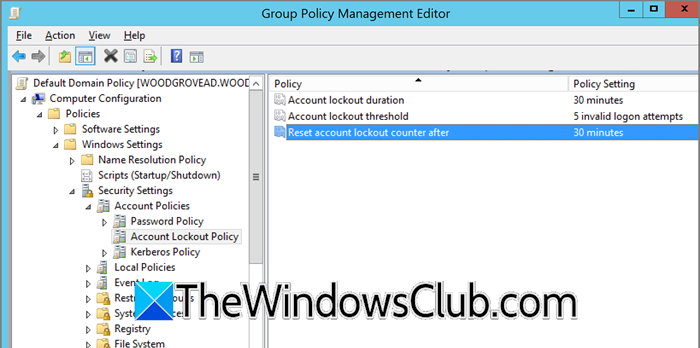
An account lockout event happens when a user is automatically blocked from signing in for a set time due to security policy limits. These settings, defined in the Default Domain Policy or fine-grained Password Policy Object, specify the number of failed attempts that trigger a lock, the lockout duration, and when the failure counter resets.
The lockout policy lets you configure the account lockout threshold (the number of bad password attempts that cause a lockout), account lockout duration (how long the account stays locked before auto‑unlock; 0 means only an admin can unlock), and reset account lockout counter after (time period after which failed attempts are cleared if no new failures occur).
Run the following PowerShell to see the lockout/password policy applied to a specific account. If it returns nothing, the account uses the domain’s default policy.
Get-ADUserResultantPasswordPolicy -Identity <UserName>
List default domain lockout settings
Use this to display the default domain policy’s lockout values:
Get-ADDefaultDomainPasswordPolicy | Select-Object lockout | Format-Table
Now, follow the steps mentioned below to make the changes.
- Open Group Policy Management.
- Now, navigate to Computer Configuration > Policies > Windows Settings > Security Settings > Account Policies > Account Lockout Policy
- Finally, configure these policies – Account lockout duration, Account lockout threshold, and Reset account lockout counter after.
Typically, an account is locked after five incorrect attempts and automatically unlocks after 30 minutes. If the lockout duration is set to 0, the account will not auto‑unlock and requires an administrator to clear the lock. Adjust these values thoughtfully to strike a balance between security and usability.
You can run the following command in PowerShell as an administrator to unlock the account.
To unlock a specific account
Unlock-ADAccount jjackson –Confirm
To unlock all locked accounts
Search-ADAccount –LockedOut -UsersOnly | Unlock-ADAccount
However, if the account is getting locked frequently and it is not due to one of the policies, continue reading to determine the culprit.
2] Identify the Lockout Source Using the PDC Emulator and Event Viewer

The PDC Emulator role holder is the authoritative source for account lockout events. You can search for specific events in the Event Viewer to determine the cause of this issue. First, find your PDC Emulator using the following PowerShell command, and ensure you run it as an administrator.
(Get-ADDomain).PDCEmulator
Log on to that specific server and open Event Viewer. Now, filter the Security Log and look for Event ID 4740, A user account was locked out. In the event details, the “Caller Computer Name” field will tell you the exact machine from which the lockout originated. This is your primary suspect.
Once you identify the source computer from the Event Viewer logs, immediately investigate that machine for outdated cached credentials. Check and clear Credential Manager, disconnect mapped network drives, log off any disconnected RDP sessions, and update passwords for any services or scheduled tasks running under the user’s account. Finally, ensure the user’s Outlook and mobile email clients are updated with their new password, as these are common culprits for repeated authentication attempts.
3] Trace Failed Pre-Authentication Attempts
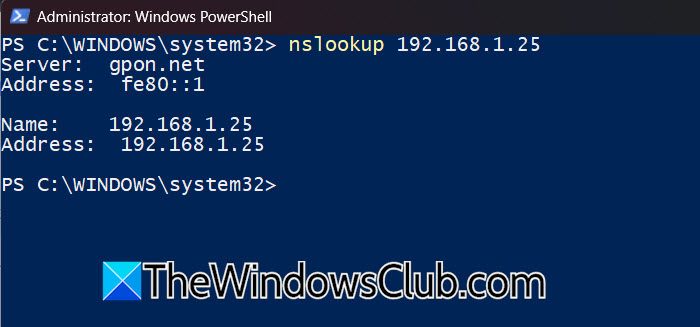
If Event ID 4740 does not show a Caller Computer Name, the lockout was likely caused by a Kerberos authentication failure. On the PDC Emulator, filter the Security log for Event ID 4771 (“Kerberos pre-authentication failed”). Find events with Failure Code “0x18” (which means “bad password” or “account locked out”). The Client Address field in these events will show the IP address of the source machine. Resolve this IP to a computer name to find your culprit using the command mentioned below.
nslookup <IP_Address>
Then, you can perform the solution mentioned earlier to resolve the issue.
4] Audit and Update Stored Credentials on the Source Machine
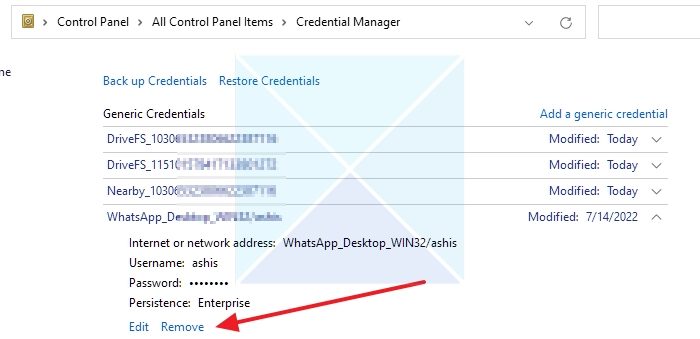
Once you identify the source computer, the problem is almost always outdated cached credentials on that device. On the offending machine, follow the steps outlined below.
- First of all, open the Credentials Manager by searching for it in the Start Menu.
- Go to the Windows Credentials section.
- Look for any generic or domain credentials related to the locked-out user.
- Now, click on Remove.
Have the user disconnect all mapped network drives and then remap them, ensuring they enter their current password.
That’s it!
Read: How to set Logon Time for Users in Active Directory
How to resolve account lockout issues in Active Directory?
To resolve frequent Active Directory account lockouts, first identify the source (like a device with outdated credentials) using Event Viewer on the PDC Emulator. To immediately unlock your own account, press Ctrl+Alt+Del on a domain-joined computer, select “Unlock,” and enter your new password, or wait for the automatic lockout duration to expire. For persistent issues, an administrator must find and clear the stale credentials causing the problem.
Read: How to set Permissions in Active Directory for Users
Why do I keep getting my account locked?
You keep getting locked out primarily because a device or service is repeatedly trying to authenticate with your old password. This is most common after a recent password change. Typical culprits are a logged-in computer, a mobile phone with old email settings, or a mapped network drive. An administrator must trace the source using event logs on the domain controller to permanently resolve it.
Also Read: The users account has expired on Windows 11.
