
If you cannot log out of a Work or School account in Windows 11, this post will help you fix the issue. When you leave an organization or lose access to a school account, you can disconnect or sign out of that account on your Windows 11 PC. Once disconnected, Windows removes the account association from your device, and you stop receiving sign-in prompts for that account.
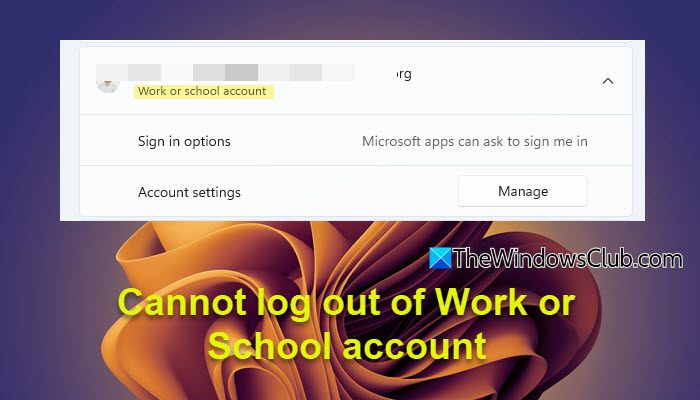
However, many users have reported that their Work or School account remains connected to their PC. In some cases, the Disconnect button goes missing from the Settings page, while in others, Windows continues to display sign-in prompts for an account that can no longer be accessed. In this guide, we will explain why this happens and show you several ways to remove or sign out of a Work or School account in Windows 11.
Why can’t I remove my work or school account in Windows 11?
You may not be able to remove a Work or School account from your Windows 11 PC if your organization still manages your device or if the account was deleted before it was properly disconnected. In some cases, Microsoft 365 apps or device management policies continue to hold the account information, preventing its removal.
Cannot log out of Work or School account in Windows 11
If you cannot log out of a Work or School account:
- Make sure your PC is no longer enrolled in your organization’s device management system (Intune/MDM). If it is enrolled, Windows may prevent you from removing the account.
- Sign out of all Microsoft 365 apps (including Outlook, Teams, and OneDrive), restart your PC, then try removing the account again.
If the issue persists, use these fixes:
- Disconnect the account from Access work or school
- Switch to a local account temporarily
- Use Microsoft’s WPJCleanUp tool
- Disconnect the device using dsregcmd
- Contact your IT administrator
Let us have a look at this in detail.
1] Disconnect the account from Access work or school
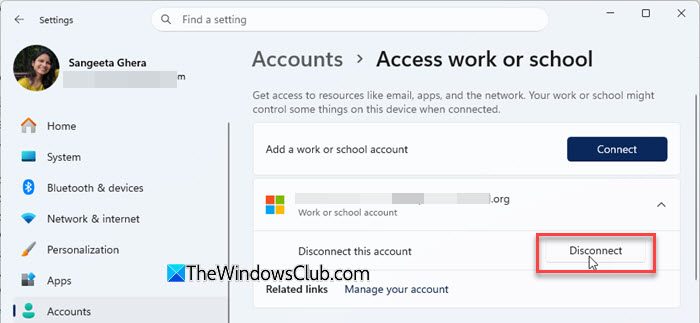
A Work or School account can be connected to Windows in different ways. For example, it may be added under Access work or school for device management and also appear under Your accounts (or Email & accounts on older Windows versions) for use by Microsoft 365 apps and other applications. If you cannot find the Disconnect button under Your accounts, check the Access work or school section instead.
- Press Win + I to open the Settings app.
- Go to Accounts > Access work or school.
- Select the Work or School account you want to remove.
- Click Disconnect.
- Confirm the action if prompted.
- Restart your PC.
If the Disconnect button is missing or unavailable, proceed to the next solution.
2] Switch to a local account temporarily
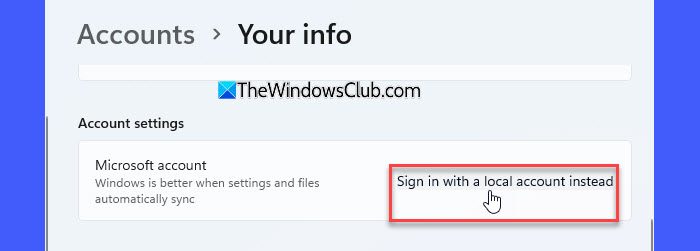
If the Work or School account is linked to your Microsoft account profile, Windows may prevent you from removing it. In such cases, temporarily switching to a local account can help break the connection.
- Open the Settings app.
- Go to Accounts > Your info.
- Click Sign in with a local account instead.
- Follow the on-screen instructions to create and switch to a local account.
- Open Settings > Accounts > Access work or school.
- Select the Work or School account and click Disconnect.
- Restart your PC.
Once the account is successfully removed, switch back to your Microsoft account by going to Settings > Accounts > Your info and selecting Sign in with a Microsoft account.
3] Use Microsoft’s WPJCleanUp tool
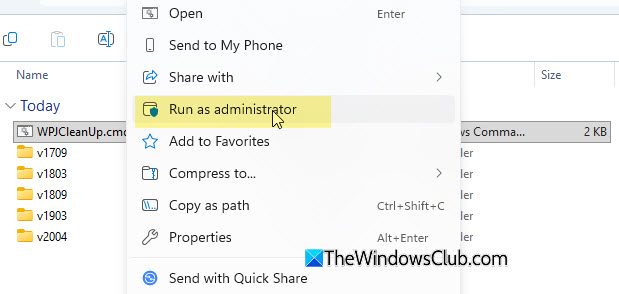
If the Work or School account cannot be removed through Settings, the device may contain an outdated Workplace Join (WPJ) registration. Microsoft provides a utility called WPJCleanUp that can automatically remove such registrations and their associated work/school account information.
To check whether your device is Workplace Joined (if you’re not sure), open an elevated Command Prompt and run:
dsregcmd /status
If the value displayed for the WorkplaceJoined parameter is YES, your device is Workplace Joined.
To clear the WPJ registration, follow these steps:
- Visit Microsoft’s support article on resetting Microsoft 365 activation state and download WPJCleanUp.zip.
- Extract the downloaded ZIP file.
- Open the extracted folder and right-click WPJCleanUp.cmd.
- Select Run as administrator.
- Allow the tool to complete the cleanup process.
- Restart your PC.
After restarting, open Settings > Accounts > Access work or school and check whether the account has been removed.
4] Disconnect the device using dsregcmd
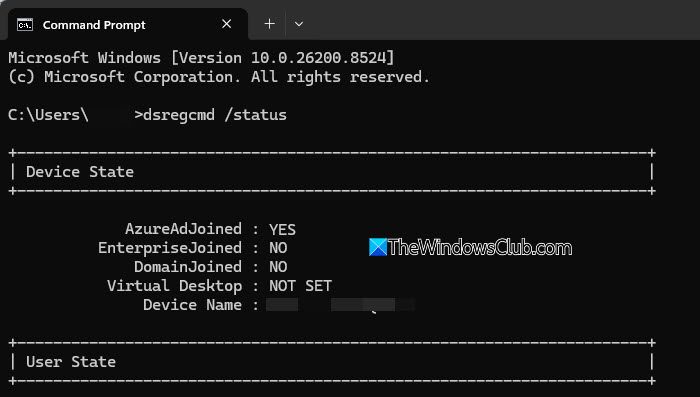
dsregcmd is a built-in Windows command-line tool that helps identify whether a device is joined to Microsoft Entra ID (Azure AD), hybrid-joined, domain-joined, or Workplace Joined. It can also be used to remove a device’s registration from Microsoft Entra ID.
To verify the device’s registration status, open an elevated Command Prompt and run:
dsregcmd /status
If the output shows AzureAdJoined : YES or EnterpriseJoined : YES, the device is still registered with an organization.
Next, run the following command:
dsregcmd /leave
The above command removes the device’s registration from Microsoft Entra ID. Wait for the command to complete successfully, then restart your PC.
Note: Running dsregcmd /leave may affect access to organizational resources, single sign-on (SSO), and device management features. If you still use the device for work or school, contact your IT administrator before proceeding. Administrative privileges are required to run this command.
5] Contact your IT administrator
If you have tried all the above solutions and still cannot remove the Work or School account, the device may still be registered with your former organization’s management system. In some cases, only the organization’s IT administrator can remove the device association from Microsoft Entra ID, Intune, or other management services.
Contact the IT administrator of the organization that provided the account and explain that you no longer have access to the Work or School account, but the device remains associated with it. Ask them to verify whether the device is still registered in the organization’s environment and, if necessary, remove it from their management system.
I hope this helps.
Read: No Remove button for Microsoft Account in Windows.
How to disconnect from work or school in Windows 11?
To disconnect a Work or School account in Windows 11, open Settings > Accounts > Access work or school. Select the account you want to remove and click Disconnect. Confirm the action when prompted, then restart your PC. If the Disconnect button is missing, the device may still be registered with your organization’s management system, and additional troubleshooting may be required.
Read Next: How to Manage User Accounts in Windows.
