
When a user closes their Remote Desktop Protocol (RDP) client window without logging off, their session becomes Disconnected. This lets them pick up where they left off later. However, these inactive sessions still use important system resources like CPU and RAM. They can also hold onto file locks, which may lead to problems like profile corruption or account lockouts after a password change. In this post, we will explain how to set a time limit for disconnected RDP sessions.
Set time limit for disconnected RDP sessions in Windows
To set a time limit for disconnected Remote Desktop Protocol (RDP) sessions, use one of the methods mentioned below.
- Using RDS Collection Settings
- Using Group Policy
- Using Registry Editor
Let’s discuss them in detail.
1] Using RDS Collection Settings
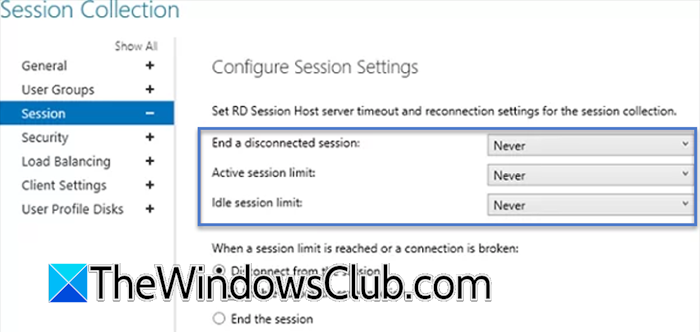
If you have a multi-server Remote Desktop Services (RDS) farm, this is the most straightforward method. These settings apply to all servers and users within a specific collection.
- Open Service Manager,
- Go to Remote Desktop Services > Collections.
- Right-click your desired collection and select Properties.
- Go to the Session tab.
- Now, you need to make the following configuration.
- Active session limit: The maximum duration for any continuous session.
- Idle session limit: How long a session with no user input can remain active.
- End a disconnected session: The crucial setting. This determines how long a disconnected session is kept alive before being permanently logged off.
That’s how you can put a time limit on sessions in RDP.
2] Using Group Policy
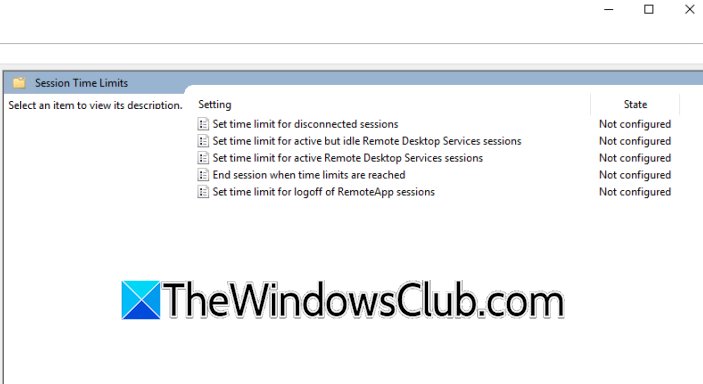
Group Policy provides centralized, scalable control over all your RDS hosts from a single console. It ensures consistent enforcement of session limits across your entire environment and simplifies compliance. Furthermore, GPO settings reliably override local or collection-based configurations, guaranteeing your policies are applied.
Open the Group Policy Editor, and then go to the following location.
Computer Configuration > Policies > Administrative Templates > Windows Components > Remote Desktop Services > Remote Desktop Session Host > Session Time Limits
You need to make changes to the following policies.
- Set time limit for disconnected sessions: This is the primary policy for this task. Enable it and set your desired time (e.g., 8 hours) to automatically log off disconnected sessions.
- Set time limit for active but idle Remote Desktop Services sessions: Ends sessions where the user is connected but not active.
- Set time limit for active Remote Desktop Services sessions: Sets a hard maximum duration for all sessions.
- End session when time limits are reached: Forces a full logoff instead of just disconnecting the session when a time limit is reached.
Now, you need to run the following command: gpupdate /force. These settings will only apply to new user sessions.
3] Using Registry Editor
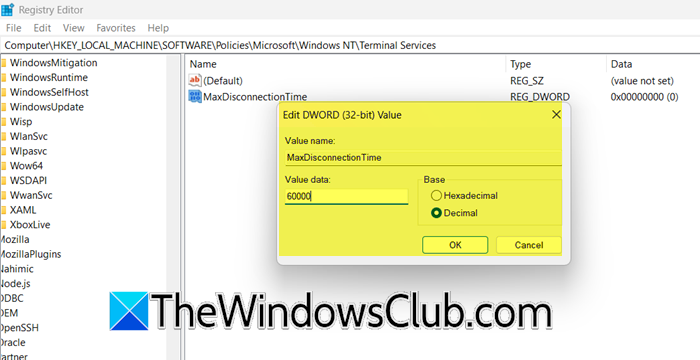
This method involves directly editing the Windows Registry to configure the RDP session timeout values. The registry is a central database that stores low-level settings for the operating system and applications. Since Windows Home users do not have the Group Policy Editor, they can try this method.
First of all, you need to create a registry backup so that it can be used whenever necessary. Once complete, proceed to the following location.
HKEY_LOCAL_MACHINE\SOFTWARE\Policies\Microsoft\Windows NT\Terminal Services
If the Terminal Services key does not exist under Policies, you will need to create it. Right-click the Windows NT key, select New > Key, and name it Terminal Services. In the right-hand pane, right-click on an empty space and select New > DWORD (32-bit) Value. Name the new value MaxDisconnectionTime. Double-click on MaxDisconnectionTime to modify its properties, select Decimal as the Base to make input easier, and in the Value data field, enter the time in milliseconds.
You can create additional DWORD values in the same Terminal Services key for other limits – MaxIdleTime (for idle sessions) and MaxConnectionTime (for total active session time). Set their values in milliseconds.
The new settings will automatically apply to new user sessions. Existing disconnected sessions will not be affected until they reconnect and disconnect again. To force the change, users must log off and back on.
To implement this via a script across multiple servers, you would use the provided PowerShell command within a loop or a remote execution tool.
Set-ItemProperty "HKLM:\SOFTWARE\Policies\Microsoft\Windows NT\Terminal Services" -Name MaxDisconnectionTime -Type 'DWord' -Value 900000
This will do the trick for you.
We hope that with the help of this post, you will be able to manage session limits for RDP connections.
Read: Enable or Disable Remote Credential Guard in Windows 11
How to set RDP session timeout?
To set an RDP session timeout, configure the session limit policies within Group Policy Management under Computer Configuration for broad control, adjust the collection properties in your RDS server farm for environment-wide settings, or directly modify the specific timeout values in the Windows Registry on individual hosts for scripting or workgroup scenarios.
Read: Can’t connect to Remote Desktop from outside network
How do I keep my RDP session active after disconnecting?
Your RDP session remains active by default after disconnecting, as Windows preserves it in a disconnected state. To ensure it stays available indefinitely, you must verify that no group policies or RDS collection settings are configured to automatically log off disconnected sessions after a time limit. Keeping the session alive relies on the server’s timeout being set to “Never” for disconnected sessions.
Also Read: Increase number of Remote Desktop Connections in Windows 11.
