
Remote Desktop Protocol (RDP) allows you to access your computer over a network, but connecting from outside your local network (over the internet) introduces additional challenges. If you can connect internally but not externally, it’s typically due to configuration or security restrictions. In this post, we are going to see what you can’t connect to Remote Desktop from outside the network.
A common reason you cannot connect to Remote Desktop from outside your network is that your home or office firewall may be blocking the connection. Additionally, port forwarding on your router might not be configured, preventing external devices from reaching your computer. In some cases, the computer itself is not accessible via a public IP address, further hindering remote access. There may also be a misconfiguration where Remote Desktop is not enabled or not properly set up for remote connections. Finally, it’s possible that your Internet Service Provider (ISP) blocks the standard RDP ports or employs double NAT (Carrier-Grade NAT), which can stop remote desktop connections from being established outside your local network.
Fix Can’t connect to Remote Desktop from outside network on a Windows computer
If you can’t connect to Remote Desktop from outside the network, you can follow the solutions mentioned below.
- Check Port Forwarding
- Allow Remote Desktop through Windows Firewall
- Use Public IP Address for Remote Desktop Connections
- Check for ISP and Double NAT issue
Let us talk about them in detail.
1] Check Port Forwarding
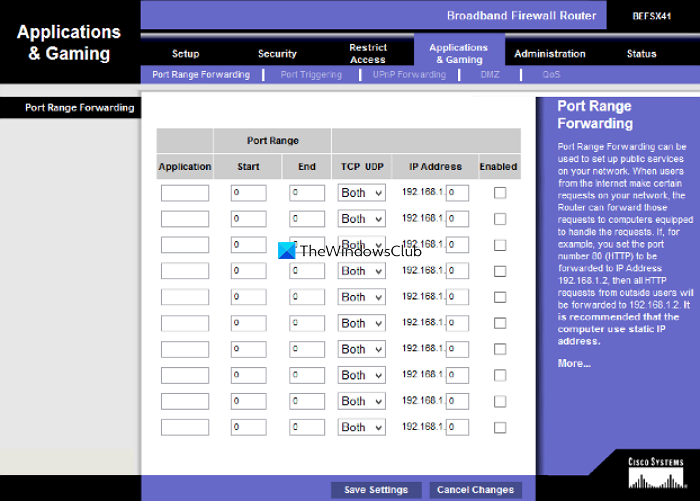
First, ensure that port forwarding is enabled. When Remote Desktop connections try to connect from outside your network, they must pass through your router’s firewall. You need to open your router’s home page, log in using your credentials, locate Port Forwarding, and forward TCP port 3389 to your computer’s internal IP address. Finally, check if the issue is resolved.
2] Allow Remote Desktop through Windows Firewall
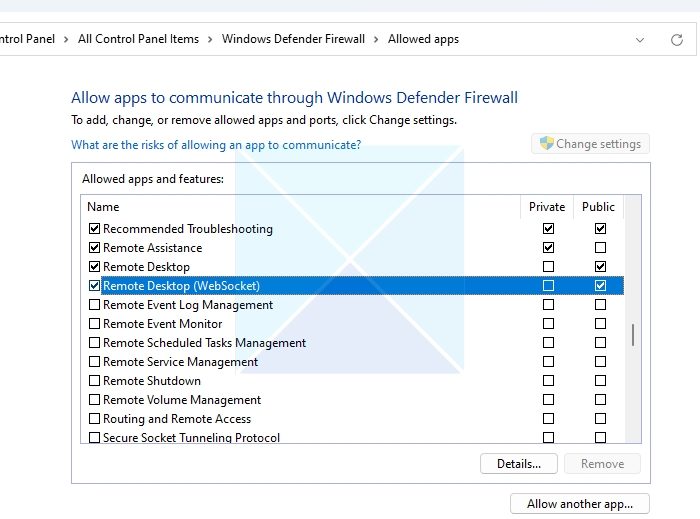
When you are able to connect to your computer using Remote Desktop Protocol (RDP) on your home network but not from outside, the issue may be due to your Windows firewall or antivirus (AV) security settings. These settings typically separate network profiles into “Private” (trusted, like your home) and “Public” (untrusted, like in cafes or over the internet). By default, Windows may only allow RDP traffic for Private networks, which means connections from outside (recognized as Public) will be blocked.
You need to follow the steps mentioned below on your Remote Desktop.
- Access the remote desktop computer (directly or via local access).
- Now, open Control Panel and go to System and Security > Windows Defender Firewall.
- Go to Allow an app or feature through Windows Defender Firewall.
- Ensure Remote Desktop is checked for both Private and Public profiles.
- Click on Save.
Hopefully, this will do the job for you.
3] Use Public IP Address for Remote Desktop Connections
When trying to connect to your home computer using Remote Desktop from an external network (for example, from work, a hotel, or a mobile device), it is essential to use your public IP address, not your computer’s internal or local IP.
You can go to whatismyip.com when connected to your home network, open a web browser on any device to check your IP address. When away from home, enter the public IP address as the destination in your Remote Desktop client. If your connection fails, ensure you have also set up port forwarding and firewall rules as previously discussed.
4] Check for ISP and Double NAT Issues
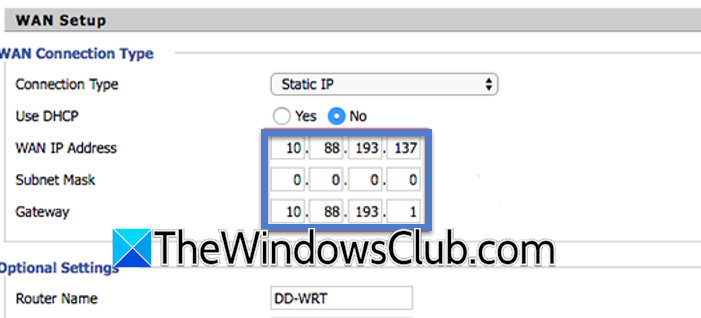
Remote Desktop connections from outside your network may fail due to network architecture limitations imposed by your Internet Service Provider (ISP).
The main culprits are Carrier-Grade NAT (CGNAT) and double NAT. Basically, Port forwarding, which is required to route RDP traffic from outside to your home device, only works if you control the device that has the public IP address. With double NAT or CGNAT, your router doesn’t have the real public IP, so port forwarding fails; hence, the RDP request never reaches your home PC.
You can go to your router’s home page and then find the “WAN” or “Internet” IP address. If the IP starts with 10., 100., 192.168., or 172.16–31 (all private ranges), or it doesn’t match your true public IP as seen on “What’s my IP” sites, you’re very likely behind double NAT or CGNAT. You need to ask the ISP if they support providing a “public/static IP address” for your connection. This may involve a fee or a plan change. Also, check if they block port 3389 for security reasons.
Hopefully, with the help of the aforementioned solutions and workarounds, your issue should be resolved.
Read: How to use Remote Desktop over LAN on Windows
Why am I not able to connect to Remote Desktop?
You may be unable to connect to Remote Desktop because a firewall might block your computer, port forwarding on your router is not set up, the device isn’t reachable via your public IP address, Remote Desktop isn’t enabled or configured for remote access, or your Internet Service Provider is blocking RDP ports or uses double NAT, which prevents outside connections from reaching your device. We recommend you check the solutions mentioned in the post along with our guide on what to do when Remote Desktop Connection is not working.
Read: Enable Remote Desktop without Password in Windows
Is Remote Desktop only for local network?
Remote Desktop is not limited to local networks; it allows you to control your computer from both inside your local network and over the internet, provided you properly configure network settings such as firewall permissions, port forwarding, or use a VPN to make your PC accessible from outside your network.
Also Read: Enable RDP for multiple users on Windows 11.
