
Wireless networks have now mostly replaced wired LAN and you will find an abundance of wireless networks everywhere. Windows 11/10 offers various ways to manage your wireless networks through the taskbar, Control Panel, Settings app, and Command Prompt.
Of all the options mentioned, the Command Prompt helps to efficiently manage and control your wireless networks. The command-line utility helps with advanced functions, troubleshooting, and solving major wireless network issues in Windows 11/10.
CMD commands to manage Wireless Networks in Windows 11
In this article, we list some of the useful commands to manage wireless networks using Command Prompt in Windows 11/10:
- PING
- TRACERT
- PATHPING
- IPCONFIG
- GETMAC
- NSLOOKUP
- NETSH
- ROUTE
- NETSTAT
- ARP.
Let us take a look at their functions in brief.
1] PING
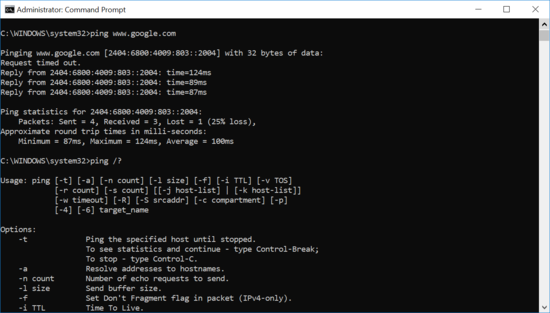
Ping is a command-line utility used to test network connectivity. The ping command sends a data packet to a specific domain name or destination IP address over the network and checks whether it receives a response from the target address. Additionally, it estimates the round-trip time for data packets to travel to the destination address and return. Type ping www.google.com (or type internet server you want to test )
You can also use the ping command with advanced switches for troubleshooting. To know the advanced options execute the following in CMD:
command ping /?
For example, type the following (or type the internet server and packet size you want to send ) to increase the number of packets:
ping www.google.com - n 10
2] TRACERT
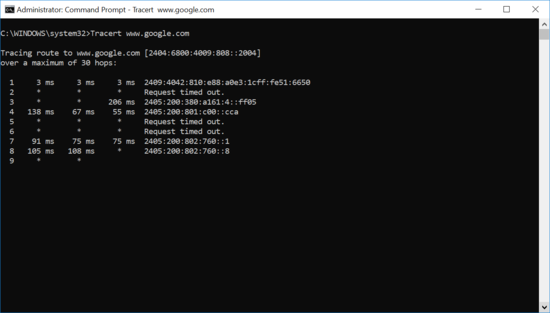
Tracert is a command-line utility used to trace the route of the data packets sent over the network. Just like ping, Tracert is used to test network connectivity issues. The command traces the route of the data packets to the destination and tells you how many nodes they encountered along the way. If you are experiencing network connectivity issues, this command indicates which hop the problem occurs on.
Type the following (or type internet server you want to test)-
tracert www.google .com
The output shows the detailed list of each hop along with the IP address of the node and latency between your Windows and that particular hop.
3] PATHPING
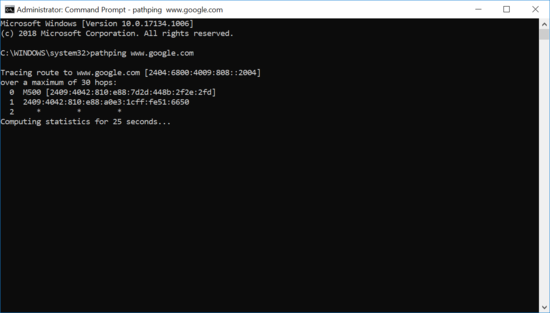
Pathping is a command-line utility used to troubleshoot network connectivity issues. This command is similar to Tracert in function but more detailed information of the data packet route.
The command sends data packets to a destination address and analyzes the route in detail. It computes packet loss on a per-hop basis and helps find out the problematic hop.
Execute the following (or type domain server you want to test):
pathping www.google.com
4] IPCONFIG
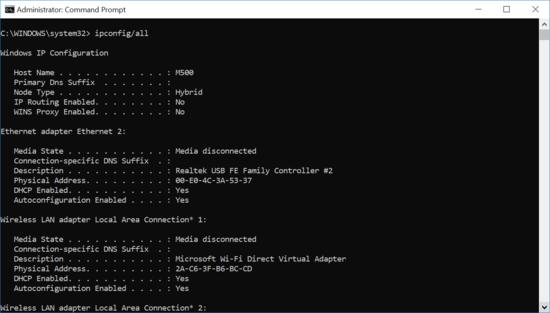
Ipconfig is a popular command-line utility used to test network connectivity issues on a TCP/IP network. It gives detailed information about the IPv4 address, WLAN Adapter, and Ethernet Adapter. It is often used with switches to execute certain tasks.
Execute the following to view connection configurations-
ipconfig/all
Execute the following to know more about the advanced switches-
ipconfig /?
Read: Troubleshoot Windows Server Network connectivity issues.
5] GETMAC
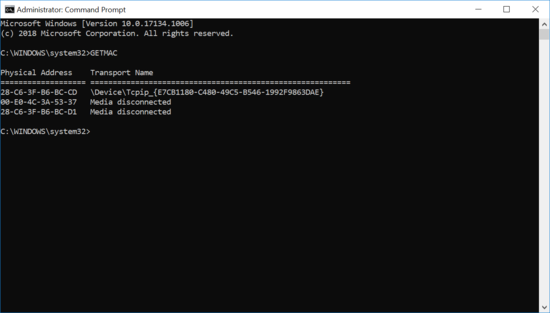
Getmac is a command-line utility used to retrieve the mac address of your computer as well as remote computers. In Windows, MAC address is nothing but a physical address used to identify devices connected to your computer network. You can use a MAC address to limit the hardware devices connected to the network.
Type the command to get the MAC addresses of each hardware connected to the network:
getmac
6] NSLOOKUP

Nslookup is a command-line utility for querying the Domain Name System to obtain information such as domain names, IP addresses or DNS records. This command is basically used to find the IP address of a certain host.
For example, type this (or type the hostname you want to query)-
nslookup www.google.com
7] NETSH
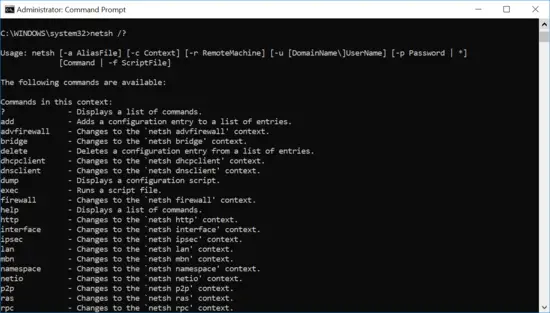
Netsh is a command utility used to display the network configuration of every network adapter in your system. Using this command with switches, you can modify the network settings on a local as well as a remote computer.
To know all the commands type:
netsh /?
Read: Advanced Command Prompt or CMD Tricks.
8] ROUTE
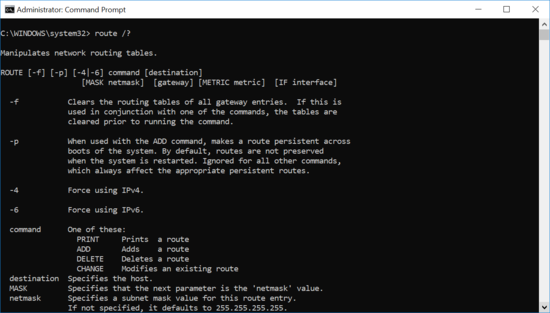
The Route command is used to view, add, or delete the row contents of the routing table. It is also used with other switches to view, add, delete, or modify the existing route.
Type this command in the command prompt to know more:
route /?
9] NETSTAT

Netstat is a networking utility that displays network and protocol statistics. It lists the information about endpoints of TCP/UDP, the routing table and the network interface. It displays all the active TCP/UDP connections on your computer and helps you know which port addresses are open for tasks.
Type this in the command prompt to view all the port addresses on which TCP/UDP connections are running-
netstat /?
Read: Basic PowerShell commands that every Windows 10 user should know.
10] ARP
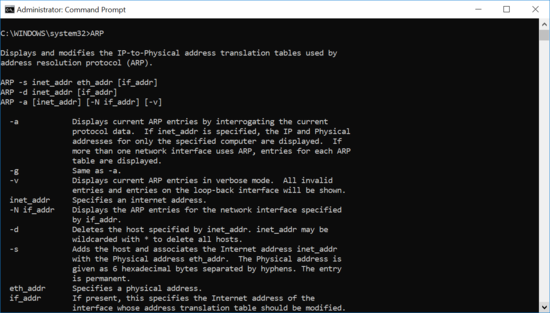
ARP is a command-line utility used to display a resolved MAC address. It displays and modifies the IP address to physical address translation tables used by the address resolution protocol. Every time your computer uses ARP to find the MAC address associated with an IP address, it stores the mapping in the ARP cache for future lookups.
This command is useful for checking whether there are any duplicate IP assignments. To display the cache entry type:
arp -a
That’s all.
