
A Mobile Hotspot allows you to share your mobile phone’s internet connection with your Windows PC and other devices. Simply turn on your phone’s Mobile Hotspot, then search for your phone’s WiFi network on your Windows 11 PC and connect to it. Many users who do not have a broadband internet connection use mobile data to surf the internet on their PCs. For this, they usually purchase an unlimited mobile data plan.
However, currently, due to a purported change in Airtel policies, some users with the unlimited Data plan are not able to share their 5G hotspot on a Windows PC. If you are an Airtel user encountering this issue, this article provides some workarounds you can try.
Airtel unlimited 5G hotspot is not working on PC
Use the following workarounds if the Airtel unlimited 5G hotspot is not working on Windows PC:
- Use Bluetooth
- Use USB tethering
- Modify Windows Registry
All these fixes are explained in detail below.
1] Use Bluetooth tethering
If an unlimited 5G hotspot is not working on your Windows 11 computer, you can try other ways, such as Bluetooth tethering and USB tethering. Both these methods allow you to connect to the internet on your computer using your mobile data.
To check this, open your mobile phone’s settings. The steps may be different for mobile phones of different brands. I have explained the steps for Samsung phones.
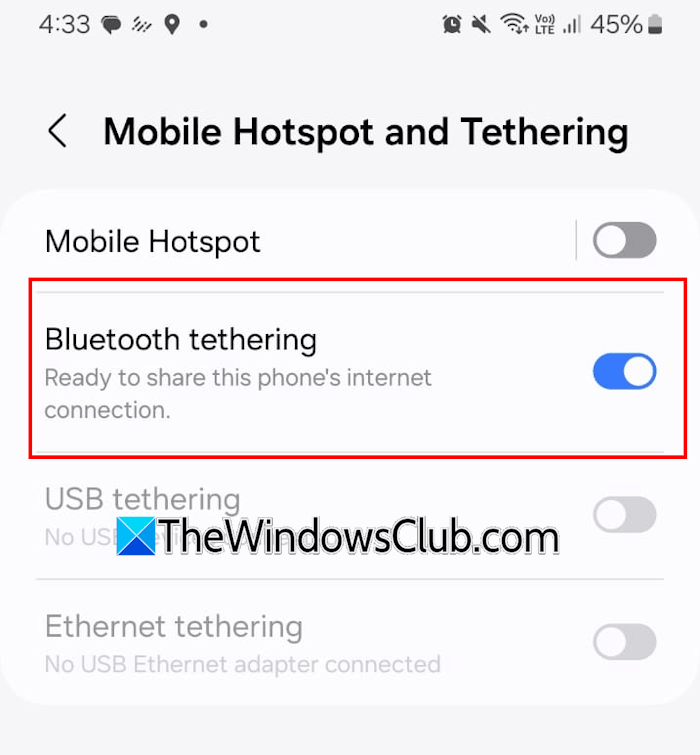
- Open your phone’s settings.
- Navigate to Connections > Mobile Hotspot and Tethering.
You will see the options to use Bluetooth and USB tethering there. Other smartphone users can search for tethering in their phone’s settings. To connect your PC to your phone through Bluetooth tethering, turn on the Bluetooth of both devices, then follow these steps:
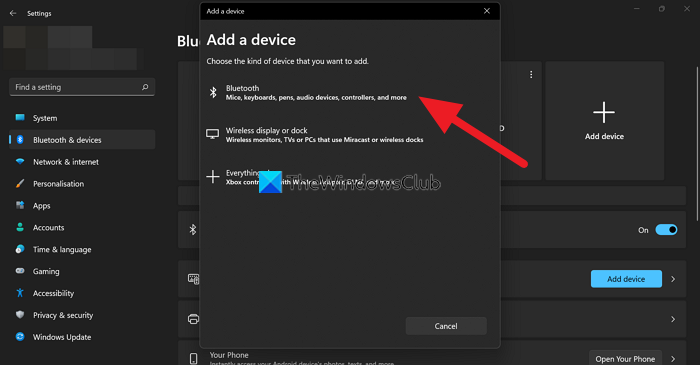
- Open Windows 11 Settings.
- Navigate to Bluetooth & Devices.
- Click Add device.
- Select Bluetooth. Windows 11 will start searching for Bluetooth devices available within range.
- Select your device from the list to pair it with Windows 11.
- Your phone will appear in the list of devices. Click Devices to view it.
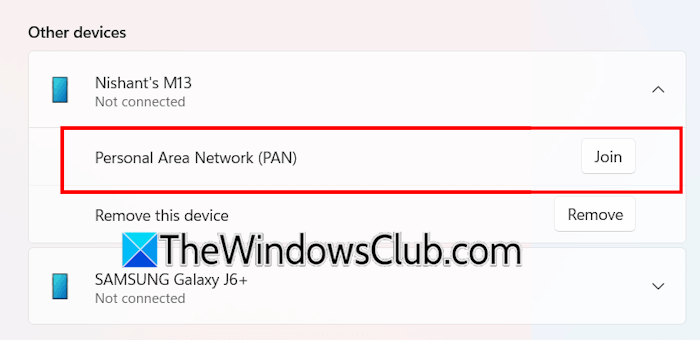
Now, turn ON Bluetooth tethering on your phone and then select your phone in the paired Bluetooth devices list. Click Join next to the Personal Area Network (PAN). Now, select Access Point in the drop-down and click Connect.
Now, check if the issue persists.
2] Use USB tethering
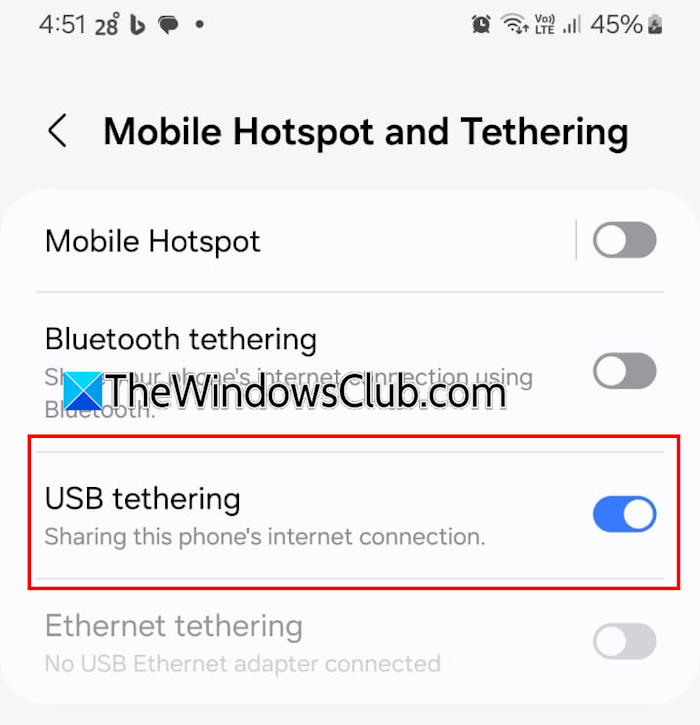
Bluetooth tethering allows you to use the internet on your system, but you will experience slower internet speeds. Therefore, you can try USB tethering as an alternate option. For this, you need to connect your phone to your computer via a USB cable. The USB tethering option on your phone remains greyed out until you connect it to the system via a USB cable. Open your phone’s settings and search for USB tethering. Turn it on. After that, your computer will automatically connect to the internet via your phone’s data. You will also see an Ethernet icon on the Taskbar.
3] Modify Windows Registry
If the issue persists, you can modify the Windows Registry. Some users reported that this fix worked for them. You can also try it and see if it helps. Incorrect modifications to the Windows Registry can lead to severe consequences, and you may have to reinstall Windows from scratch. Therefore, follow all the instructions carefully.
Before proceeding, create a System Restore Point and back up your Registry. This will allow you to restore your system to the previous working state if any problem occurs.
Open the Registry Editor, copy the following path, and paste it into the address bar. After that, hit Enter.
Computer\HKEY_LOCAL_MACHINE\SYSTEM\CurrentControlSet\Services\Tcpip\Parameters
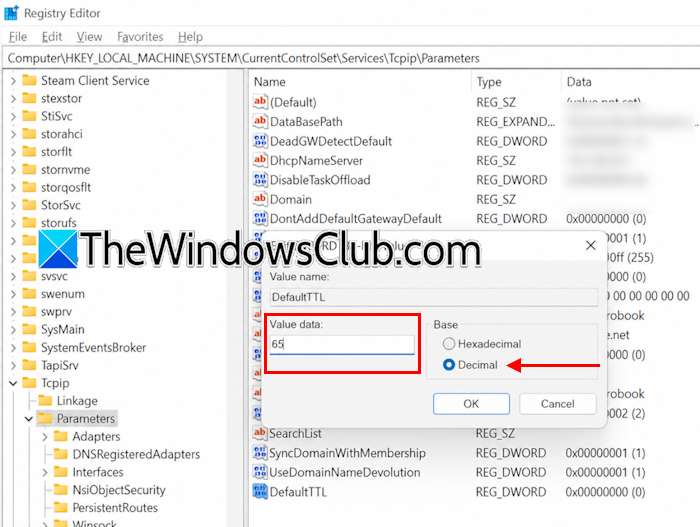
Now, look for the DefaultTTL value on the right pane. If the value does not exist, create it. For this, right-click in the empty space on the right side and select New > DWORD (32-bit) Value. Name this value DefaultTTL.
Double-click on DefaultTTL, set the Base to Decimal, and enter 65 in Value data. Click OK to save changes. Now, restart your system to apply the changes.
That’s it. I hope this helps.
UPDATE:
Recently, a post has been circulated by some users on social media claiming that Airtel has blocked hotspot usage under its unlimited 5G plan. This happened because of a clause that was included in its policy when Airtel introduced 5G. According to that clause, the unlimited 5G hotspot was restricted only for commercial use. However, some users likely read that clause recently and misinterpreted it, resulting in the spread of misinformation on social media. To help stop the spread of misinformation, Airtel removed the hotspot-related clause from its Terms & Conditions.
Although some users reported hotspot-related issues, there is no verified evidence that Airtel universally blocked Unlimited 5G hotspot usage for all customers. If the Airtel unlimited 5G hotspot is not working on your Windows PC, the workarounds provided above can help.
Is a 5G hotspot unlimited?
It depends on your Internet Service Provider. If your ISP provides a specific plan for an unlimited 5G hotspot, you can enjoy the benefit. To know this, you can explore its plans on its dedicated app or official website. Alternatively, you can also contact its customer support.
Is Airtel 5G faster than Jio?
The internet speed depends on many factors, including your area, number of connected devices, broadband technology, network congestion, etc. As a result, Airtel performs better than Jio in some areas, while Jio performs better than Airtel in others.
Read next: CMD commands to manage Wireless Networks in Windows.
