
CoPilot and other Microsoft AI features have been gradually integrated into Windows. One of the biggest annoyances for privacy advocates is the data the browser collects when you use it. The good part is that you can switch or turn off AI features in Microsoft Edge to stop data sharing. Each user must complete these steps for their account.
Microsoft Edge is deeply integrated with Copilot and Bing AI. You can only disable visibility and functionality, not remove the code entirely. Moreover, at times, Edge Updates may re-enable features. So keep this in mind when you carry out these changes.
How to Turn off AI in Edge browser
Using Edge settings
You can do the following as well:
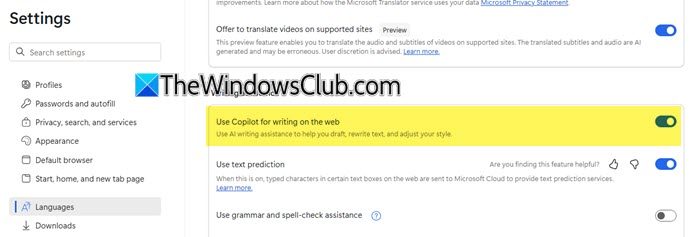
Open Edge > Settings > Languages and turn off Use Copilot for writing on the web.
You should also do the following:
- Turn off the Copilot Mode
- Disable Copilot button in Edge
- Disable Edge sidebar
- Hide the Copilot Chat icon in the Edge top right corner by right-clicking on it and selecting Hide.
To make things easy, just search for copilot in the Edge Settings bar and youwill see all the settings for Copilot AI.
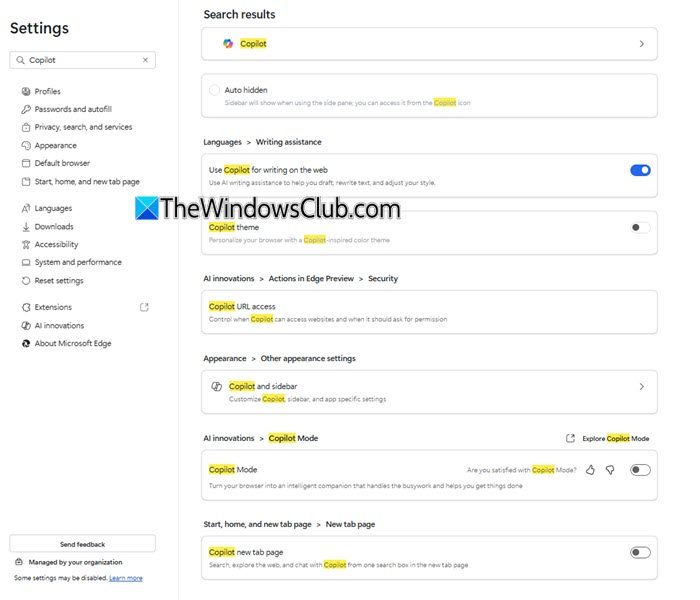
Simply turn off all of them.
Read: How to disable AI in Firefox on Windows 11
Using Flags
To disable AI features in Microsoft Edge and stop data sharing, follow these steps:
- Open Microsoft Edge on your PC.
- Type
edge://flagsin the address bar and press Enter. This opens the experimental settings for Edge.
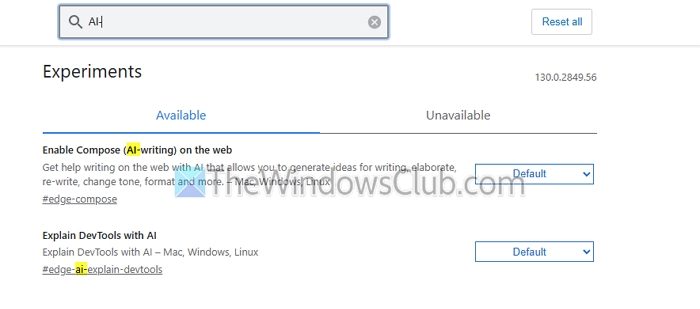
- In the “Search flags” box, type
AI-. This search may show up to four AI-related options, depending on your version of Edge. Common options include:- Enable Compose (AI-writing) on the web
- Explain DevTools with AI
- Allow Bing AI generated workspaces
- Enables AI Data Collection via Extension
- Additional features may appear as Microsoft adds more AI functionalities.
- For each AI-related setting that appears, click the dropdown menu next to it and select Disabled.
- After disabling all relevant settings, click the Restart button at the bottom of the page. Edge will restart and apply the changes.
By disabling these flags, you can reduce AI-related features in Edge.
Disable Microsoft 365 Copilot Icon
Open Command Prompt as Administrator and execute the following command:
REG ADD "HKEY_LOCAL_MACHINE\SOFTWARE\Policies\Microsoft\Edge" ^
/v "Microsoft365CopilotChatIconEnabled" /t REG_DWORD /d "0" /f
Turn off Copilot at the OS level
You can Turn off Windows Copilot at the OS level using Group Policy or Registry Editor to disableAI in Edge.
Read:
- Opt out of AI data training in Microsoft Edge
- Disable Copilot Model Training for your Microsoft Account
Can AI in Microsoft Edge help with work tasks?
Yes, Edge’s AI features can help with tasks like summarizing articles, generating ideas, drafting emails, and organizing research. The Bing Chat feature in the sidebar can also help answer complex questions, find information quickly, and generate text, making it a useful tool for productivity and research.
Read: How to turn off Google AI Search Results and make it display links
Does Microsoft Edge’s AI affect browsing speed?
Generally, Microsoft Edge’s AI features are optimized to run efficiently and shouldn’t noticeably affect browsing speed. However, features such as content analysis may consume additional resources, especially on older devices or when multiple features are active.
Read: How to Turn off AI Copilot Responses in Bing Search.
