
While most companies are including AI features in web browsers, there do not seem to be many takers for it. In this post, we will see how to disable all AI features in the Firefox browser. We have already seen how to do it in Google Chrome and Microsoft Edge; now, let us see how to do it in Mozilla Firefox.
How to disable AI in Firefox on Windows 11
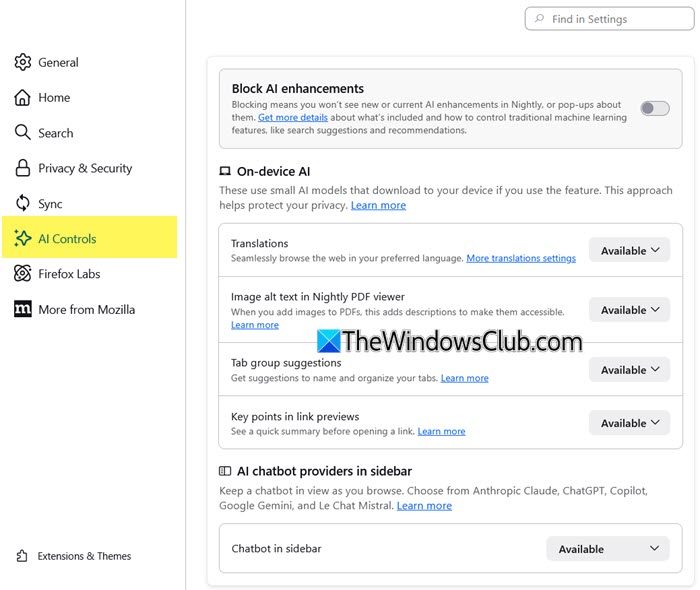
To turn off AI enhancements in the Firefox browser on Windows 11, take these steps:
- Launch Firefox
- Open Firefox Settings
- Click on AI Controls on the left side
- Here you can disable one or all AI enhancements.
To disable all AI enhancements in Firefox, set the Block AI enhancements toggle to On. You will see the following pop-up.
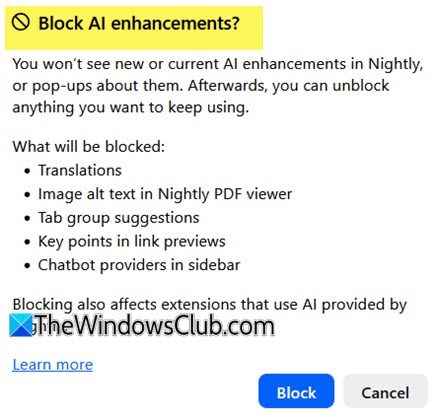
Click Block and restart Firefox.
You will also be able to review and manage individual AI features. The settings available are:
- Translations: Helps you browse the web in your preferred language.
- Image Alt text in PDF viewer: Adds accessibility descriptions to images in PDF pages.
- Tab group suggestions: Suggests related tabs and group names.
- Key points in link previews: Shows key points before you open a link.
- AI chatbot providers in sidebar: Lets you use your chosen chatbot as you browse, including options like Microsoft Copilot, Anthropic Claude, ChatGPT, Google Gemini and Le Chat Mistral.
From the drop-down against each of these setting, you can select Blocked to block that particular AI feature.
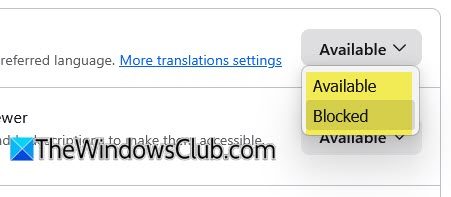
These settings are available in Firefox v48 and later, so make sure you have updated your browser.
Once you set your AI preferences, they remain in place even after you update the browser. You can also change them at any time.
Read: How to disable AI in Windows 11.
How to remove AI Components in Firefox?
To remove AI components in Firefox, open about:config. Search for each of these, and if you find the setting, set the flag for it to false:
browser.ml.chat.enabled
browser.ml.enable
browser.ml.linkPreview.enabled
browser.ml.pageAssist.enabled
browser.ml.smartAssist.enabled
extensions.ml.enabled
browser.tabs.groups.smart.enabled
browser.search.visualSearch.featureGate
browser.urlbar.quicksuggest.mlEnabled
pdfjs.enableAltText
places.semanticHistory.featureGate
sidebar.revamp
Restart your browser.
How do I get rid of the AI button in Firefox?
To get rid of the AI button in Firefox, open Firefox Settings > AI enhancements and toggle the Block AI enhancements switch to the OFF position. Restart the browser and the AI button should be gone.
How do I disable ChatGPT in Firefox?
Firefox itself doesn’t ship with ChatGPT built in. If you’re seeing a ChatGPT button or sidebar inside Firefox, it’s coming from the new AI Chat sidebar or a ChatGPT addon. To disable ChatGPT in Firefox, either disable or remove the addon or go to the AI chatbot providers in sidebar settings in AI Controls settings and Block it.
