
In this post, we will show you how to disable Copilot in Word, Excel, PowerPoint, and Outlook on a Windows 11/10 PC. Copilot is now deeply integrated into Windows, including Microsoft 365 apps. While this integration aims to help users perform tasks quickly and easily, not everyone is comfortable with AI features active all the time. If you’re one of those users who prefer a simple and distraction-free work environment, or you’re concerned that your data may be accessed or processed by AI, you can safely disable Copilot in your Office apps.
In enterprise environments, administrators may also choose to turn off Copilot to meet security, compliance, or data governance requirements. In this post, we’ll guide you step by step on how to turn off Copilot in Word, Excel, PowerPoint, and Outlook on a Windows 11/10 PC.
How to disable Copilot in Word, Excel, PowerPoint, Outlook
Copilot in Microsoft 365 apps can be turned off simply by clearing the Enable Copilot checkbox in the app’s settings. But before you disable Copilot in Microsoft Word, Excel, PowerPoint, or Outlook, it is important to understand a few key points about how this setting works and where it applies:
- This option applies only when you’re signed in to Microsoft 365 apps using a Microsoft account (for example, a personal Outlook.com email address).
- The Enable Copilot option is available only in recent versions of Microsoft 365 apps. If you don’t see it, make sure your Office apps are fully updated.
- Copilot can be turned off per app and per device. Disabling it in Word won’t automatically disable it in Excel or PowerPoint.
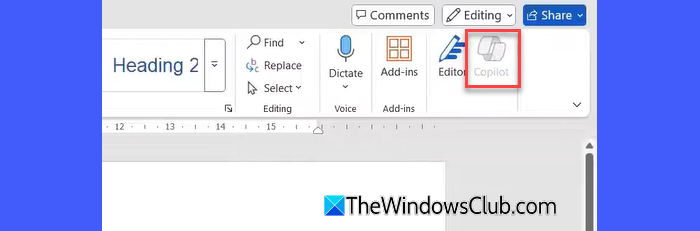
- When Copilot is turned off, the Copilot icon is removed from the ribbon, and all Copilot features are disabled in that app (this won’t affect other core Office features).
Supported versions on Windows 11/10
The Enable Copilot checkbox is available in the following app versions:
- Word: Version 2412 or later
- Excel: Version 2501 or later
- PowerPoint: Version 2501 or later
- OneNote: Version 2502 or later
If your app version is older, update Microsoft 365 and check again.
Disable Copilot in Microsoft Word
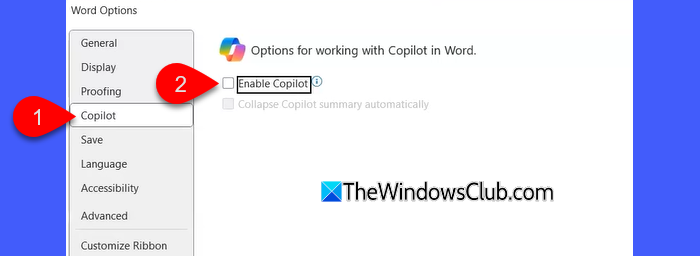
To disable Copilot in Microsoft Word, follow these steps:
- Open Microsoft Word.
- Click File in the top-left corner.
- Select Options.
- Click Copilot in the left pane of the Word Options window.
- Clear the Enable Copilot checkbox.
- Click OK, then close and restart Word.
Disable Copilot in Microsoft Excel
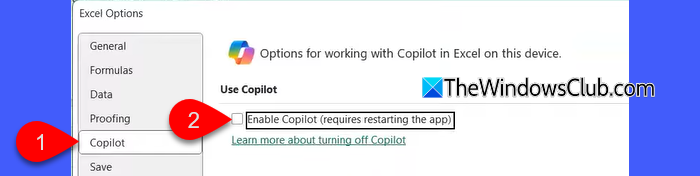
To disable Copilot in Microsoft Excel, follow these steps:
- Open Microsoft Excel.
- Go to File > Options.
- Select Copilot from the left panel.
- Uncheck Enable Copilot.
- Click OK and restart Excel.
Disable Copilot in Microsoft PowerPoint
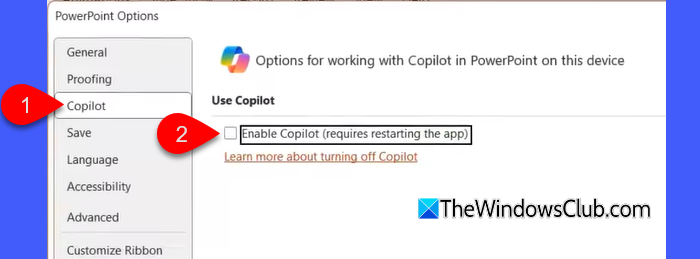
To disable Copilot in Microsoft PowerPoint, follow these steps:
- Open Microsoft PowerPoint.
- Click File > Options.
- Open the Copilot section.
- Clear the Enable Copilot checkbox.
- Select OK, then restart PowerPoint.
Disable Copilot in Microsoft OneNote
If you’re using OneNote with Microsoft 365, you may disable Copilot in OneNote following these steps:
- Open OneNote.
- Go to File > Options.
- Select Copilot from the left pane.
- Uncheck Enable Copilot.
- Click OK and restart the app.
Copilot will be disabled only in OneNote on that device.
Disable Copilot in the new Outlook app
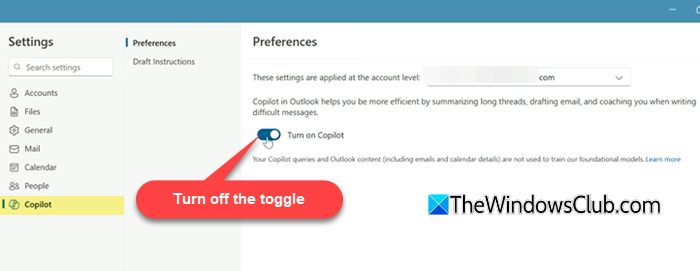
Outlook works a little differently from Word, Excel, and PowerPoint. In the new Outlook for Windows, Copilot can be turned off using a toggle.
- Open Outlook (new).
- Go to Settings.
- Select Copilot.
- Turn off the Turn on Copilot toggle.
Note:
- At present, there is no option to turn Copilot on or off in MS Outlook.
- Unlike other Microsoft 365 apps, disabling Copilot in Outlook applies across all devices where you’re signed in with the same account.
Disable Copilot by changing your Microsoft 365 account privacy settings
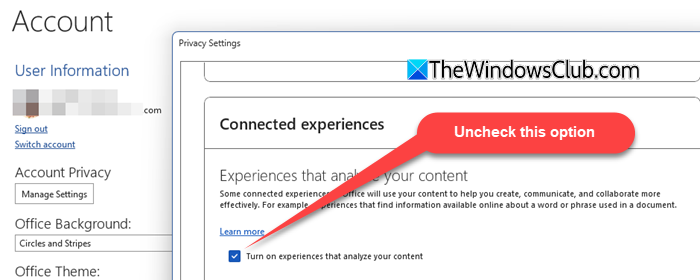
If the Enable Copilot checkbox isn’t available in your app, it means your app version doesn’t support this toggle yet. In that case, you can disable Copilot by changing your Microsoft 365 account privacy settings.
Open any Microsoft 365 app (for example, Word or PowerPoint). Select Account from the left pane. Click Manage Settings under Account Privacy.
Scroll down to the Connected Experiences section. Under it, uncheck the box for Turn on experiences that analyze your content. Save your changes by clicking OK.
You only need to do this in one Office app. The change will automatically apply to other Microsoft 365 apps the next time you open them.
Note: This method disables additional features such as text predictions, suggested replies in Outlook, and design suggestions in PowerPoint. If the Enable Copilot checkbox becomes available after updating your apps, it’s better to use that option instead, as it turns off Copilot without affecting other features.
If you don’t want AI embedded on your Windows 11 PC, you can also completely uninstall the Copilot app.
Hide the Copilot button without disabling Copilot
If you don’t want to completely disable Copilot capabilities, you can simply hide the Copilot button from the ribbon. This removes the Copilot icon from view while keeping the feature available in the background.
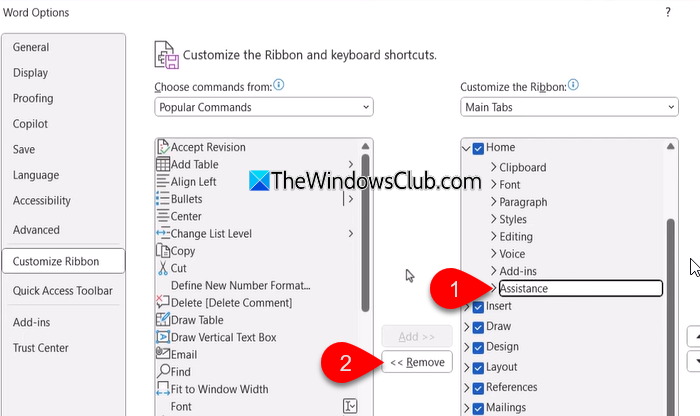
Open Word, Excel, or PowerPoint. Go to File > Options. Select Customize Ribbon from the left pane. In the Customize the Ribbon menu, select Assistance under Home. Then click the Remove button. Click OK to save the changes.
After this, the Copilot button will no longer appear on the ribbon, but it may still be accessible through other entry points, such as context menus or shortcuts.
That’s all! I hope you find this useful.
Read: How to manage Copilot Activity History.
Where is the Copilot button in Word?
In Microsoft Word, the Copilot button appears on the Ribbon on the Home tab. It is shown as a Copilot icon and opens the Copilot side panel when clicked. The button is visible only if Copilot is enabled and your Microsoft 365 version supports it. If Copilot is turned off or hidden, the button will not appear.
How to use Copilot in Word, Excel, and PowerPoint?
To use Copilot in Word, Excel, or PowerPoint, click the Copilot button on the Ribbon. Then type prompts to draft text, summarize content, analyze data, or create slides. Copilot works within the active document and responds based on your input and existing content. It requires Copilot to be enabled and an eligible Microsoft 365 account.
Read Next: Best Copilot Tips and Tricks you should know.
