
In this tutorial, we will show you how to use Copilot Podcasts in Windows 11. Copilot Podcasts is a new feature that generates on-demand audio content on a topic of your interest. You can prompt Copilot to create a podcast about any topic, such as black holes, space travel, house marketing trends, improving sleep quality, etc., and it will curate information from the web and generate an audio to listen to anytime.
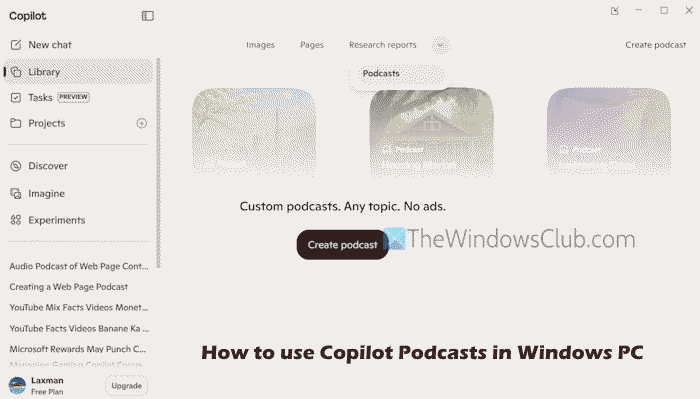
It can also create an audio podcast of a webpage and save it for you. A podcast can be shared with others, and you can delete it anytime. As of now, podcasts are generated in English only, and you must be signed in to Copilot to use this feature.
Do note that Copilot Podcasts usage depends on AI credits and limits. If you are a Microsoft 365 Personal, Premium, or Family subscriber, you will have access to extended usage of this feature. Otherwise, you will be given a limited usage access (up to 3 or 5).
How to use Copilot Podcasts in Windows 11
Here is a step-by-step process to use Copilot Podcasts in Windows 11:
- Create and listen to an audio Podcast
- Access your saved Copilot Podcasts
- Share and delete your Copilot Podcasts.
1] Create and listen to an audio Podcast
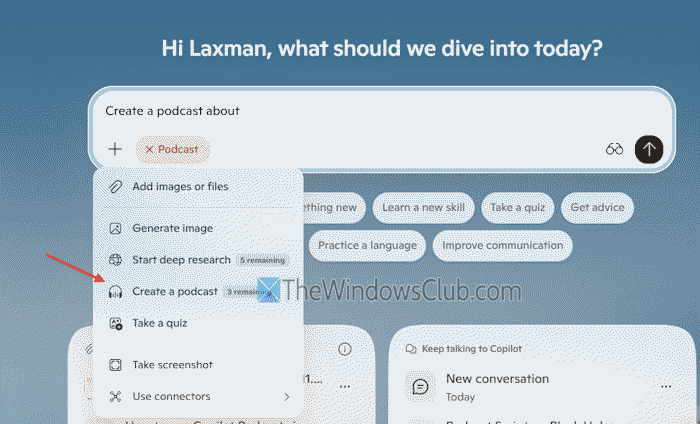
It may take 2 to 5 minutes to create an audio Podcast using Copilot. It will also send a notification on your mobile device (if notifications are turned on in the Copilot mobile app) once the podcast is ready. There are multiple ways to create an audio Podcast using Copilot. These are:
- Copilot app: Open the Copilot app on your desktop. Start a new chat > click on “+” icon > Create a podcast. Give your prompt and hit Enter
- Copilot web app (Microsoft Copilot): Log in to your Copilot account. New chat > click on “+” icon > and select Create a podcast option. Enter your prompt to continue
- Copilot in Edge: You can use Copilot in Microsoft Edge to generate an audio podcast in two ways. Use the Copilot button in the toolbar to open its sidebar to generate a podcast. And, to generate a podcast for the current webpage, right-click on that webpage > Ask Copilot > Create Podcast.
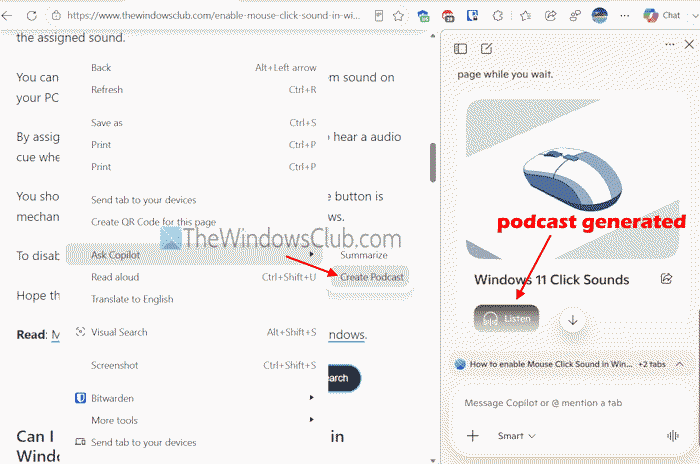
Wait a few minutes, and it will prepare a podcast with a thumbnail and a title. You can’t rename a podcast or change its thumbnail. Once ready, press the Listen button. You can now play your podcast, pause it, and skip back or forward 10 seconds.
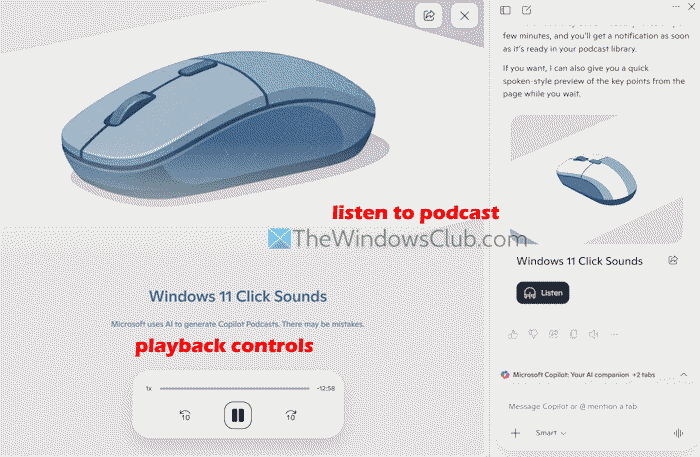
You can’t click the playback slider to jump to a specific timeframe or move it. We might have this option later as the feature progresses.
This way, you can create more podcasts based on the usage limit.
Read: How to create and manage Reminders in Copilot on Windows PC
2] Access your saved Copilot Podcasts
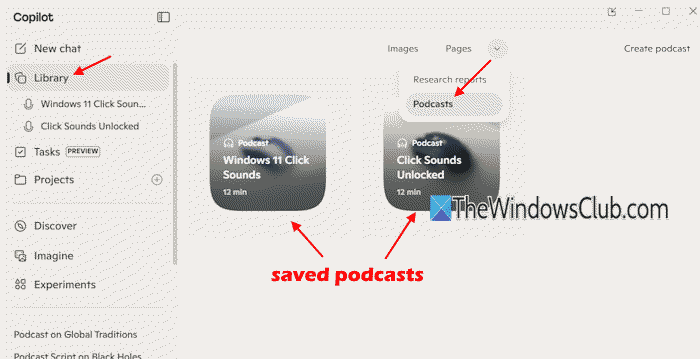
All your podcasts are saved automatically in your Copilot account, and you can use any supported platform to access them. Log in to your Copilot account and click on the Open sidebar icon on the top right corner. Click on the Library section and expand it to see a list of your saved podcasts. Or else, on the right part of the Library, select the More options icon (drop-down menu), and click on Podcasts.
All podcasts will be visible in thumbnail view mode. Click on a podcast to open its page, where you can listen to it.
Also read: How to use Phone Connection in Copilot with an Android Phone
3] Share and delete your Copilot Podcasts
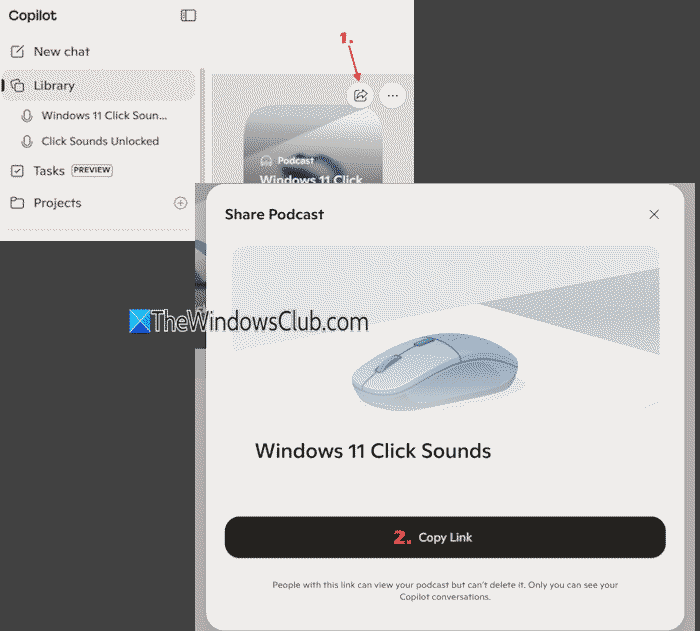
To share and delete your Copilot Podcasts, access the Library section, and go to Podcasts. Hover over a podcast thumbnail and click the Share icon. In a pop-up that appears, press the Copy Link option.
To delete a podcast, place the mouse cursor on a podcast thumbnail, click More options (…), and select Delete. In the confirmation pop-up, press the Delete option.
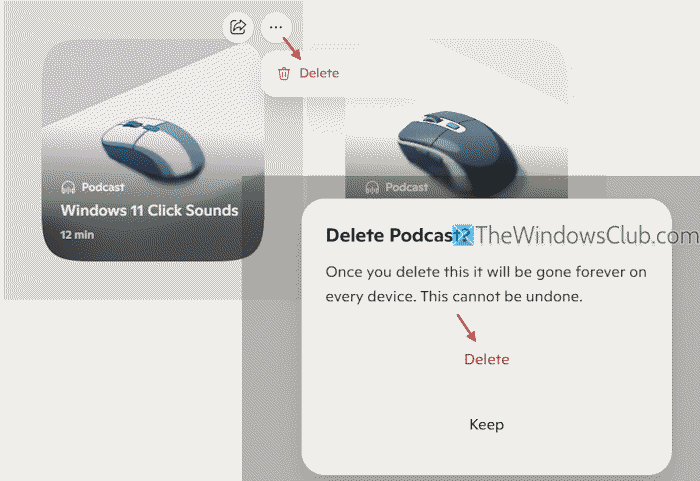
Alternatively, you can expand the Library section in the Copilot sidebar to view your podcasts. Place your mouse cursor on a podcast, click on the View Options (…), and press the Delete option. Confirm the action by using the Delete button.
If you don’t delete your Copilot Podcasts, these are retained for as long as other conversations (up to 180 days).
That’s all.
Now read: How to turn on or off Copilot Journeys in Microsoft Edge
How do I use Copilot on Windows 11?
You can use Copilot in Windows 11 using its native desktop app. You can download it from the Microsoft Store. Apart from that, you can also open copilot.com or the Copilot web app to use it. Additionally, Copilot can also be accessed in Microsoft Edge using its sidebar. You must sign in to your account to use Copilot on Windows 11.
Which two conversation modes are available in Copilot on Windows 11?
Copilot supports more than two conversation modes. These include: Smart, Quick response, Think deeper, Search, and Study and learn. You can also start an audio conversation using the Talk to Copilot icon.
Read next: Copilot shows blank screen.
