
If Copilot shows a blank screen on your Windows 11 computer, the solutions provided in this article will help. According to the reports, the Copilot UI goes totally blank upon launch, preventing users from using it. There can be several causes of this error. This article talks about possible causes and fixes for this issue.

Copilot shows a blank screen
Use the following fixes if Copilot shows a blank screen when you launch it on your Windows 11 computer:
- Disconnect from VPN (if applicable)
- Switch to another network connection
- Check for Windows Update
- Try in Incognito Mode
- Try another web browser
- Repair or reset Copilot
- Uninstall and reinstall Copilot
- Create a new user profile.
1] Disconnect from VPN (if applicable)
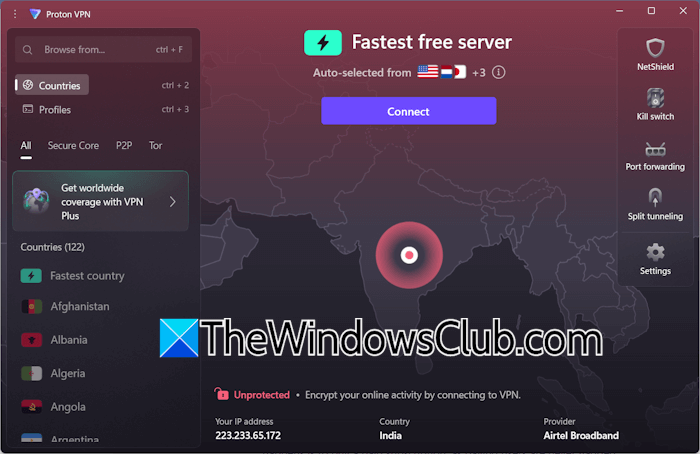
A VPN can slow down internet speed, which can sometimes affect applications. This might be the case with you. If you are using a VPN, disconnect from it.
2] Switch to another network connection
A weak or unstable internet connection can also cause this problem. Connect with another available network and see if Copilot starts working. If another network connection is unavailable, you can use your mobile data to connect your system to the internet through the mobile hotspot.
If this works, the problem is associated with your WiFi. Power cycling the WiFi router can help. Follow these steps:
- Turn off the WiFi router.
- Disconnect the adapter from the wall socket.
- Wait for a few minutes.
- Turn on the WiFi router.
3] Check for Windows Update
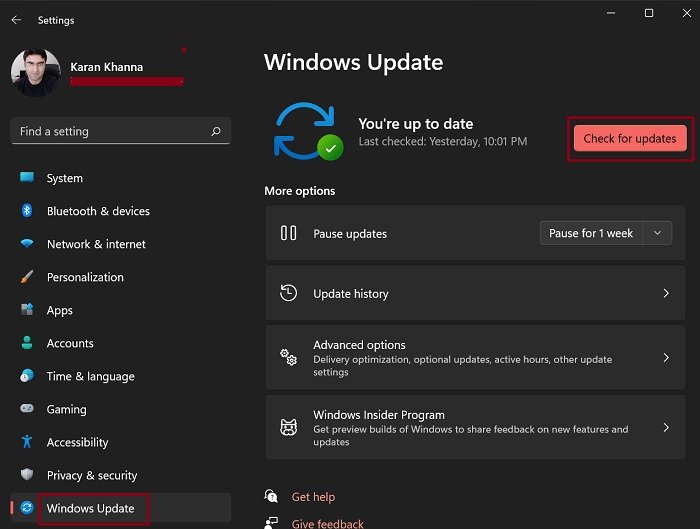
Installing the latest Windows Update fixes most of the temporary glitches. Check for a Windows Update manually. If it is available, download and install it.
4] Try in Incognito Mode
If the issue occurs with Copilot in your web browser, check the issue in incognito or private mode. Sometimes, the corrupt cache and cookies cause issues. If this is the case for you, Copilot will not display a blank screen in private or incognito mode.
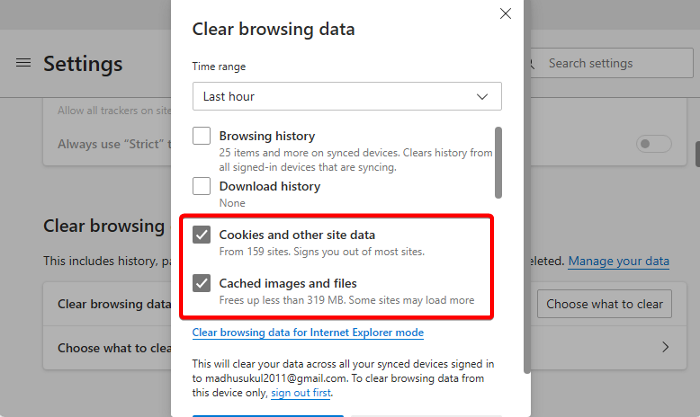
If Copilot works flawlessly in incognito mode, clear your browser cache and cookies. If clearing cache and cookies does not resolve the issue. The problem may be associated with your browser extension. To check this, disable all the installed extensions and reload the Copilot web page. If the issue disappears, an extension is causing the problem.
Now, the next step is to find the problematic extension. To do this, enable extensions one by one and reload Copilot after each. When the issue reappears, the extension you have just enabled is the culprit.

5] Try another web browser
Microsoft recommends using Microsoft Edge for the best Copilot experience. However, you can use Copilot in any web browser. If the issue continues, switch to another web browser.
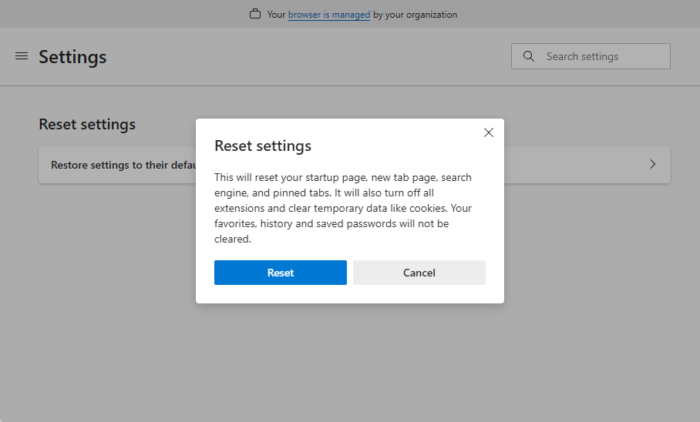
If the issue does not occur in another browser, you can reset the previous browser. Before proceeding, sign in to that browser to sync your bookmarks, extensions, and browsing data to the cloud.
6] Repair or reset Copilot
The issue might be caused by corrupted files. You can repair or reset the Copilot app via Windows 11 Settings. The following steps will guide you on this:
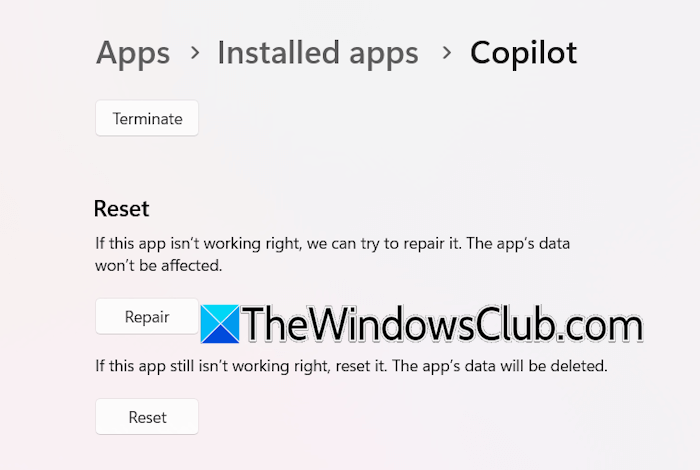
- Open Windows 11 Settings.
- Go to Apps > Installed Apps.
- Search for Copilot. Click the three dots and select Advanced Options.
- Scroll down and click Repair.
If repairing the Copilot does not work, reset it.
7] Uninstall and reinstall Copilot
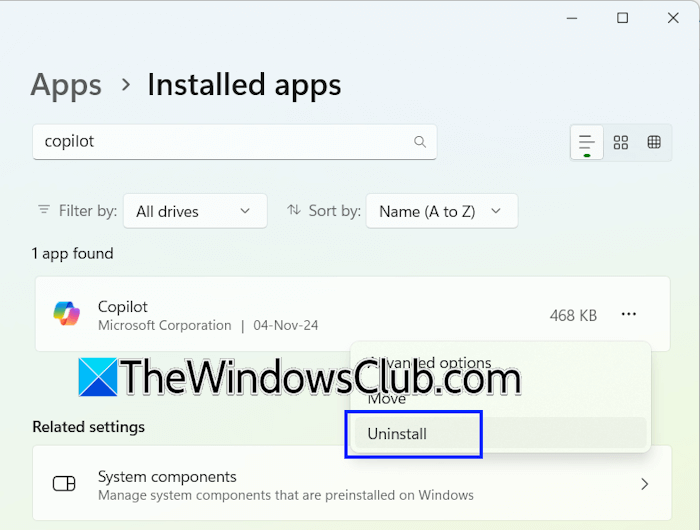
If nothing works, uninstalling and reinstalling the Copilot app can help. Uninstall it through Windows 11 Settings, then restart your computer. After that, install it from the Microsoft Store.
8] Create a new user profile
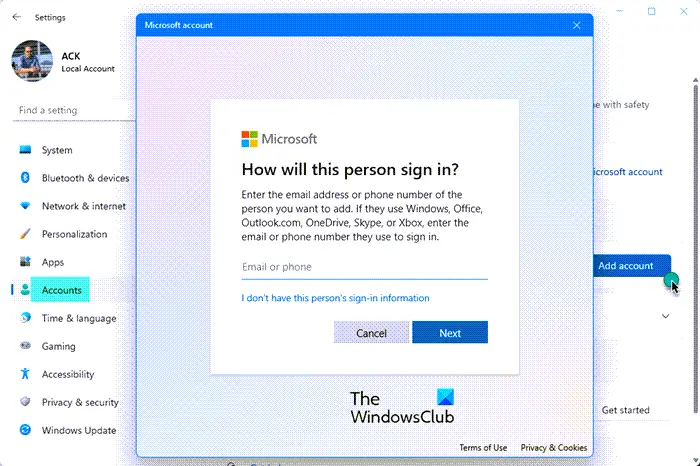
Sometimes, issues are associated with a particular user profile. To check this, create a new user profile and see if you can use Copilot in that profile. If the problem does not occur there, you can transfer all your profile data from the previous profile to the new profile using a third-party tool, such as Transwiz.
That’s it.
Read: Run Copilot Troubleshooters to fix License and Connectivity issues.
How to make Copilot see my screen?
To share your screen with Copilot, use Copilot Vision. Copilot Vision is a new feature in Copilot that makes it your virtual assistant. When this feature is active, Copilot can view everything on your screen, allowing you to get help instantly based on what is currently visible.
Read: Copilot not working in Windows 11
Can a blank screen be fixed?
Yes, a black screen issue can be fixed. You may encounter black screen issues on a Windows computer in different scenarios, such as while playing a game, playing a video, or after waking the computer from sleep mode, etc. The ways to troubleshoot and fix the issue vary depending on the scenario. If the problem occurs due to a hardware fault, you should seek professional help.
Read next: Copilot not working on Android devices.
