
If Copilot or Microsoft 365 Copilot is not working on Android mobile, these solutions will help you fix the problem. Here, we have discussed most scenarios so you can identify yours and resolve it within moments.
Different scenarios
- Blank screen: The most common scenario where users get a black screen after tapping on the Copilot icon.
- Nothing happens after signing in: It is another scenario where you can sign into your account, but nothing happens after that. The screen gets blank post sign in.
- Taking forever to sign in: Many people reported that they are not able to log into their Microsoft account.
- Crashing after a few minutes: There could be times when the Copilot app fails to work in the usual way and stops responding.
Why is Copilot not working on Android?
If Copilot is not working on Android, one of these could be the reason:
- Your internet connection is broken.
- The subscription to Microsoft 365 Copilot has expired.
- You have recently changed your password from another device.
- The app has some bugs, and it has not been updated for a long time.
- There are some problems on the Microsoft end.
Copilot not working on Android phone
If Copilot is not working on Android devices, follow these solutions:
- Check Microsoft Service Health Status
- Check your internet connection
- Ensure you have a valid subscription
- Clear cache and re-log in
- Update app from Google Play Store
- Use standalone Copilot app
- Disable VPN temporarily
To learn more about these solutions, continue reading.
1] Check Microsoft Service Health Status
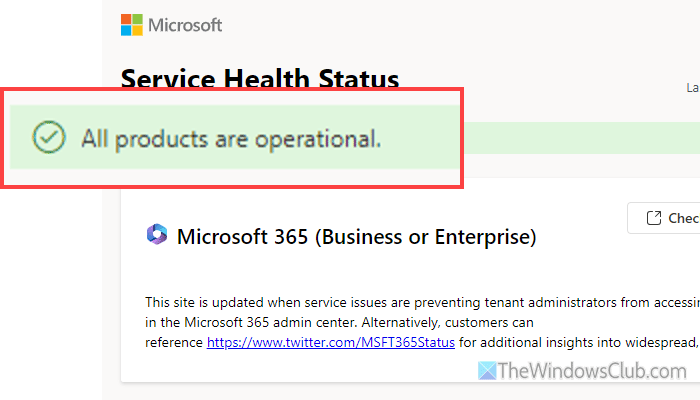
It is the first thing you must check, because if there are problems on Microsoft’s end, you cannot resolve them. Therefore, before doing anything else, it is highly recommended to head over to status.cloud.microsoft to check whether your desired Microsoft services are up and running or not.
If you see the message “All products are operational, but Copilot is not working,” then follow the solutions below. Otherwise, wait for a few minutes and try again.
2] Check your internet connection
For obvious reasons, Copilot requires a valid internet connection. From fetching your account details to displaying search results, every step requires an active internet connection. Therefore, it is important to verify whether your internet connection is working.
For that, you can go through some simple steps:
- Open any browser and enter google.com. If it opens without delay, you likely have a working internet connection.
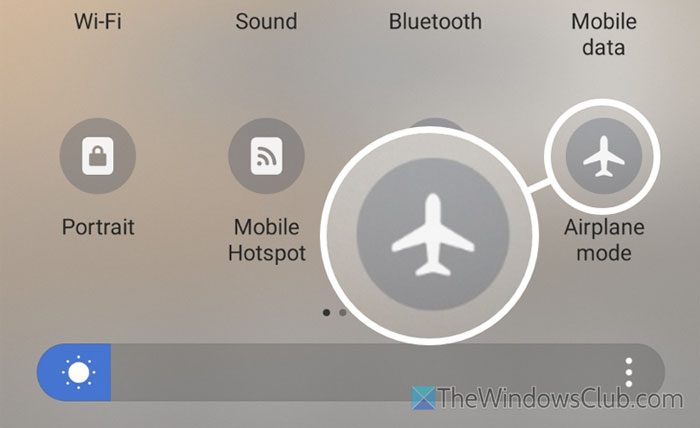
- Turn on Airplane Mode, then turn it off.
- Switch to a different internet connection. For example, if you are using cellular data, try using Wi-Fi, and vice versa.
- You can use an internet speed testing tool to check your internet speed.
3] Ensure you have a valid subscription
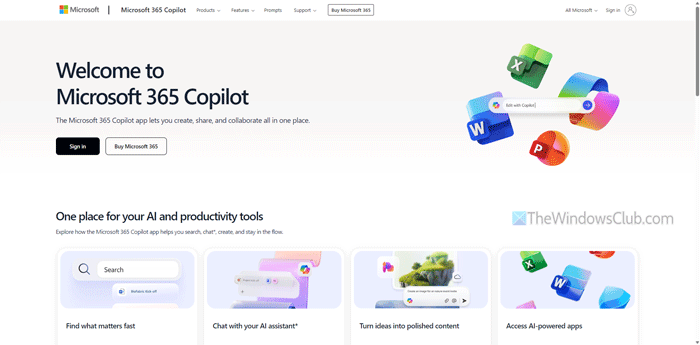
If you use M365 Copilot or Microsoft 365 Copilot, you must have a valid subscription.
In case you don’t know, Microsoft 365 is now called Microsoft 365 Copilot. Although Copilot is free, this particular Copilot is included in the formerly known Microsoft 365. That is why a valid subscription is required.
If you do not have a subscription, visit office.com to purchase a suitable plan. If you already have a subscription, please check the expiry date.
Read: Couldn’t verify your Office 365 subscription
4] Clear cache and re-log in
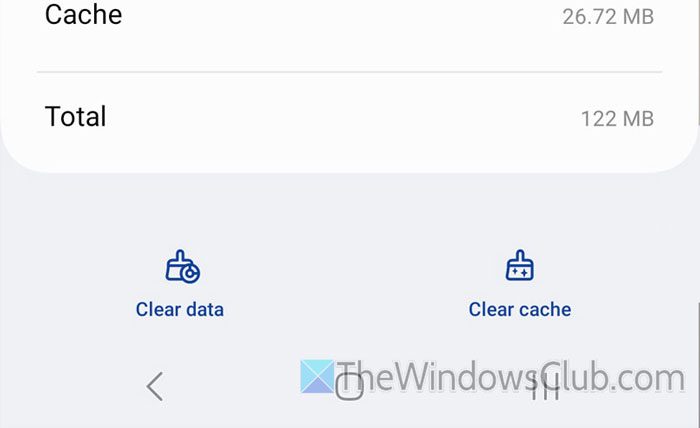
At times, this problem might arise when your Copilot app has a bug or glitch. In such cases, it is recommended to clear the cache and check whether this resolves the issue. To clear the cache of the Copilot app, follow these instructions:
First, tap and hold the Copilot icon. Then, select the info icon. Alternatively, you can open your phone’s Settings and go to the Apps section.
Tap on the Force stop option to close the background processes of Copilot. Next, open the Storage section and select the Clear cache option.
Then, re-open the Copilot app and log in to your account. However, if you use the M365 Copilot app, do the same with it.
5] Update app from Google Play Store
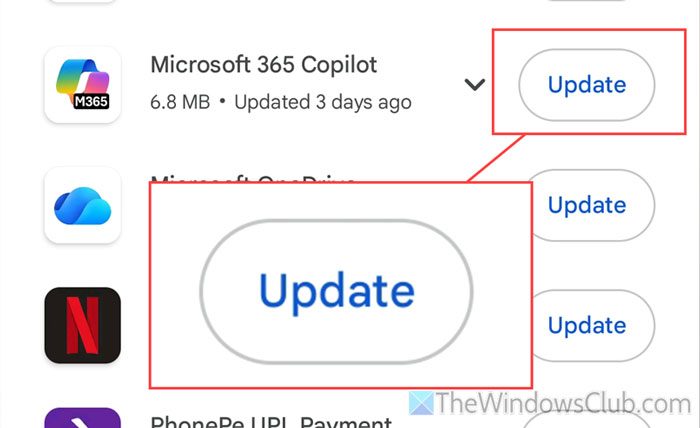
To update the Copilot app on Android, do the following:
- Open the Google Play Store on your mobile.
- Tap on your profile and select Manage apps & device.
- Select the Updates available option.
- Tap on the respective Update button.
Read: Microsoft 365 app encountered a problem in Android
6] Use standalone Copilot app
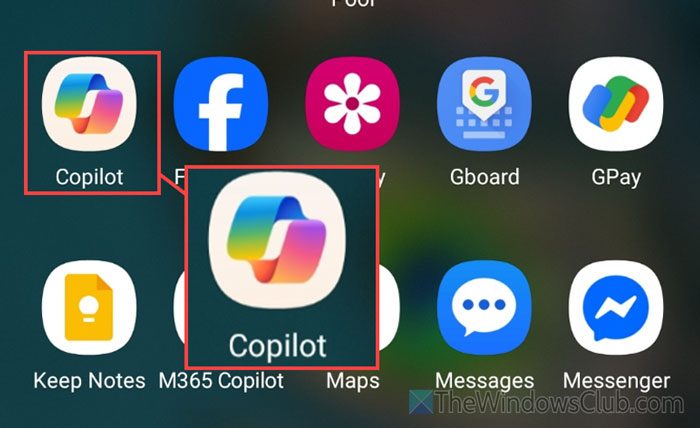
If you use M365 Copilot or the Microsoft 365 Copilot app, we recommend opting for the standalone Copilot app. Similarly, if you use the regular Copilot app, you can switch to the Microsoft 365 Copilot app if you have a valid subscription. In case you do not have the app, open the Google Play Store and download it.
Read: List of best Android apps from Microsoft
7] Disable VPN temporarily
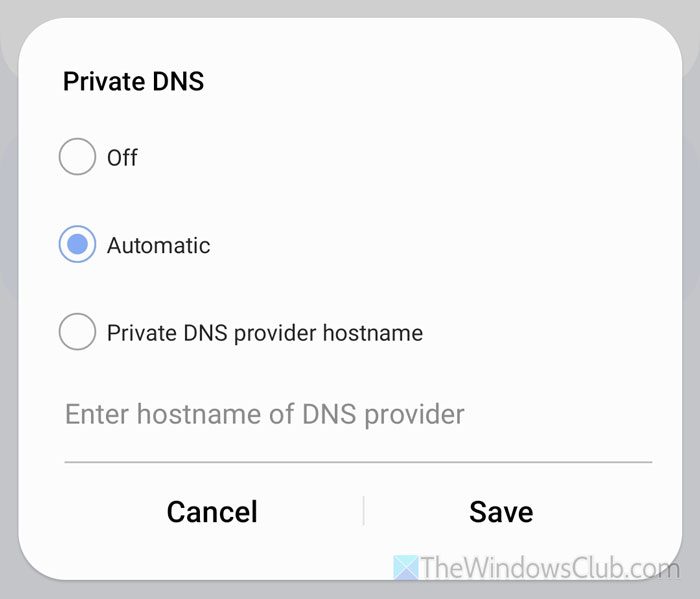
If you use a VPN or proxy, we recommend disabling it temporarily. At times, your VPN server could cause a network issue, and as a result, you won’t be able to use any app that uses an internet connection.
Similarly, if you use a proxy, it is time to disable it temporarily. Additionally, if you use a third-party private DNS, we recommend selecting the Automatic option.
In case you don’t know how to do that, you can open the Settings app and go to your Connection settings. Here you can find an option called DNS. Select it and choose the Automatic option.
Note: Different mobile devices display this option in different locations, so we cannot specify a specific path. However, you can find the DNS setting option in the Connection or Network settings area.
Read: Copilot Vision not connecting or working
Can Copilot work on Android?
Yes, Copilot works smoothly on Android. Whether you want to use M365 Copilot or the standalone Copilot app, it is possible to use both if you have a valid subscription.
How to open Copilot on Android?
To open Copilot on Android, you can download and install the “Copilot” app from the Google Play Store first. Then, sign in to your Microsoft account. By tapping the Open button. Next, locate the app icon in the app drawer. Alternatively, you can use the Microsoft 365 Copilot if you have a valid subscription.
