
If you’re an Android user, then it is clear you have some interest in Microsoft products, unless you’re just here to take a peek at what the software giant is doing. These days, Microsoft is focusing a lot on Android and iOS when it comes down to apps, so we’re going to list the best Android apps the company has released for Google’s operating system. Apart from the Microsoft Office program apps, Xbox One SmartGlass, Sunrise Calendar, Hub Keyboard, Send and Tossup are some of the top Android apps from Microsoft.
There was a time when Microsoft only focused on its own operating system when it comes down to support, but that has changed with Satya Nadella at the helm. These days, the company releases apps for both iOS and Android, and surprisingly enough, these operating systems are getting more app support than their own product. These apps are probably ones you have never heard off, so let’s get the ball-a-rolling.
Best Android apps from Microsoft
Some of the best Android apps from Microsoft are:
- Microsoft Office
- Microsoft Launcher
- Microsoft Authenticator
- Your Phone Companion
- Microsoft Edge
- Microsoft To Do
- SMS Organizer
- Sketch 360
Let’s check out more about these apps.
1] Microsoft Office
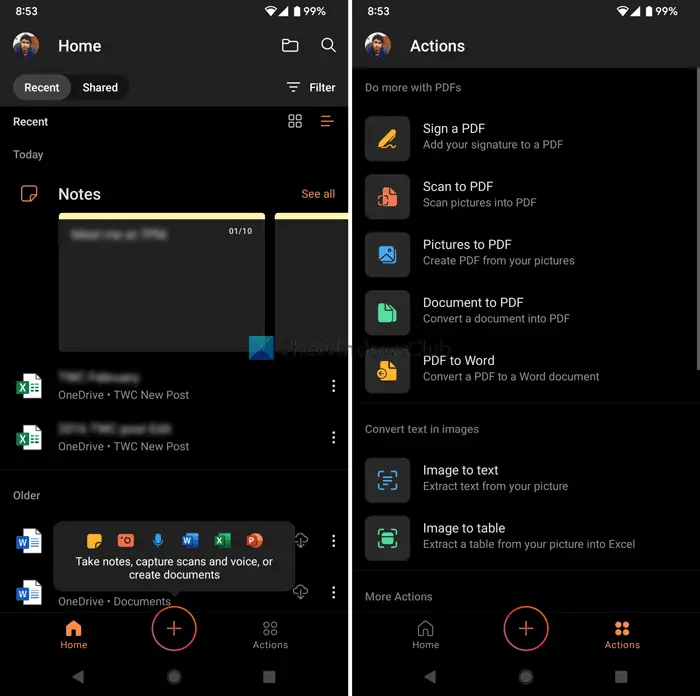
If you need Word, Excel, PowerPoint in one place, there is no better option than Microsoft Office. Although it is still in Beta for a very long time, it doesn’t show bugs frequently. You can manage all the OneDrive files – whether it is a document, image, PDF, or anything else with the help of Microsoft Office. The best thing is that you can scan any document and turn it into a PDF. In case you need to sign a PDF, you can do that as well. On the other hand, you can capture notes, type documents using voice, read aloud your files, etc. Download from play.google.com.
2] Microsoft Launcher
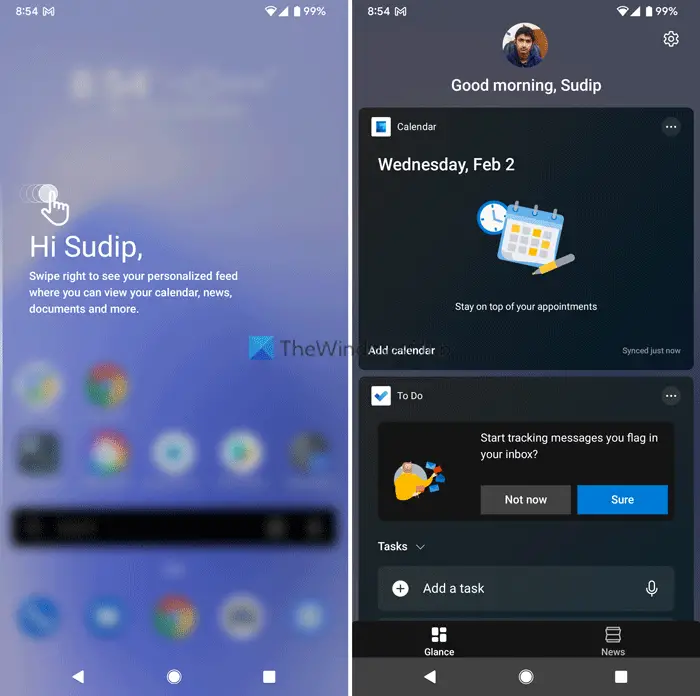
At times, you might not like your phone’s default launcher and want to change it to something else to give it a new look and feel. If so, you can use the Microsoft Launcher to get the job done. Whether you need customizable icons, wallpapers, or dark mode, you can get everything in this launcher. The best thing is that you can fetch a new image from Bing every day. Apart from that, there are widgets that you can use to get various information quickly. Download from play.google.com.
3] Microsoft Authenticator
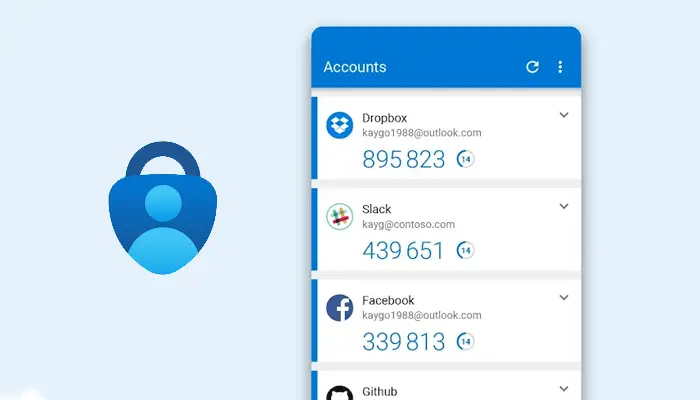
Two-step verification is probably the most common and additional security measure that everyone should consider while opening an online account on any website. Whether it is internet banking or even Facebook, you must turn on two-factor authentication. For that, you can use the Microsoft Authenticator app to generate security codes. There is no limit on the number of websites, which is why it is popular among people. Download from play.google.com.
4] Your Phone Companion
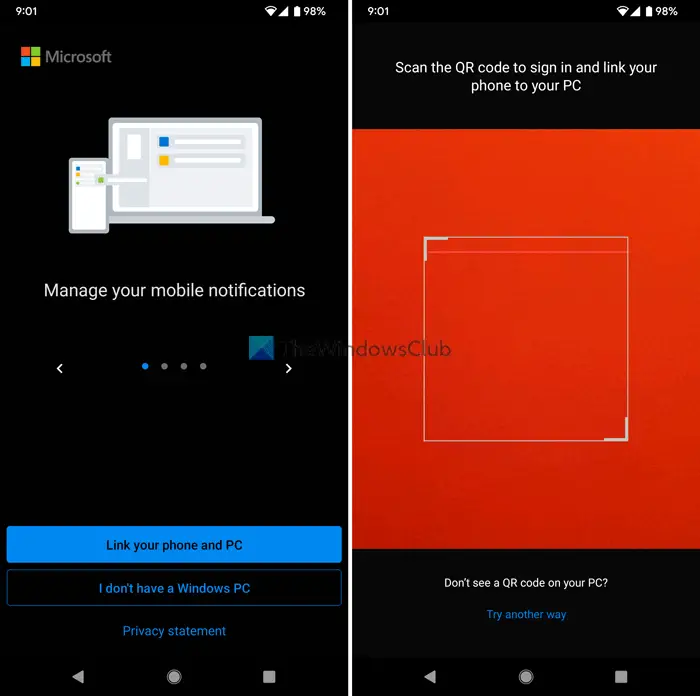
If you are using Windows 11 or Windows 10 computer and want to make or receive calls from your PC, get notifications on your computer, etc., you must use the Your Phone Companion app. It is compatible with Android 7.0 or later versions. That said, you can use this app on almost any modern-day Android phone without any issue. Although it requires a setup that is not that complex, you can get things done within moments. Download from play.google.com.
5] Microsoft Edge
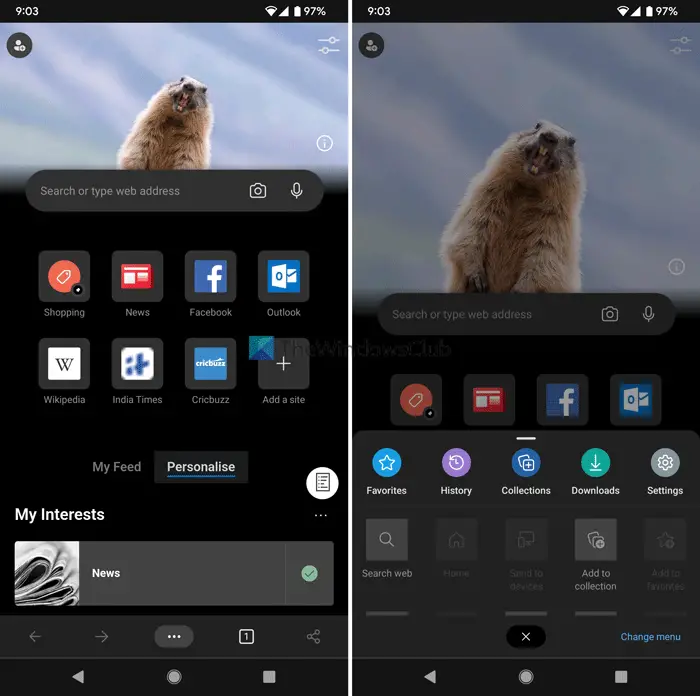
You can use the Edge browser on your Android mobile as well. Whether you want to browse your favorite website, watch YouTube videos or access your internet banking, you can use this browser. The best thing is that you can sign in to your Microsoft account to synchronize your data across multiple platforms. The user interface is smoother and uncluttered. On the other hand, it offers almost all the security features you might need. Download from play.google.com.
6] Microsoft To Do
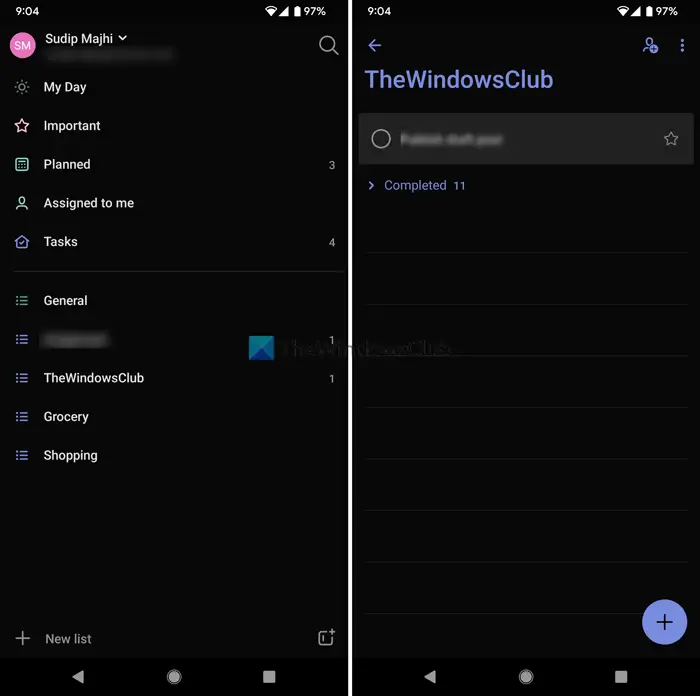
In our busy schedules, we often forget important things at work and home. If you use the Microsoft To Do app, the chance of forgetting things will be minimal. You can note everything down in the app and get reminders whenever needed. As it is synchronized with your Microsoft account, you can access all the tasks on the respective website as well. The UI is pretty good, neat, and clean so that you do not get any problems while using it for a very long time. The last but not the least thing is that it comes in dark mode. Download from play.googe.com.
7] SMS Organizer
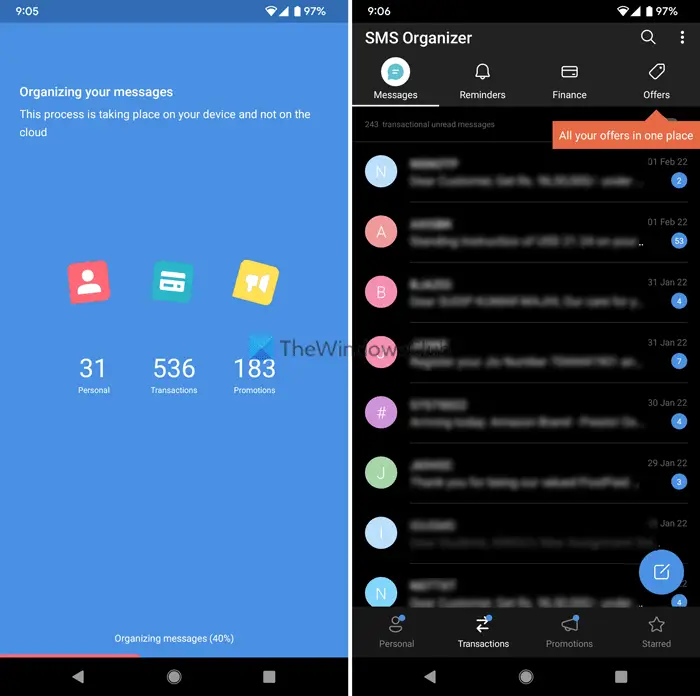
The built-in messaging app on Stock Android is not very functional at detecting different types of SMS messages. That is why you can start using SMS Organizer. As the name suggests, it automatically categorizes your SMS by type, time, reminders, etc. For example, if you receive an SMS asking you to renew your online subscription, you can find that in the Reminder tab. Download from play.google.com.
8] Sketch 360
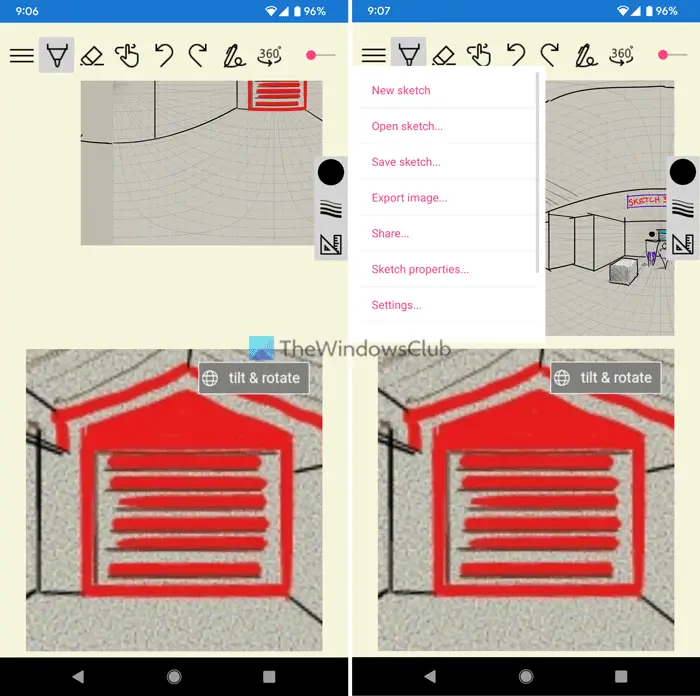
If you are into sketching, drawing, or similar activities, this app will be handy for you. Sketch 360 helps you draw 360 images on a 2D screen. Whether you have an Android phone or tablet, you can use this app to draw 3D models on your 2D mobile screen.You won’t have any problems using it on almost any Android mobile you might have. Download from play.google.com.
Have any favorites? Post your comments below!
You may also want to take a look at the list of all the Microsoft Apps available for Android.
Are Microsoft apps safe?
Yes, all Microsoft apps are safe to download and install. You can install Microsoft apps on your PC from the Microsoft Store. Microsoft apps are also available for Android smartphones and iPhones. You can download them from the Google Play Store and App Store, respectively.
Is Excel free on Android?
Yes, Microsoft Excel is free for Android smartphones. You can install it on your smartphone from the Google Play Store. Apart from Excel, other Microsoft Office apps, such as Word, PowerPoint, Outlook, and OneNote, are also free on Android Smartphones.
