
It’s a frustrating but common experience: one moment you’re editing a document or checking your email on your Android phone, and the next, the Microsoft 365 app crashes, freezes, or simply won’t open. This disruption often occurs after a recent update to your phone’s operating system (like Samsung’s One UI) or the app itself, which can introduce compatibility issues, corrupt temporary data, or change system settings that the app relies on to function properly. In this post, we will see what you can do if the Microsoft 365 app encounters a problem on Android.
Fix Microsoft 365 app encountered a problem in Android
These disruptions usually occur when there’s a conflict between the app and your device. Common causes include a corrupted cache or data that needs refreshing, new updates to your operating system (like One UI 7.0) that don’t work well with the current version of Microsoft 365 apps, battery optimization settings that block the apps from running in the background, and conflicts with features like predictive text or Grammarly, which can affect how Word works.
If the Microsoft 365 app encounters a problem on Android, follow the solutions below.
- Clear Microsoft app cache
- Update the Microsoft 365 app
- Remove and re-add your Microsoft Account
- Disable Battery Optimization for the app
- Check for keyboard and third-party apps
Let us talk about them in detail.
1] Clear Microsoft app cache
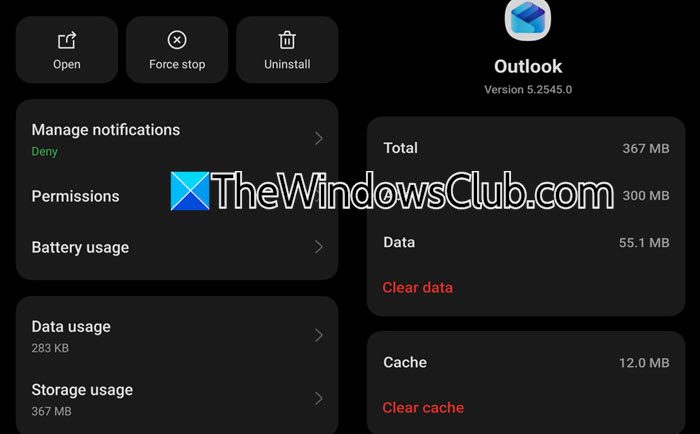
Our first solution is to refresh the app’s temporary files. A corrupted cache is a prime suspect for app misbehavior, as cache stores frequently used information, and we suspect that the Microsoft app is unable to access it. Clearing the cache won’t cause an issue, since it doesn’t contain any of your personal information. Follow the steps mentioned below to do the same.
- Go to your phone’s Settings.
- Then, go to Apps.
- Find and tap on the specific Microsoft app you’re having trouble with (e.g., Word, Excel, Outlook).
- Tap on Storage, Storage Usage, or something like that.
- First, tap Clear Cache. This is a safe first step as it doesn’t delete your personal data or sign you out. Test the app.
- If the problem persists, go back and tap Clear Storage or Clear Data. This will reset the app to its default state, forcing you to sign in again, but it often resolves deeper corruption issues.
Finally, check if the issue is resolved.
2] Update the Microsoft 365 app
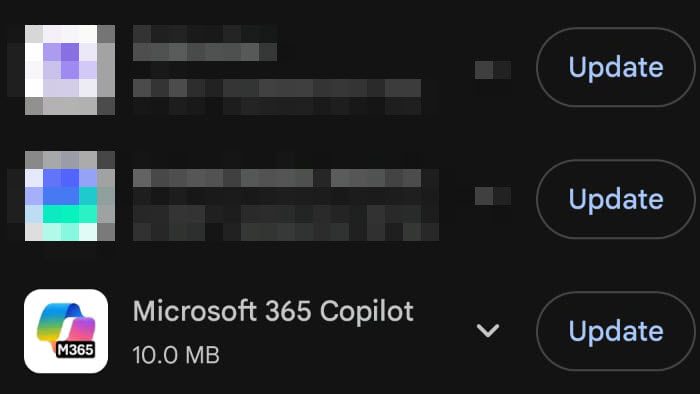
An outdated app version may conflict with a newly updated operating system. We need to ensure you’re running the latest version available. Follow the steps below to do the same.
- Launch the Google Play Store.
- Then, tap your profile icon and navigate to Manage apps & devices.
- Look for pending updates. If a Microsoft app update is available, install it.
Alternatively, search for the app directly in the Play Store to see the update option.
3] Remove and re-add your Microsoft Account
Sometimes, the problem is related to your account’s synchronization with the app. Therefore, we need to remove our Microsoft account and then re-add it.
To refresh your connection with Microsoft services, open the application, such as Outlook, and navigate to its settings. Within the account management section, remove your work or school account. After that, restart the app and sign in again by adding the account back. This process establishes a clean connection to the Microsoft servers and often resolves syncing or access issues.
4] Disable Battery Optimization for the app

Android’s aggressive battery optimization can prevent apps from running correctly in the background, leading to crashes or delayed notifications. To disable battery optimization for the app, use the steps mentioned below.
- First of all, go to Settings.
- Then, tap on Battery > Battery optimization.
- Disable Battery optimization for the problematic Microsoft app.
This allows the app the resources it needs to function properly.
Do keep in mind that these steps might differ depending on your OEM.
5] Check for keyboard and third-party apps
Features like predictive text and spell checkers, including third-party keyboards like Grammarly or Gboard, can sometimes conflict with text input in Word and other Office apps. While they enhance typing, they may cause instability or unexpected behavior when entering text.
To troubleshoot this issue, try switching to a different default keyboard in Settings under General Management. Choose another option, like Samsung Keyboard to see if the problem goes away. Additionally, disable any add-ons that might be causing crashes, such as Grammarly’s keyboard or accessibility service, to see if that helps.
That’s it!
Read: What apps does Microsoft 365 include?
How to fix Microsoft 365 encountered a problem?
To fix this error on your Android device, start by clearing the app’s cache and data in the Settings under the specific app’s storage menu. Next, ensure both the Microsoft 365 app and your phone’s operating system are up to date, as compatibility issues can cause problems. If the issue persists, remove and re-add your Microsoft account in the app, and disable battery optimization to allow it to access the required resources.
Read: Microsoft Office 365 introduces Read Aloud feature and more
Does Microsoft Office 365 work on an Android phone?
Yes, Microsoft Office 365 works seamlessly on Android phones. You can download individual apps like Word, Excel, PowerPoint, and Outlook directly from the Google Play Store. With a valid Microsoft 365 subscription, you get full editing and creation capabilities on devices with a screen size smaller than 10.1 inches. The experience is optimized for mobile, allowing you to view, edit, and collaborate on documents stored in OneDrive or SharePoint from anywhere.
Also Read: The new Office 365 App launcher comes with revamped design.
