
Managing work across Microsoft 365 often means jumping between Teams, Outlook, SharePoint, OneDrive, and your calendar just to finish a single task. Those small interruptions quickly add up during a busy workday. Microsoft Scout WorkIQ integration helps reduce that back-and-forth by allowing Scout to pull together information from your Microsoft 365 apps and handle repetitive work automatically. Instead of collecting updates manually or searching for files across multiple locations, you can let Scout do the heavy lifting while you focus on work that needs your attention. Here’s how you can use WorkIQ with Microsoft Scout to automate common Microsoft 365 tasks without losing control of your data.
How to Automate Microsoft 365 using WorkIQ with Microsoft Scout
Before starting, we need to make sure your Microsoft 365 administrator has connected Microsoft Scout to the Microsoft 365 services your organization uses. Scout only works with the resources it has permission to access, so configuring the right permissions is an important first step. Once everything is in place, you can start using WorkIQ to automate several everyday tasks across Microsoft 365.
Connect Scout to Your Microsoft 365 Apps
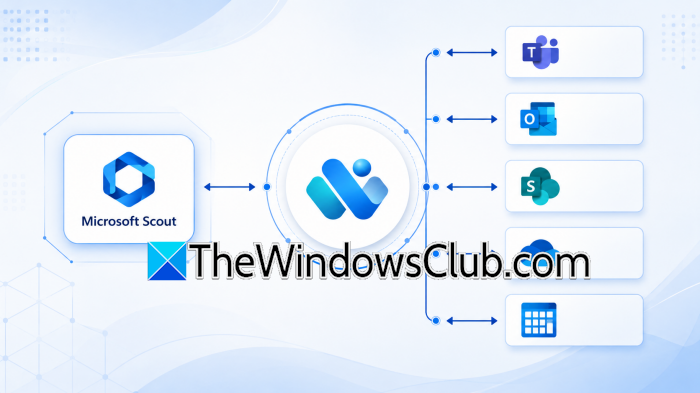
Scout becomes much more useful when it can access the Microsoft 365 apps you use every day. Connect it to Microsoft Teams, Outlook, SharePoint, OneDrive, and Outlook Calendar so it has the context needed to complete your requests. For example, if you ask Scout to prepare for an afternoon meeting, it can review recent Teams conversations, locate related documents from SharePoint, and check your Outlook calendar before presenting everything in one place. Instead of opening five different applications, you receive the information from a single request.
Let Scout Catch You Up on Teams Conversations
Reading hundreds of Teams messages after a meeting or a day off isn’t the best use of your time. With WorkIQ, Scout can review approved Teams chats and channel conversations before creating a short summary of everything that matters. It highlights important decisions, upcoming deadlines, assigned tasks, and unanswered questions, making it easier to understand where a project stands. This is particularly useful when joining an existing project or returning from leave, as you can get the latest updates without scrolling through lengthy chat histories.
Use Scout to organize your Calendar
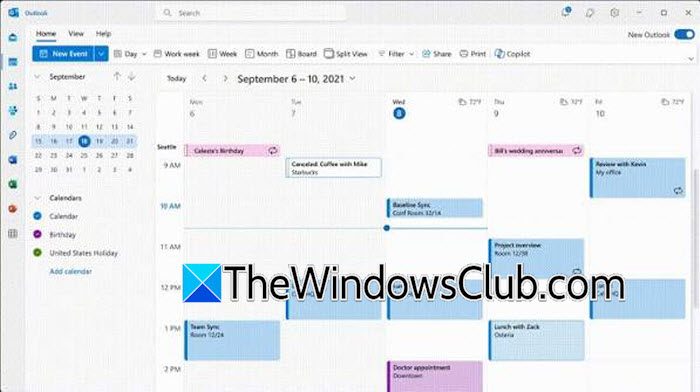
Planning meetings is easier when Scout knows your schedule. Instead of checking several calendars, you can ask Scout to find available meeting times, spot scheduling conflicts, or prepare your agenda for an upcoming call. Scout can also gather related files and notes from recent discussions, so you don’t have to search for them. When everything is ready before the meeting, you spend less time organizing and more time taking part in important discussions.
Draft Outlook Emails in Seconds
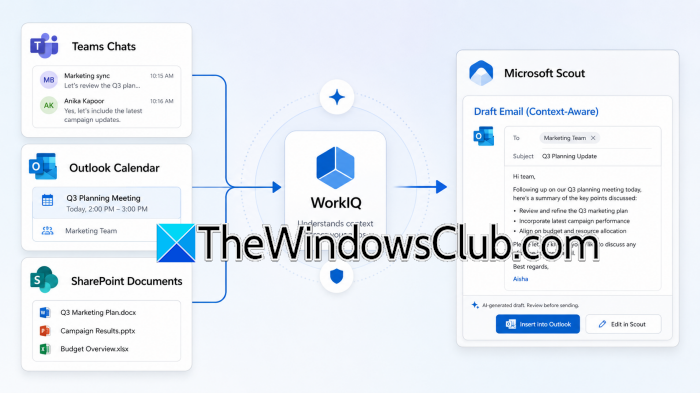
Follow-up emails usually require you to review meeting notes, check project updates, and gather information from past conversations. WorkIQ makes this easier by allowing Scout to gather the necessary context automatically before drafting an email. After a project meeting, for example, Scout can create a summary email that includes discussion points, action items, and next steps. You still need to review the message before sending it, but starting with a complete draft can save you several minutes each time.
Read: Microsoft Scout: An always-on Personal AI Agent for Microsoft 365.
Find Files Without Searching Multiple Locations
Your project documents are usually not stored in one place. Some files would be in SharePoint, others in OneDrive, and additional documents would be shared directly through Teams. Instead of searching each location individually, describe the file you’re looking for and let Scout handle the search. Because WorkIQ understands the relationship between your conversations, projects, and documents, Scout can surface the most relevant files much faster than a manual search. This makes it easier to continue working without interrupting your flow.
Keep Your Microsoft 365 Data Protected
Giving an AI assistant access to business data naturally raises security concerns, which is why permissions remain under your organization’s control. Scout only works with the Microsoft 365 resources that administrators approve, and existing Microsoft Purview sensitivity labels continue to protect confidential documents during automated workflows. If a document has restricted access, Scout follows the same security rules instead of bypassing them. This allows you to automate routine work while continuing to meet your organization’s security and compliance requirements.
Review and Expand Your Automations
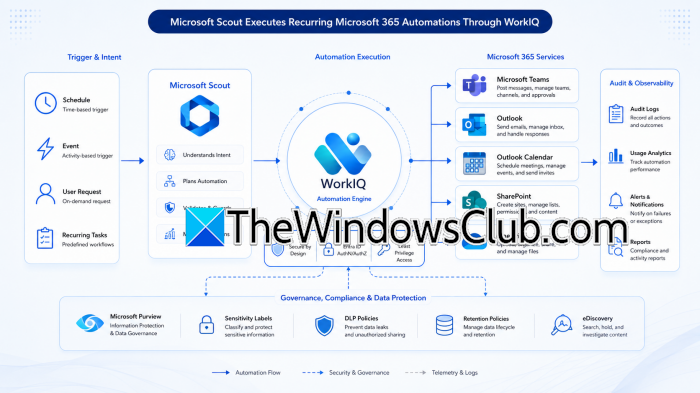
Once you’ve started using Scout regularly, take some time to review which automations save you the most effort. You may begin by summarizing Teams conversations or drafting Outlook emails, then gradually expand to calendar management, document retrieval, and other Microsoft 365 workflows. Administrators should also periodically review audit logs and permissions to confirm that Scout is accessing only the intended resources. Starting with smaller automations and expanding them over time is often the easiest way to introduce AI into everyday business processes.
WorkIQ allows Microsoft Scout to connect the information already available across Microsoft 365 and turn it into useful actions. Whether you’re catching up on Teams conversations, preparing for meetings, locating project files, or drafting Outlook emails, Scout helps reduce repetitive work without changing the way you already use Microsoft 365. With the right permissions in place, you can automate routine tasks while keeping your organization’s data secure and under control.
That’s it!
Which Microsoft 365 apps work with Scout?
Microsoft Scout can work with several Microsoft 365 services, including Microsoft Teams, Outlook, Outlook Calendar, SharePoint, and OneDrive, provided your administrator has granted the required permissions. By combining information from these applications, Scout can automate common business tasks such as meeting preparation, document retrieval, conversation summaries, and email drafting while following your organization’s existing security policies.
Read: How to enable and use Copilot in Loop
Is Microsoft Scout WorkIQ integration secure?
Yes, Microsoft Scout WorkIQ integration is designed to operate within your organization’s existing Microsoft 365 security framework. Scout only accesses resources that administrators explicitly authorize, while Microsoft Purview sensitivity labels, role-based permissions, and audit logging continue to protect business data. This helps organizations automate routine Microsoft 365 tasks without compromising governance, compliance, or access controls.
Also Read: Enable and use Workspaces on Microsoft Edge.
