
When trying to log into Outlook or other Microsoft 365 or Office applications, users have reported a Device TPM Problem on Office 365. The error usually relates to the device’s Trusted Platform Module (TPM) and can prevent apps such as Outlook, Word, Excel, Teams, and OneDrive from properly authenticating your Microsoft 365 account. In this post, we’ll cover this issue and what you can do to fix it.
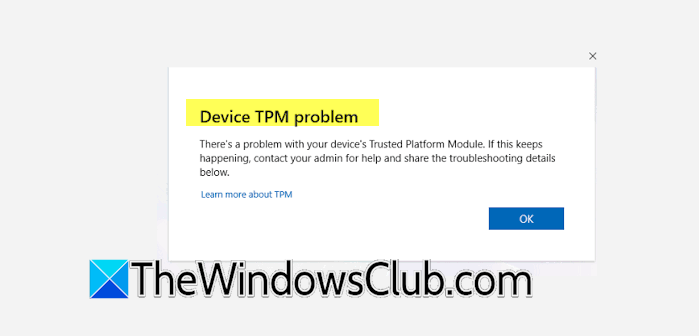
Device TPM Problem on Office 365
If you encounter a Device TPM Problem in Microsoft 365 apps, first verify that Windows is correctly detecting the TPM. The TPM (Trusted Platform Module) stores security information Windows and Microsoft 365 use for authentication. When the TPM’s state is inconsistent, Office applications may struggle to create or access the necessary authentication keys. This issue can arise after a Windows update, a BIOS or firmware change, a TPM reset, or when the device credentials no longer match the Microsoft 365 account. However, this does not always indicate a hardware failure of the TPM. In many instances, simply resetting the TPM or refreshing the account credentials can resolve the issue.
If you encountered a Device TPM Problem in Microsoft 365, follow the solutions mentioned below.
- Reset the TPM
- Sign out and remove the Office account
- Remove cached Microsoft 365 credentials
- Update the BIOS or firmware
Let us talk about them in detail.
1] Reset the TPM
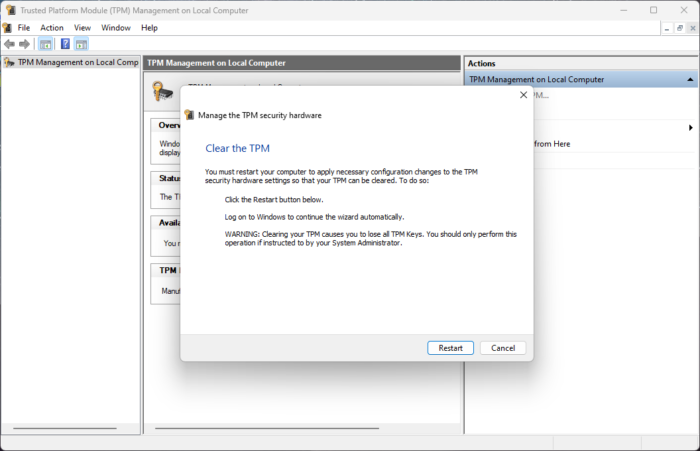
The TPM stores cryptographic keys that Windows and Microsoft 365 use during authentication. If those keys become corrupted or the TPM gets out of sync with Windows, Office may be unable to complete the sign-in process. Clearing the TPM lets Windows reinitialize it and create new security keys.
Follow the steps below to do the same.
- Press Windows + R.
- Type tpm.msc and press Enter.
- In the TPM Management on Local Computer window, check the Status section.
- If the TPM is working correctly, you should see The TPM is ready for use.
- If you need to reset it, use the Clear TPM option available from Windows Security/Windows settings, depending on your Windows build.
Windows will initialize the TPM again after the restart. You may then need to sign in to your Microsoft account and Microsoft 365 applications again.
2] Sign out and remove the Office account
If the TPM works normally but Office still reports the problem, the stored Microsoft 365 credentials may be corrupted. Follow the steps below to do the same.
- Open Settings > Accounts > Access work or school and select the work or school account associated with Microsoft 365.
- If your organization allows it, disconnect the account and restart Windows.
- Then reconnect the account and open an Office application such as Word or Outlook. Sign in when prompted and allow Microsoft 365 to create fresh authentication credentials.
Finally, check if your issue is resolved.
3] Remove cached Microsoft 365 credentials
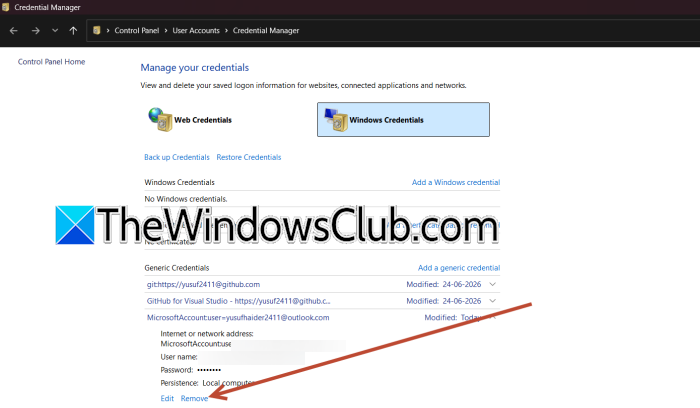
Microsoft 365 does not always rely on the password you enter directly. Windows can reuse previously stored authentication information when Office attempts to sign in. If that cached information is damaged or no longer matches the account, removing it forces Office to request fresh credentials and authentication tokens. To do so, follow the steps mentioned below.
- Old or corrupted credentials saved by Windows can also interfere with Microsoft 365 sign-in.
- To remove them, open Control Panel and select Credential Manager.
- Click Windows Credentials and look for entries related to Microsoft 365, Office, Azure AD, or your organization’s account.
- Remove the relevant entries, restart the computer, and reopen an Office application.
Be careful when removing saved credentials, particularly on a work computer. Remove only entries that are clearly associated with the affected Microsoft 365 account.
4] Update the BIOS or firmware
The TPM is closely tied to the device’s firmware and motherboard security configuration. Outdated or faulty firmware can prevent Windows from communicating correctly with the TPM, which can affect applications that depend on device-based authentication. Do not install a BIOS update intended for another model, and avoid changing firmware settings unless you know what they do. You can go ahead and update the BIOS firmware and see if that helps.
That’s it!
Read: TPM has malfunctioned, Error 80090034, Encryption failed
How to solve the device TPM problem in Microsoft 365?
To solve the Device TPM Problem in Microsoft 365, first restart the computer and check whether the TPM is working by running tpm.msc. If the TPM is ready for use, remove stale Microsoft 365 credentials from Credential Manager and sign in again. If the TPM reports a problem, update Windows and the device’s TPM or BIOS firmware. As a last resort, you can clear the TPM, but do this carefully because it removes TPM-protected keys and can affect Windows Hello and other security features.
Read: Fix C0090016, TPM has malfunctioned Microsoft 365 Sign-in Error
How to fix device TPM error?
You can fix a Device TPM error by first restarting Windows and checking the TPM status using tpm.msc. If Windows reports that the TPM is unavailable or malfunctioning, make sure it is enabled in UEFI and install any available Windows, BIOS, or TPM firmware updates. For persistent TPM problems, clearing the TPM can allow Windows to reinitialize it, but Microsoft recommends backing up important data first and not clearing the TPM on a work or school PC without approval from the IT administrator.
Also Read: TPM error 80284001 on Teams or Outlook.
