
Being locked out of your Microsoft 365 administrator account can be a stressful experience, as it prevents you from managing users and services. This typically occurs due to security features, such as issues with Multi-Factor Authentication (MFA), suspicious sign-in activity, or expired licenses. In this article, we will explore why it happens and what you can do in the aftermath of this event.
Locked out of the Microsoft 365 admin account
Microsoft’s automated security systems will temporarily lock an account to protect it from potential threats. This can be triggered by several common issues: multiple incorrect login attempts, problems with your MFA setup (such as a lost authenticator app or unregistered security contact methods), an expired subscription that disables your admin account, or suspicious activity like signing in from an unfamiliar location or device.
If you are locked out of the Microsoft 365 admin account, you need to follow the solutions mentioned below.
- Microsoft’s Self-Service Recovery Tool
- Use another admin account
- Wait for the automatic unlock
- Contact Microsoft Data Protection Team
- Sign In from a Trusted Source
Let us talk about them in detail.
1] Microsoft’s Self-Service Recovery Tool
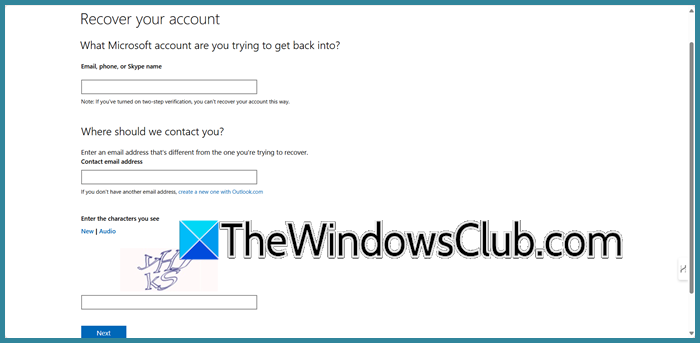
Microsoft’s automated identity verification system. It bypasses your current login issue by using pre-set security information, like a phone number or alternative email address, to confirm you are the legitimate account owner. Once your identity is proven, the system allows you to reset your password and regain access directly.
- First of all, go to account.live.com, which is the official Microsoft account recovery page.
- Enter the locked Microsoft 365 admin email address, contact information, and select Next.
- Follow the on-screen prompts to receive a security code at your registered alternative phone number or email address.
- Enter the code you received to verify your identity.
- You will then be guided to create a new, strong password for your account.
Hopefully, this way, you can retrieve your account.
2] Use another admin account
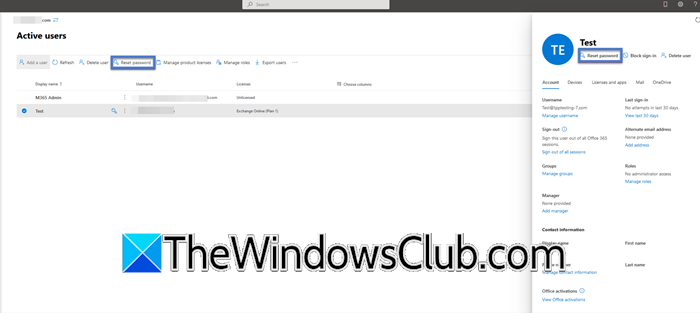
The Global Administrator role has the highest level of privilege in a Microsoft 365 tenant. Another global admin can bypass the lock on your account because they have the inherent permissions to manage all other users, including resetting passwords and re-enabling accounts that have been blocked or had their sign-in status changed. You can follow the steps mentioned below to do the same.
- If you have another verified global administrator, sign in to the Microsoft 365 admin centre from admin.microsoft.com.
- Navigate to Users > Active users.
- Select your locked admin account from the list.
- Click on Reset password to set a new temporary one, or check the user’s details to ensure their sign-in status is set to Allowed to reactivate the account.
Finally, check if the issue is resolved.
3] Wait for the automatic unlock
Microsoft’s security system imposes temporary, progressive lockouts in response to failed sign-in attempts to protect your account from brute-force attacks. The lockout duration starts short and increases if unsuccessful attempts continue, so waiting allows the automatic timer to expire and resets the lockout counter.
You need to stop all sign-in attempts for a period, typically starting from 30 minutes to an hour for short locks. In some cases, you may need to wait up to 24 hours for the lock to clear automatically.
Do not attempt to reset your password during the lockout period, as this may be perceived as another suspicious sign-in attempt and could prolong the lockout.
Read: Your account is temporarily locked to prevent unauthorized use, Microsoft sign-in error
4] Contact Microsoft Data Protection Team
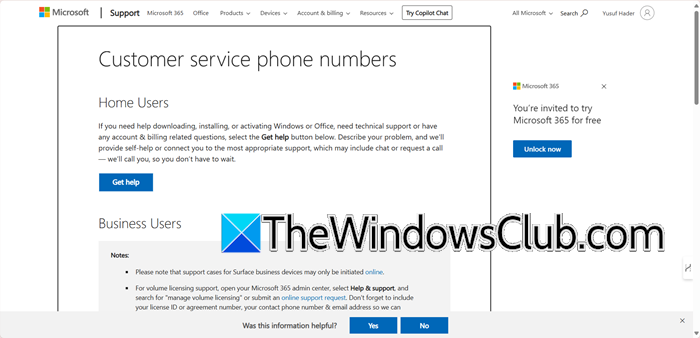
Contacting the Microsoft Data Protection Team is the definitive solution for sole administrators, as this specialized team has the unique backend permissions required to manually verify your identity and reset account credentials, especially in complex scenarios involving multi-factor authentication (MFA) failures where automated tools and standard support channels cannot help. You need to go to support.microsoft.com and ask the frontline support to create a service ticket for the Data Protection Team. You need to verify your identity and ownership, which may include domain proof, subscription details, and an authorisation letter.
5] Sign In from a Trusted Source
Microsoft’s security systems assess the risk of your sign-in behaviour. Sign-ins from unfamiliar locations or IP addresses are flagged as suspicious to protect your account from unauthorised access. Using a recognised corporate network or a familiar device signals to the system that you are the legitimate owner, which reduces the perceived risk and allows for smoother authentication.
Sign in from a computer and network you use regularly (e.g., your office). This establishes a familiar pattern. If remote, connect to your organisation’s VPN first. This makes your connection appear from a trusted corporate IP address. Finally, go to the Microsoft 365 admin centre and attempt to sign in with your credentials.
That’s it!
Read: Your account has been locked – Microsoft
How to unlock 365 admin account?
To unlock your Microsoft 365 admin account, the quickest method is to have another global administrator reset your password or change your sign-in status via the Admin Centre. If you are the only admin, use Microsoft’s self-service password recovery tool online. Should these fail, you must contact the Microsoft Data Protection Team directly to verify your identity and have them perform a backend unlock.
Read: Unblock and Recover a blocked or suspended Microsoft account.
How to unlock a locked admin account?
To unlock a locked admin account, the simplest method is to have another global administrator reset your password directly from the Microsoft 365 Admin Centre. If you are the only admin, use the account recovery tool on Microsoft’s website to verify your identity. For persistent issues, such as multi-factor authentication failures, you will need to contact Microsoft Support for a manual backend unlock.
Also Read: Recover Microsoft account without email and phone number.
