
Accidentally deleting the administrator account on Windows 11 can be a daunting experience. It can lock us out. Installing programs, making changes, or managing user accounts becomes impossible without an administrator account. Until we have an administrator account, we cannot do anything. Fortunately, we have some solutions for you. Follow this guide to know how to recover your Windows PC when you accidentally delete the administrator account.
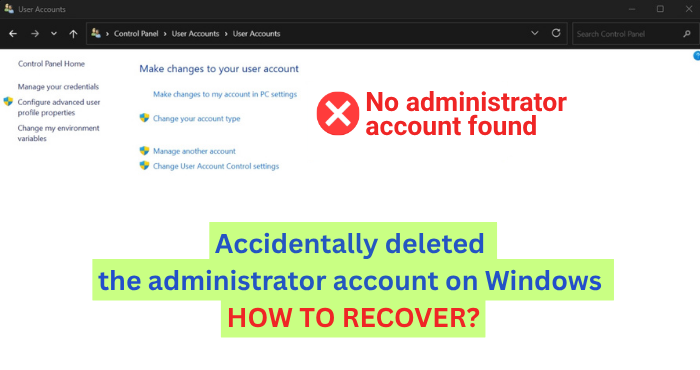
An administrator account can be accidentally deleted or disabled if you rename it incorrectly, change its type to “Standard User,” or remove it through tools like NETPLWIZ or Local Users and Groups. This usually happens when users try to adjust account settings but inadvertently lose admin rights.
How to recover an accidentally deleted administrator account on Windows 11
When a Windows PC does not have an administrator account, users cannot make any changes that require administrator privileges. So an administrator account is a must. To regain access to the administrator account, follow the steps below.
- Try using the Microsoft account
- Use another Administrator account
- Use the Hidden Administrator account
- Perform a System Restore
- Reset Windows
Let’s get into the details of each method and see how they can help in recovering a deleted administrator account on Windows 11.
1] Try using the Microsoft account
Generally, we all create a Microsoft account while installing and setting up Windows 11. That Microsoft account serves as the PC’s administrator account. If you have accidentally deleted the administrator account and want to access your PC and restore it, you can try using your Microsoft account.
On the login screen, see if there is an option to sign in with a Microsoft account. Use the same account you have used to set up the PC. To confirm, if the PC is associated with your Microsoft account, open the Microsoft account on a web browser on another device, sign in with the credentials, and see if the PC exists in the Devices list.
If the PC you are having a problem with isn’t listed in the Devices list, this method won’t work. If it is listed, you will find the login options to sign in with a Microsoft account and restore or create a new administrator account.
2] Use another Administrator account
If you have another Administrator account, use it. Press Win+R, type lusrmgr.msc, and press Enter. Go to Users, right‑click and select New User.
Create a new account, then add it to the Administrators group.
Log out and sign in with the new admin account.
3] Use the Hidden Administrator account
There’s a built-in administrator account in Windows that’s hidden from us. It is created by the manufacturer to run programs and apps before a user account is created. You can just use the hidden or built-in administrator account and create a new administrator account. To access the built-in administrator account, you have to boot into Safe Mode.
Restart your PC and interrupt it from booting fully for 3 times. While the PC is restarting, hold the power button to force a restart. Do it three times to enter the recovery mode. On the Troubleshoot screen, select Advanced options.

Then, choose Startup Settings. On the Startup Settings, you can see the option to Enable Safe Mode. Click number 4 on your keyboard.
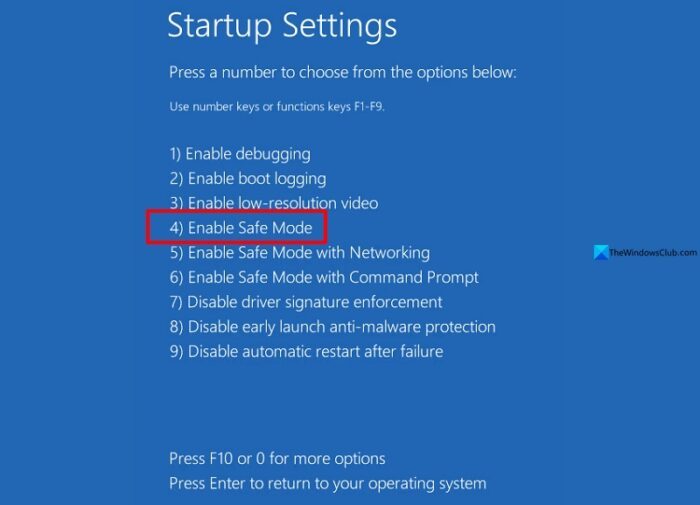
It will boot into Windows Safe Mode. If the built-in administrator account appears on the login screen, you can log in without a password. Then, open the command prompt and enter the following commands one after another to create a new user account and make it the administrator account for your PC.
net user Admin password123 /add
net localgroup administrators Admin /add
You can replace Admin in the commands with a name you like. You can also replace the password “123” with a strong one.
In modern PCs with Windows 11, the built-in administrator accounts are not accessible even in Safe Mode. If that is the case for you, first enable the built-in administrator account. To do that, press Win+X on your keyboard and select Terminal (Admin). Type the following command and press Enter.
net user administrator /active:yes
It will enable the hidden administrator account, and you can now proceed to create a new administrator account.
4] Perform a System Restore
Performing a System Restore to a restore point when your administrator account was working properly can help you recover it. You have to do it from the Windows Recovery Environment. Access the Windows Recovery Environment, select Troubleshoot, and go to Advanced options. Then, select System Restore.
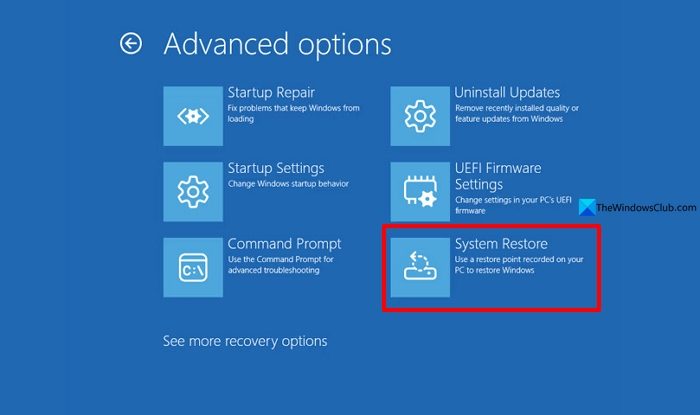
Select a restore point and proceed to restore your Windows PC if the administrator account was not deleted.
5] Reset Windows
If any of the above methods work, including the System Restore, you need to reset your PC from Windows Recovery Environment. On the Troubleshoot screen in Windows Recovery Environment, select Reset this PC.

Then, choose the option to keep your files or remove everything. It will take a few minutes where your PC might go black. Wait for the process to complete and set it up again with a new administrator account.
Read: Create new Hidden Administrator User Account In Windows 11
