
We have encountered many users who have lost administrator rights on their Windows 11/10 PCs and thus were unable to make changes to their systems. One common thing I found regarding the issue is that the users who have lost their administrator rights have only a single account on their system, which was, of course, the administrator account. As a result of losing admin rights, you may have issues using Windows Apps, creating or modifying Windows configuration settings in Control Panel, using Snap-ins, and several other problems on your system.
It thus becomes imperative for us to regain administrator privileges, anyhow, if we want to run the system without roadblocks. But how do you regain these privileges, since every operation you have to carry out requires the administrative rights we have unfortunately lost?
Lost Administrator Rights in Windows 11
If you’ve lost administrator rights in Windows 11/10 and cannot make changes to your system, you can regain or get back admin privileges by following these suggestions:
1] Enable the hidden admin account
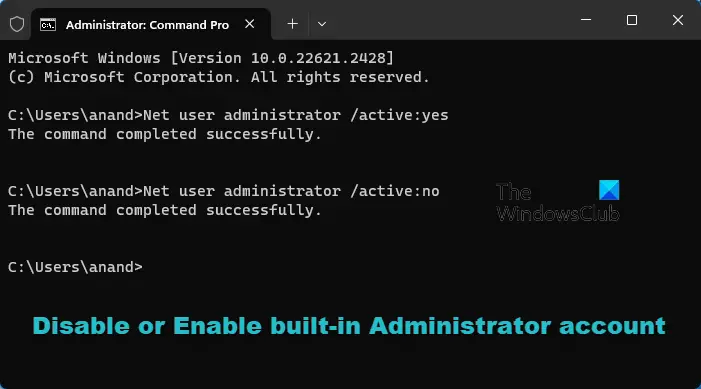
See if you are able to activate the hidden super administrator account. Just in case you are able to, great – it will help you move forward. This is pretty useful if you find that you have locked yourself out of your main account by accident and you want a back door entry.
2] Use Control Panel
Press WinKey + Q, type user accounts, and click on the result.
Then select your User Account > Click Manage another account.
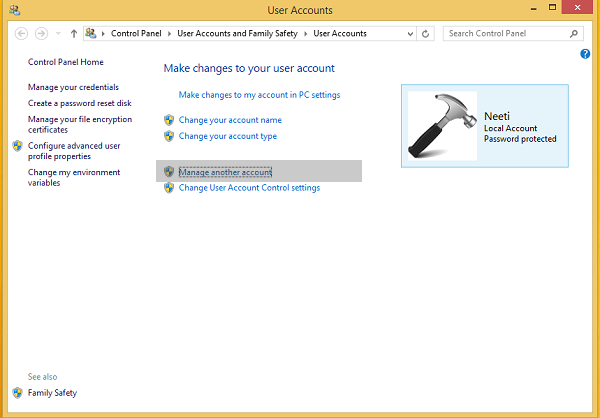
In the following window, click Add a user account option.
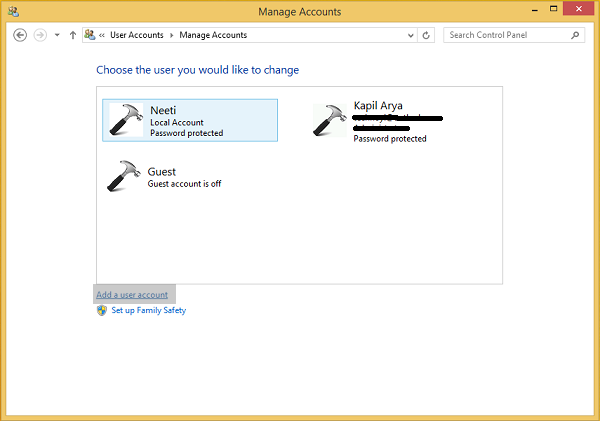
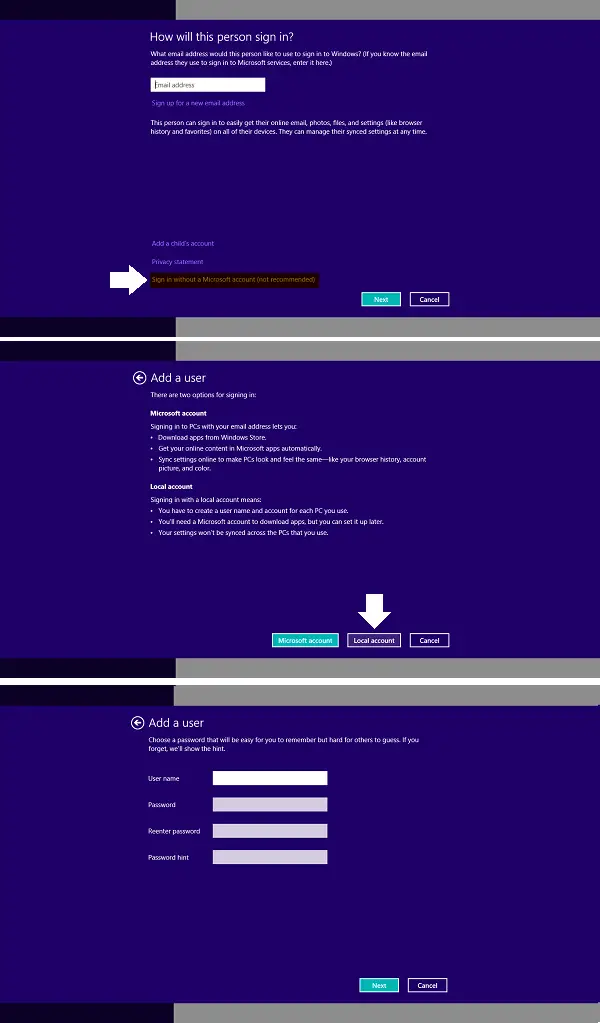
Now we have to create a local account user. So after clicking Add an account, click Sign in without a Microsoft account (Not recommended), then click Local account. Fill the details on the screen for adding a local account.
Click Finish when done.
Press Windows Key + Q and type cmd, for the search results, click Command Prompt. Type the following the command and hit Enter key:
shutdown /r /o
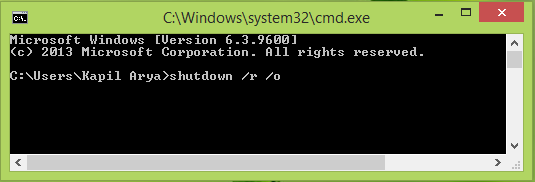
4. The previous step will result in your system booting into Safe Mode.
After getting into Safe Mode, press Windows Key + Q, type user accounts, and pick the same from the results that appear. You now have two accounts on your system: first, your issued admin account and second, the local account you created in step 2. Select the local account.
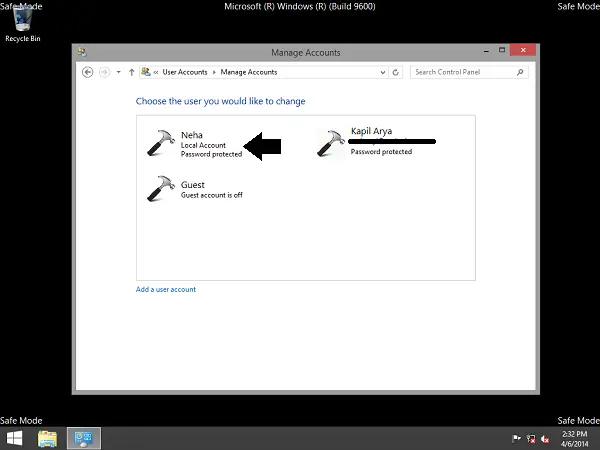
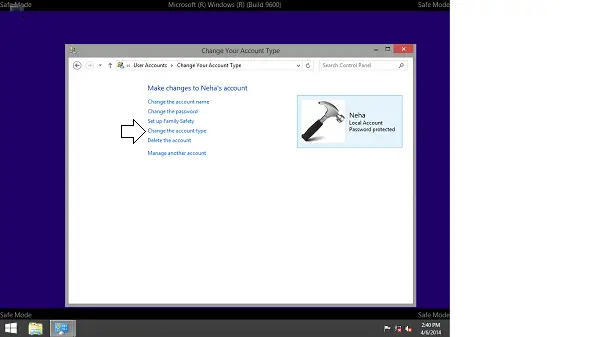
Now click Change the account type link in the following window:
Moving on, change the account status from Standard to Administrator. Click Change Account Type.
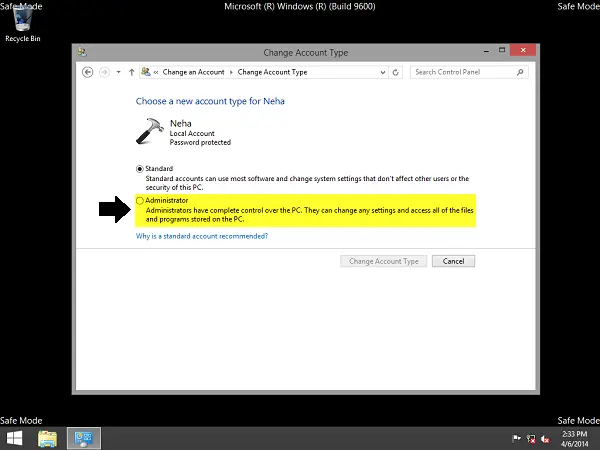
In this way, the new local account we’ve created has been changed to Administrator. Now you can restart your machine and log in to this account with administrator rights. Since you have administrative privileges now; so you can backup your documents from the old administrator account.
Finally, delete the old admin account and switch to Microsoft account to synchronize your settings with a new administrative account. Your system will now act normally with full admin rights in your hand.
3] Use CMD
In an elevated CMD execute this command and see – net localgroup administrators <username> /add
This should create an admin account. Does this work for you?
4] Run AV scan
Run your antivirus software. Malware is known to sometimes block admin privileges.
5] Try in Clean Boot State
Perform Clean Boot and see. If the problem goes away, see if you can identify the culprit.
6] Try in Safe Mode
Press Win+R, type netplwiz, hit Enter.
Select your user > Properties > Group Membership > Administrator.
Restart normally; your account now has admin rights.
7] Use iCals
You can also try using the iCacls command to see if it helps. This command-line utility can be used to modify security descriptors and NTFS file system permissions.
Press the Shift key and the Power button to restart your Windows PC. You will boot Advanced Menu options.
Here click > Troubleshooting > Command prompt. In the CMD window which opens, type the following command to reset permissions.
cd /d c:\ icacls * /T /Q /C /RESET
Restart your computer and check
8] Run System Restore
If that does not help, you could boot into Recovery using a Windows DVD or the Recovery partition and run System Restore to restore your computer to a prior point in time.
9] Check Policy setting
For domain computers, check with your system administrator whether any new restrictions have been applied. This policy setting can be used by Domain Administrators to ensure that only select authorized users are allowed to become members of groups like, say, the Administrators group: Computer Configuration > Windows Settings > Security Settings > Restricted Groups.
10] Repair Windows
Use Windows Update to reinstall Windows or use Reset This PC to repair Windows. This will fix the problem for you.
Hope something helps you.
Read: Admin account is missing after Windows Update.
