
Sometimes, you may want to add a new administrator account in Windows 11/10 to get administrative privileges or troubleshoot some issues. This post shows you 3 ways to create a Local Administrator Account in Windows 11/10.
How to make an Administrator Account in Windows 11
We can create a local administrator account in Windows 11/10 in 3 quick and easy ways. We’ll explore this topic under the methods outlined below in this section:
- Via the Settings app
- Via Command Prompt
- Via Local Users and Groups console
Let’s look at the step-by-step process for each method.
1] Create a Local Administrator account via the Settings app
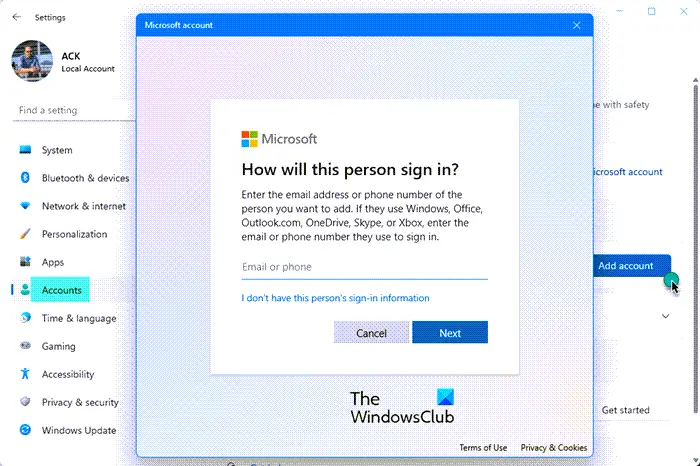
To create a Local Administrator account from the Settings app, do the following:
- Press the Windows key + I to open Settings.
- Tap or click Accounts.
- Click Family & other users on the left pane.
- Click Add someone else to this PC on the right pane.
- Click the I don’t have this person’s sign-in information link on the open Microsoft account window.
- On the next page, click the Add a user without a Microsoft account link.
- Now enter a user name for your new local account.
- Specify a password if you like.
- Click Next.
Once you click Next, you will be redirected back to the Accounts screen, and there, you can see the new local account you just created. By default, the newly created account is a standard account.
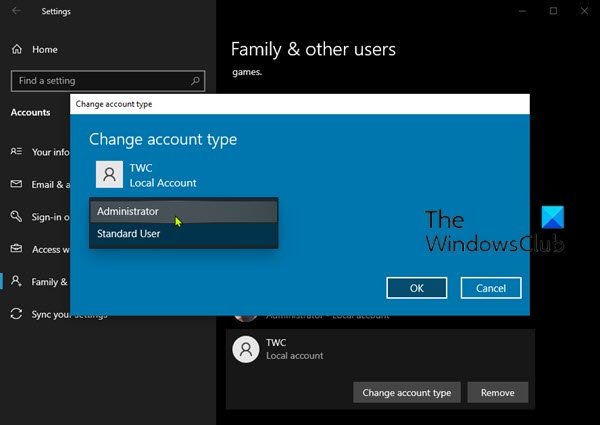
Therefore, we will need to create an administrator account. To do this, click on the account name and then select the Change account type button.
- Under Account type, select Administrator.
- Click OK.
You’ve successfully created a new local administrator account in Windows 11/10 via the Settings app.
TIP: This post will help you if you cannot create a new User Account.
2] Create a Local Administrator account via Command Prompt
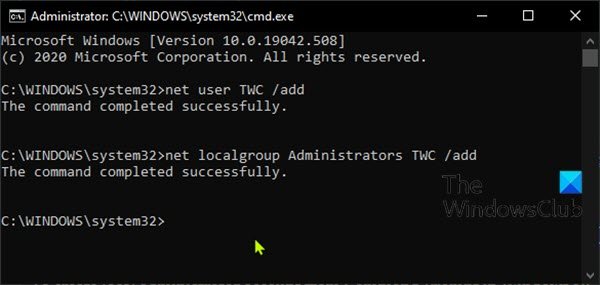
To create a local administrator account from Command Prompt in Windows 11/10, do the following:
- Press the Windows key + R to invoke the Run dialog.
- In the Run dialog box, type
cmdand then press CTRL + SHIFT + ENTER to open Command Prompt in elevated mode. - In the command prompt window, type the command below and hit Enter. Substitute the
UserNameplaceholder in the command with the actual name of your new local account.
net user UserName /add
- Next, in the command prompt, run the command below to add the new account to the Administrator group.
net localgroup Administrators UserName /add
Using the CMD prompt, you’ve successfully created a new local administrator account in Windows.
TIP: This post will show you how to create a Local Administrator Account using UTOMAN.exe when you cannot sign in to Windows 11
3] Create a Local Administrator account via the Local Users and Groups console
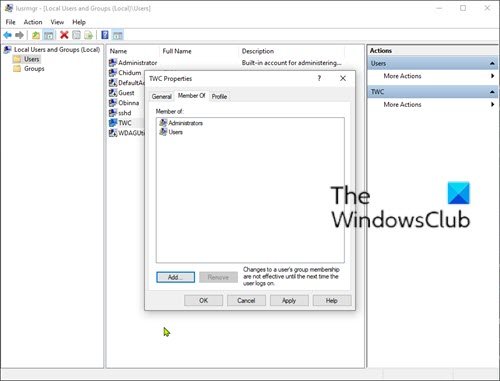
To create a Local Administrator account from the Local Users and Groups console, do the following:
- Press the Windows key + R to invoke the Run dialog.
- In the Run dialog box, type
lusrmgr.mscand hit Enter to open Local Users and Groups. - Right-click on the Users folder on the left pane.
- Select New User from the menu.
- Enter a user name for the new user.
- Uncheck User must change password at the next logon.
- Check the Password never expires option.
- Click Create.
- Click Close.
Now you can see the new user from the user’s list. By default, the newly created user is a standard account. To change the standard user to administrator, double-click on the new user to change its properties.
- When the user’s Properties dialog opens, select the Member Of tab.
- Click the Add button.
- When the Select Groups dialog opens, type Administrators in the object names box.
- Click OK.
- Click Apply.
You’ve successfully created a new local administrator account in Windows 11/10 via the Local Users and Groups console.
Related posts:
- How to login as an Administrator in Windows
- How to create a Hidden Administrator User Account in Windows.
How to Convert Local Account into Microsoft Account?
To convert a local account into a Microsoft account in Windows, you can go to Settings > Accounts > Your Info > Your email and accounts, then click on Sign in with a Microsoft account instead. Once you enter the Microsoft account credentials, it will convert it into a Microsoft account and enable features such as device sync and Microsoft Store. While your account is being converted, you will still be able to access it as you did before, retaining your administrator rights if you had them prior to conversion.
Should you use the local administrator account?
Some users may prefer to use a local administrator account instead of a Microsoft account for reasons such as Privacy, Security, Offline access, and better control over data on the PC. It is typically useful when you want an offline PC connected to the internet but not with Microsoft services. You can use it to test applications and websites, as an offline backup server, and so on. That said, there are several benefits to using a Microsoft account, including accessing your files and settings from any device and utilizing online services like OneDrive and Office 365.
