
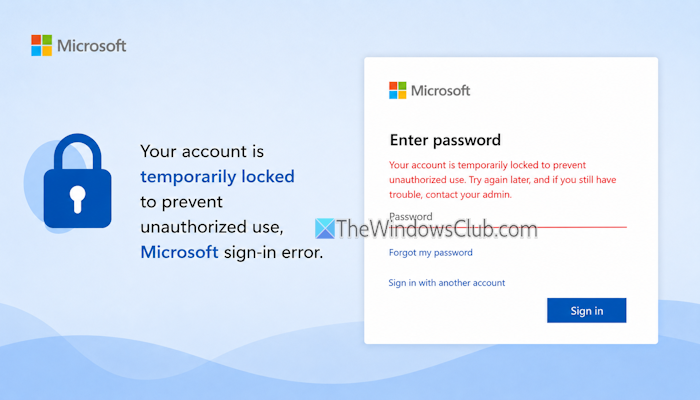
Some users have reported that when they try to sign in to their Microsoft 365 account (Outlook or other apps), they receive an error that says Your account is temporarily locked to prevent unauthorized use. Users encountered this error on their personal and school or work accounts (including Microsoft Entra ID integrated applications). For those who face this issue, we have included some working fixes here. The entire error message goes like this:
Your account is temporarily locked to prevent unauthorized use. Try again later, and if you still have trouble, contact your admin.
How long is a Microsoft account temporarily locked for?
A temporarily locked Microsoft account may last up to 24 hours due to too many failed sign-in attempts and suspicious activity. But it can extend up to a week. On the other hand, if the account is managed by your organization, the default account lockout duration is 30 minutes, which can be extended.
Your account is temporarily locked to prevent unauthorized use, Microsoft sign-in error
To solve this “Your account is temporarily locked to prevent unauthorized use” Microsoft sign-in error, use these fixes:
- Wait for the account lockout duration to end
- Unblock sign-in using the Microsoft 365 admin center
- Confirm sign-in safe using the Microsoft Entra admin center
- Confirm user safe in the Microsoft Entra admin center
- Change your password
- Check your sign-in activity (and then you can check devices, recent sign-ins, enable two-step verification, use passkeys
- Contact Microsoft Support.
Let’s check these solutions.
1] Wait for the account lockout duration to end
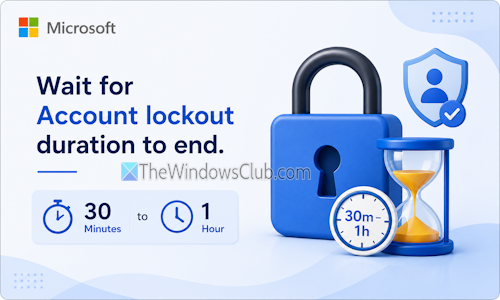
Microsoft can temporarily lock your account if there are multiple failed sign-in attempts, unusual or suspicious activity, an unfamiliar device or location, etc., to protect from the unauthorized access. In this case, you need to wait for the account lockout duration (around 30 minutes to 1 hour) to end.
After that, try to sign in to your Microsoft 365 account from a familiar device and location using the correct password. It should work.
2] Unblock sign-in using Microsoft 365 admin center
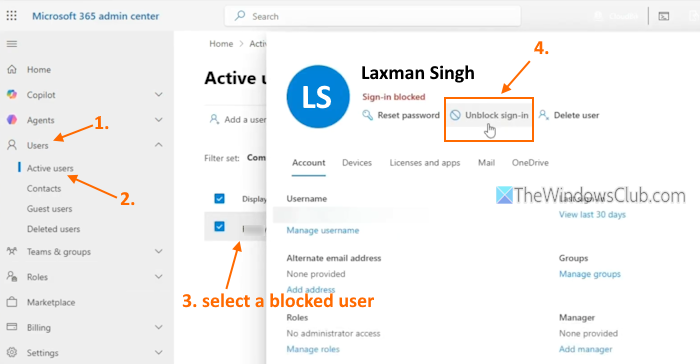
For a work account, an IT admin with access to the Microsoft 365 admin center can unblock sign-in for a user prevented from signing in. Here are the steps:
- Access the Microsoft 365 admin center homepage (admin.cloud.microsoft) and sign in with the required credentials
- In the dashboard, navigate to Users > Active users
- Select a blocked user from the list and click on its display name
- In the User Details Panel, click the Unblock sign-in option to confirm it.
Read: Locked out of the Microsoft 365 admin account? What to do?
3] Confirm sign-in safe using the Microsoft Entra admin center
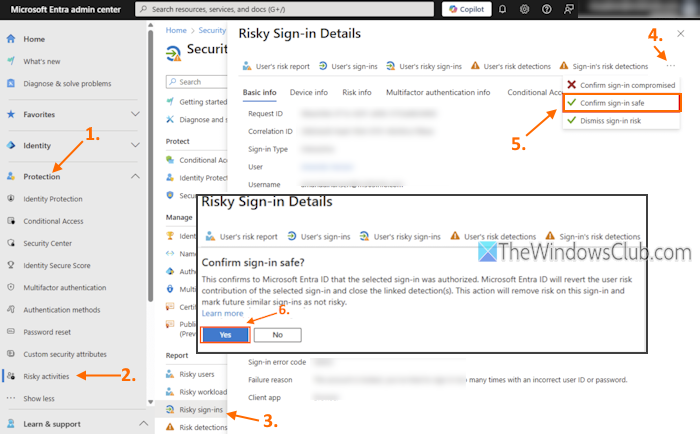
If the problem occurred for a Microsoft Entra ID (formerly Azure AD) integrated application, it is possible the account came under risky sign-ins (risk-based policies such as user-risk policy, sign-in risk policy set by the administrator, or unusual activity or multiple failed sign-in attempts). So, the user account is temporarily locked to prevent unauthorized use. If this is the case, you can access the Microsoft Entra admin center and confirm the sign-in safe report for that user account. Here are the steps:
- Access the homepage of the Microsoft Entra admin center (entra.microsoft.com/) and sign in with at least user administrator privileges
- In the Microsoft Entra admin center dashboard, expand the Protection section from the navigation pane
- Select Risky activities
- In the Report section, select Risky sign-ins
- In the right section, look for the user, IP address, date & time, and location to confirm and select the user
- In the Risky Sign-in Details page, click on the three horizontal dots (…) icon
- Click on Confirm sign-in safe
- In the confirmation box, press the Yes button.
Now that particular sign-in will be authorized and confirmed to Microsoft Entra ID. That means Microsoft Entra ID will remove risk on that sign-in and also mark future sign-ins as not risky. After this, wait a few minutes before you sign in to your Microsoft 365 account.
Also read: Can’t sign into Microsoft account after Password Reset
4] Confirm user safe in the Microsoft Entra admin center
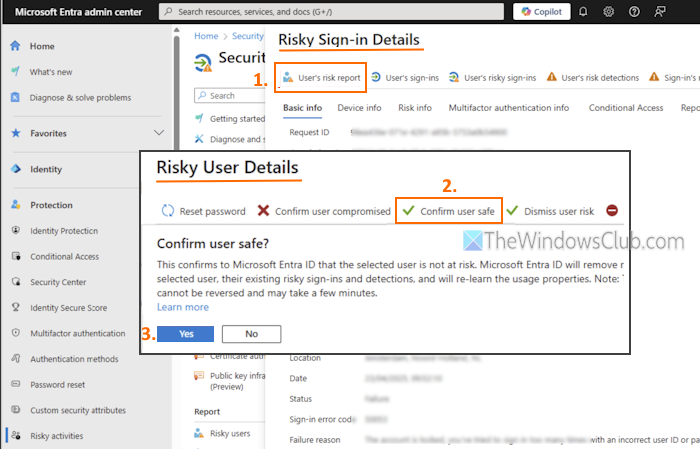
The solution covered above is used for risky sign-in, while this option helps to confirm in Microsoft Entra ID that the user is not at risk. This will remove the user’s overall risk state, including risky detections and sign-ins, and help Microsoft Entra ID re-learn the usage properties. To confirm that the user is safe to sign in, follow these steps:
- Sign in to the Microsoft Entra admin center with the correct administrator role
- In the dashboard, navigate to Protection > Risky activities
- Select Risky sign-ins (in the Report section)
- Select a user with the correct IP address, location, date & time, and username
- In the Risky Sign-in Details page, select the User’s risk report tab
- In the Risky User Details page, click on the Confirm user safe option
- Press the Yes button to confirm your action.
Wait for a few minutes to confirm that the selected user is not at risk.
5] Change your password
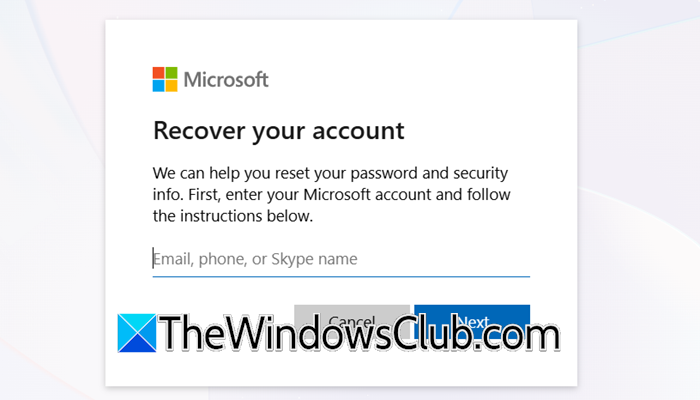
On the Microsoft sign-in error page, use the Forgot my password link to change your password and recover your account. You can also use other options, such as PIN, security key, passkey, face, or fingerprint, to recover your Microsoft account.
6] Check your sign-in activity
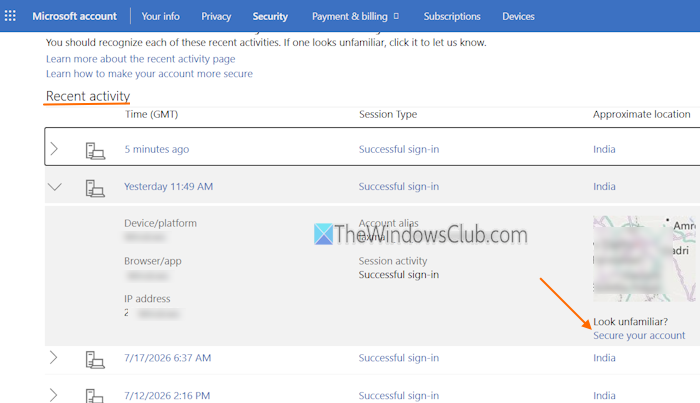
Once you get access to your Microsoft account (personal, work, or school), check your sign-in activity to find out if someone has accessed your Outlook account or identify any unfamiliar devices or locations and take action. For this:
- Access your Microsoft account dashboard
- Navigate to Security > Account Settings > View my sign-in activity. For a school or work account, click on the Recent Activity option from the navigation pane
- Now you will see a list of recent activities with Time, Session Type, and Approximate location
- Select an activity to expand it. You can see the Device (Windows, Mac, etc.), Browser/app used for sign-in, IP address, etc.
- If an activity looks unfamiliar, use the Secure your account option to take action.
TIP: For your Microsoft account protection, it is always good to create a strong password, consider using a passkey, enable MFA (Multi-Factor Authentication), and add additional security features.
7] Contact Microsoft Support
If the above solutions don’t work, you can contact Microsoft Support. For a work or school account, contact your admin to generate a ticket regarding your issue.
That’s all. Hope this helps.
Now read: Unblock and Recover a blocked or suspended Outlook, Hotmail or Microsoft account
Why am I getting a “Your account has been locked” Microsoft error?
If you receive a message that “Your account has been locked” when you try to sign in to your Microsoft account, it can happen because of multiple failed sign-in attempts. Additionally, if there is suspicious activity or your account violates Microsoft Terms of Use, this can also be the reason.
Read next: How to harden Microsoft Account Privacy Settings.
