
If you are experiencing issues signing in to your Microsoft account on Windows 11 or 10, this post can help. Some users are experiencing this issue, and it can be frustrating when all the data is at risk of being lost. However, the good news is that it’s easily fixed once we identify the cause. In this article, we will see what you can do if you can’t sign into a Microsoft account in Windows 11/10.
Why can’t I log into my Microsoft account on Windows 11?
You may be unable to log in due to incorrect credentials, network connectivity issues preventing authentication, or corrupted system files on your device. You can follow the solutions mentioned hereinafter to resolve the issue.
Can’t sign into Microsoft account in Windows 11
If you can’t sign in to a Microsoft account on Windows 11, try the solutions below.
- Use the ‘Forgot password’ link
- Use the Microsoft Account Sign-in Helper tool
- Run the Windows Network and Internet troubleshooter
- Fix credentials and system files
- Delete the credentials directory
- Create a new account
Let’s get this troubleshooting guide underway.
1] Use the ‘Forgot password’ link
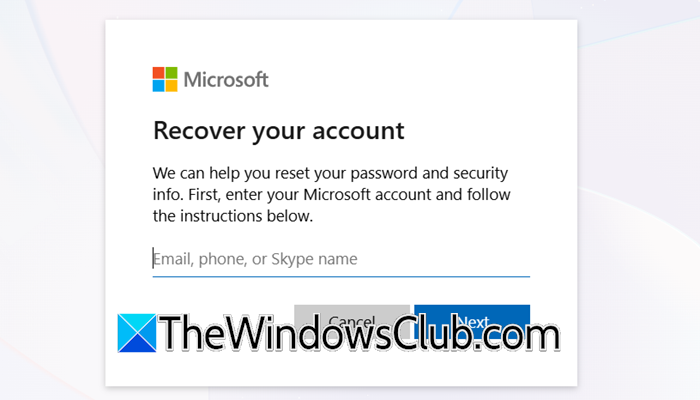
One of the most common reasons for a login failure is a credential mismatch, which happens when the provided password doesn’t match the one on record with Microsoft. Using the Forgot password link bypasses the stuck local login process and connects directly to Microsoft’s secure servers to reset the credentials.
- On the Windows 11 login screen, look for the I forgot my password, Forgot password, or Forgotten your password? link and click on it.
- Confirm the email address and click on the Recover your account screen. They will send you a security code to the alternate email or the registered number.
- Retrieve the security code, enter it on the screen, and once verified, create a new password.
After successfully retrieving the password, try logging in. If the issue persists after resetting the password, the error lies with the Windows system.
Alternatively, you can go here to reset your password.
If you have forgotten your email or username, visit this link.
This post will help if you are having problems receiving verification codes.
2] Use the Microsoft Account Sign-in Helper tool
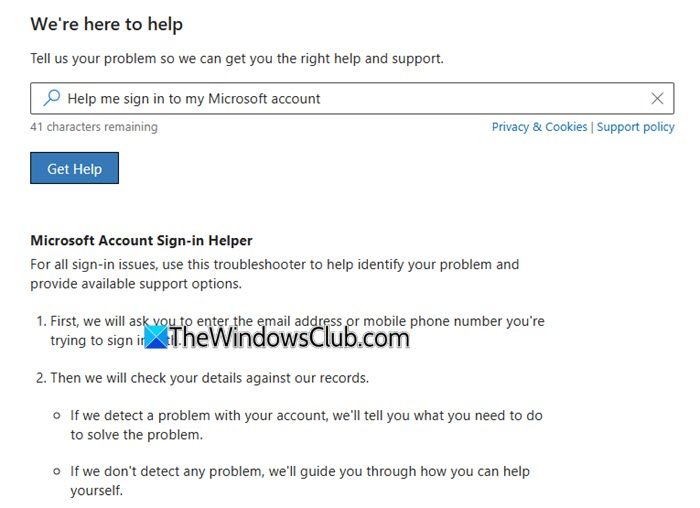
Go here to visit the Microsoft Account Sign-in Helper tool and follw the instructions.
3] Run the Windows Network and Internet troubleshooter
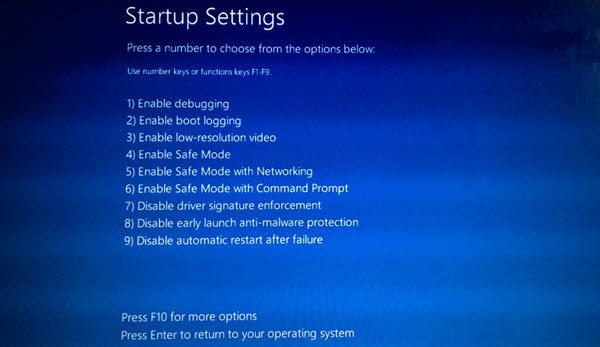
Corrupted network settings or connection glitches can also prevent the PC from connecting to the MS authentication servers. If this is the case, ensure you have a strong network connection. If the connection is stable, we’ll address the issue by booting into Safe Mode and running the Windows Network and Internet troubleshooter. To do the same, follow the steps mentioned below.
- On the Windows login screen, click the Power button, hold down the Shift key, and while holding it, select the Restart button.
- On the Choose Option screen, click on the Troubleshoot button, and select Advanced Options.
- Next, click on the Startup Settings and select Restart. After the PC starts, hit the 5 or F5 key to select Enable Safe Mode with Networking.
- Once in the safe boot, go to the Search bar, type Get Help and open the app. There, search for Network and Internet troubleshooter and press Enter.
After the app launches the dedicated troubleshooter, follow the on-screen instructions and apply the recommended fixes. Once done, restart the PC, and verify if you can sign in successfully. If the sign-in problem persists, see the next solution.
4] Fix credentials and system files
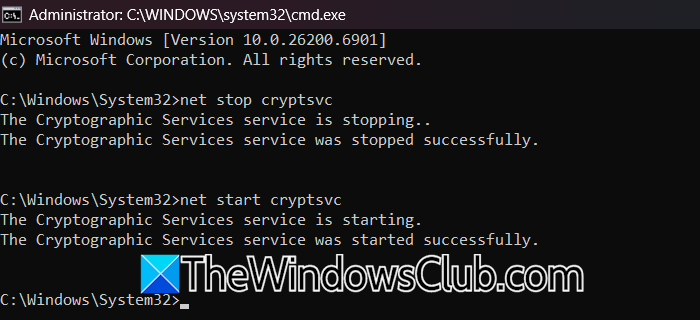
Operating system files and login tokens stored in the Windows profile can become outdated or corrupted, preventing authentication. Since we are completely logged out, we will repair these components in Safe mode.
- On the Windows login screen, click the Power button > Shift key> Restart button.
- Click on the Troubleshoot button, select Advanced Options, then click on the Startup Settings and select Restart. Once the device reboots, press 6 or F6 to Enable Safe mode with Command Prompt.
- In the command prompt, type the following command and press Enter to run SFC:
sfc/ scannow
- After SFC finishes, run DISM by executing the following command:
DISM /Online /Cleanup-Image /RestoreHealth
- Next, execute these commands one after the other to reset the digital certificates:
net stop cryptsvc

net start cryptsvc
- Now, type the following command and hit Enter:
ren "C:\Users\[YourUsername]\AppData\Local\Microsoft\Credentials" "Credentials.old"
Note: Change [YourUserName] with the actual account user name.
Once all the commands are executed, type exit and press Enter to close the Command Prompt. Restart the device, and test if signing in is possible. Please proceed to the next solution in case it’s still not possible to sign in.
Read: We can’t sign into your account message in Windows 11
5] Delete the credentials directory
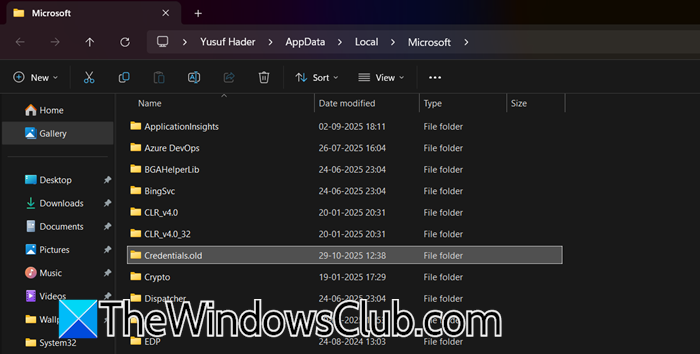
If credentials and system files were not the issue, then the next step is to delete the credential history while in Safe mode. As mentioned earlier, damaged or out-of-sync data with the Microsoft server can prevent a successful login, even when the correct password is entered.
First of all, boot into Safe Mode with Networking.
Then press Win + E to open File Explorer, and then go to the location mentioned below.
C:\Users\[YourUsername]\AppData\Local\Microsoft\
Note: (Replace [YourUsername] with your actual account name. If you don’t see AppData, go to View > Show > Hidden items.)
Alternatively, press Win + R, type %localappdata%\Microsoft, and press Enter to go directly to the folder
Locate the Credentials folder, right-click it, and select Rename. Change the name to Credentials.old and press Enter. Fully reboot the PC and check if you can sign in.
Read: How to recover Microsoft account without email and phone number
6] Create a new account
If none of the above solutions worked, creating a new local admin account is the last resort. This way, we can find out if the issue is isolated to the original user account. Here’s how to do the same.
- Boot into Advanced Options, and then select Command Prompt.
- Use any other administration account, enter its password, and then in the Command Prompt, execute the command and press Enter after every time.
net user /add TempAdmin *P@ssw0rd!

net localgroup administrators TempAdmin /add
- This creates a new user named TempAdmin with the password ‘P@ssw0rd!’. Users can change it according to their preference.
- Type exit, and press Enter to close the Command Prompt.
Click Continue to exit the recovery environment and boot into the normal Windows login screen. Select the TempAdmin as the sign-in option, and if you successfully sign in, then the issue is with the original user account. Now, create a backup of your data, and once the data is secure, go to Settings > System > Recovery. This will reinstall Windows and give users a complete slate to set up their new Microsoft account.
That’s it!
Read: Stuck in Password Reset Loop on Microsoft account
